REPAIRING AND NOT THROWING AWAY

Richtige Fernseher haben Röhren!

Richtige Fernseher haben Röhren!

In Brief: On this site you will find pictures and technical information about Service Modes, Circuit Diagrams, Firmware Update procedure, Disassemble procedure, Universal remote control set-up codes, Troubleshooting and more....

If you go into the profession, you will obtain or have access to a variety of tech tips databases HERE IT IS Master Electronics Repair !.

These are an excellent investment where the saying: 'time-is-money' rules. However, to learn, you need to develop a general troubleshooting approach - a logical, methodical, method of narrowing down the problem. A tech tip database might suggest: 'Replace C536' for a particular symptom. This is good advice for a specific problem on one model. However, what you really want to understand is why C536 was the cause and how to pinpoint the culprit in general even if you don't have a service manual or schematic and your tech tip database doesn't have an entry for your sick TV or VCR.

While schematics are nice, you won't always have them or be able to justify the purchase for a one-of repair. Therefore, in many cases, some reverse engineering will be necessary. The time will be well spent since even if you don't see another instance of the same model in your entire lifetime, you will have learned something in the process that can be applied to other equipment problems.
As always, when you get stuck, checking out a tech-tips database may quickly identify your problem and solution.In that case, you can greatly simplify your troubleshooting or at least confirm a diagnosis before ordering parts.

Happy repairing!
Today, the West is headed for the abyss. For the ultimate fate of our disposable society is for that society itself to be disposed of. And this will happen sooner, rather than later.

How to use the site:

- If you landed here via any Search Engine, you will get what you searched for and you can search more using the search this blog feature provided by Google. You can visit more posts scrolling the left blog archive of all posts of the month/year,
or you can click on the main photo-page to start from the main page. Doing so it starts from the most recent post to the older post simple clicking on the Older Post button on the bottom of each page after reading , post after post.

You can even visit all posts, time to time, when reaching the bottom end of each page and click on the Older Post button.

- If you arrived here at the main page via bookmark you can visit all the site scrolling the left blog archive of all posts of the month/year pointing were you want , or more simple You can even visit all blog posts, from newer to older, clicking at the end of each bottom page on the Older Post button.
So you can see all the blog/site content surfing all pages in it.

- The search this blog feature provided by Google is a real search engine. If you're pointing particular things it will search IT for you; or you can place a brand name in the search query at your choice and visit all results page by page. It's useful since the content of the site is very large.

Note that if you don't find what you searched for, try it after a period of time; the site is a never ending job !

..............The bitterness of poor quality is remembered long after the sweetness of todays funny gadgets low price has faded from memory........ . . . . . .....
Don't forget the past, the end of the world is upon us! Pretty soon it will all turn to dust!

©2010, 2011, 2012, 2013, 2014 Frank Sharp - You do not have permission to copy photos and words from this blog, and any content may be never used it for auctions or commercial purposes, however feel free to post anything you see here with a courtesy link back, btw a link to the original post here , is mandatory.
All posts are presented here for informative, historical and educative purposes as applicable within fair use. NOTHING HERE IS FOR SALE !

Showing posts with label ACCELL.. Show all posts

Saturday, 6 April 2019

SONY KDL-40/46/T3500/40V2900 – SMPS SCHEMATIC

Sony KDL-40/46/T3500/40V2900 – SMPS schematic

Power supply regulator board CIRCUIT DIAGRAM - Sony KDL40, KDL46, KDL40V2900 LCD TV
Click on the schematics to magnify

Wednesday, 27 March 2019

ACCELL FITNESS _ TUNTURI E30, E40, E45, E60, E80 and E85 _ SERVICE DETAILS _ ELECTRONICS

ACCELL FITNESS _ TUNTURI E30, E40, E45, E60, E80 and E85 _ SERVICE DETAILS _ ELECTRONICS


All ergo meters (E30, E40, E45, E60, E80 and E85) have the same electromagnetic brake construction and apart from the E30 all the electronics and wiring are identical excluding user interface
The user interface features two menus where technical information can be edited. The first one, Settings menu, is a public menu available also to the end user and accessed via normal menus under user settings.


SETTINGS MENU

Name
Function

Bike totals / Cross trainer totals
Total training time and distance on the equipment. Use 'CLEAR' to reset both
Values.
SW upgrade
Shows the user interface's software version. See more details about updating
the user interface software
Volume control
Set the meter's audio signals on or off
Display contrast
Adjust display contrast

SERVICE MENU
  • Enter Settings menu as described above.
  • Hold down 'ZOOM' –button and rotate selection wheel first 5 steps (minimum) counter-clockwise and then 5 steps clockwise.
NAME
FUNCTION
Save parameters

Restore parameters

Odometer
Total training time and distance on the equipment. These values can not be
Reseted
Calibrate brake

Edit calibration

UPDATING SOFTWARE
The software of the Tunturi , E40, E45, E60, E80 and E85 can be updated via USB connection by uploading the new software from a PC. The PC needs to be connected to the user interface with USBcable (comes with the sales package). Before starting the update procedure make sure you have all the
following:
     A PC or laptop with USB port
     USB cable
     A new software file (of *.exe type) available on PC's hard disk. Latest versions of software and version histories are available on Tunturi extranet.

UPDATE PROCEDURE
  • Connect the USB cable between the PC and user interface (must be switched on)
  • Go to the Settings menu and select 'SW UPGRADE'.
  • If 'READY TO BEGIN' is displayed on the user interface's screen, start the update by double-clicking the update file.
  • 'ATTACH USB CABLE' means that the connection hasn't been established. Check connection and restart PC if needed.

Double-click the update file and the dialog below appears


  • Click "Start" to start upgrade process


  • The update process will take a minute or less, depending on the size of update file. After the update is completed, the user interface is automatically reseted and the start-up can take up to 30 seconds.  Do not switch off the product during the recovery.
  • After update verify that the new software version is in use by checking the software version number from Settings – SW Upgrade menu.
UPDATING THE E-80 & E-85 WITH A USB STICK
The Tunturi E80 and E85 software can also be updated from a USB Flash memory stick. The software update file must be in the root of the flash drive (i.e. not in a folder).
To update the software proceed as follows:
  • Place the USB stick to either of the slots on the back of the console
  • Go to the Settings menu and select 'SOFTWARE UPGRADE'.
  • Choose ‘USB Flash Drive’
  • Choose correct software update file to start update process

NOTE! Do not rename the update files.

ACCELL FITNESS TUNTURI E30, E40, E45, E60, E80 AND E85 CALIBRATION

ACCELL FITNESS _ TUNTURI E30, E40, E45, E60, E80 and E85 _ CALIBRATION


CALIBRATION

Calibration parameters are fine-tuning values according to which the software calculates and adjusts the current to the electromagnetic brake so that desired pedalling resistance is obtained. Because each unit is calibrated in the production, the parameters compensate mechanical and electrical differences caused by component and assembly tolerances between different units.
The software stores the calibration parameters in two separate places:
  • To the user interface's flash -memory
  • To the EEPROM -memory located on the lower power board. (lower power board memory referred as "EEPROM")

Storing parameters in two separate places facilitates repairing of a defective product. The need of re calibrating the brake system can in most of the cases be avoided by restoring the original parameters from either memory. Calibration parameters are also written in the production on a label located on the product frame post near lower board.

SERVICE MENU CALIBRATION FUNCTIONS

NAME
FUNCTION

Save parameters
Saves all edited data to EEPROM
Restore parameters
Copies brake calibration parameters from EEPROM to user interface. The
parameters will be used only until next start-up, unless separately saved in the
memory with 'Save' function.
Odometer

Calibrate brake
Brake can be calibrated with a dynamometer following the instructions on the screen (calibration at 100 and 60 RPM)
Edit calibration
Manually edit brake calibration parameters. Edited parameters must be saved in the memory using the 'Save parameters' function before exiting the ‘Service’ menu to activate them.
NB! One does not need to access the service menu when replacing either user interface or lower board is replaced. The software will automatically detect the modification and function.

CALIBRATION PARAMETERS
At the start-up the software reads calibration parameters from both user interface and EEPROM. It compares the parameters that they are matching and are within preset limits.

DEFAULT BRAKE CALIBRATION VALUES AND LIMITS

PARAMETER
DEFAULT VALUE
MIN. LIMIT
MAX. LIMIT

A
25000
-50%
+50%
G
150
-50%
+50%
N0
20
-50%
+50%
S60
254234
-25%
+25%
D (delta)
0
0
10% of s60 default value

The comparison of the parameters during the start-up can result one of the following options:
  •  Both user interface and EEPROM parameters are valid (within the limits) and they are matching together.
  • Both user interface and EEPROM parameters are valid (within the limits), but they are not matching together.
  • Only user interface parameters are valid (within the limits)
  • Only EEPROM parameters are valid (within the limits)
  • Neither memory has valid parameters.
PARAMETERS VALID AND MATCHING TOGETHER
This is the normal situation. The software will use the calibration parameters read from the EEPROM and use them to control the electromagnetic brake without notifying anything to user.

PARAMETER VALID BUT NOT MATCHING TOGETHER
The most probable reason for this is that the user interface has been in use and transferred to another frame. In this case the software will prioritize the EEPROM parameters over the ones in the user interface. This is because the components that have the most affect on the parameters are on the frame and thus the EEPROM will have more accurate parameters for the new combination.

Following question will be displayed on the display:
"Calibration parameters of User Interface and EEPROM are not equal. Restore brake calibration from EEPROM to user interface? YES / NO"
YES: The software will use the parameters from the EEPROM for controlling the electromagnetic brake and store them also to the user interface memory.
NO (or reset): The software will use the parameters from the EEPROM for controlling the electromagnetic brake but will not store them to user interface memory. The question will be displayed again after restart.
Note:  The case can also be that a second-hand lower board has been installed to the frame. In such case the correct calibration parameters are on the user interface memory and should not be overwritten with the ones from the EEPROM. One can get the correct parameters in use by first answering 'NO' to the question and after that manually saving the parameters to the EEPROM with 'SAVE' function in Service – Edit calibration menu.

ONLY USER INTERFACE HAS VALID PARAMETERS
The parameters on the EEPROM are not valid for some reason (e.g. the lower board is a spare part which are not pre-calibrated). Following question will be displayed on the screen:
"Calibration parameters of EEPROM are not valid. Restore brake calibration from User Interface to EEPROM? YES / NO"
YES: The software will use the parameters from the user interface memory for controlling the electromagnetic brake and store them also to EEPROM.
NO (or reset): The software will use the parameters from the user interface memory for controlling the electromagnetic brake but will not store them to EEPROM. The question will be displayed again after restart.

ONLY EEPROM HAS VALID PARAMETERS
The parameters on the user interface memory are not valid for some reason (e.g. it is a spare part which are not pre-calibrated). Following question will be displayed on the screen:
" Calibration parameters of User Interface are not valid. Restore brake calibration from EEPROM to user interface? YES / NO"
YES: The software will use the parameters from the EEPROM for controlling the electromagnetic brake and store them also to user interface memory.
NO (or reset): The software will use the parameters from the EEPROM for controlling the electromagnetic brake but will not store them to user interface memory. The question will be displayed again after restart.

NEITHER MEMORY HAS VALID PARAMETERS
User will be notified with following message:
"Brake is not calibrated"
The software will use the default parameters (see Table 5-2), which will ensure satisfactory accuracy of the ergometer resistance system. To have original parameters in effect again one needs to manually add them to the memory through Service menu. Original parameters are written on label attached to the product frame post inside side covers.

ACCELL FITNESS _ TUNTURI _ T-10_T-20 _ TESTING MODE _ LIFT MOTOR CALIBRATION

ACCELL FITNESS _ TUNTURI _ T-10_T-20 _ TESTING MODE _ LIFT MOTOR CALIBRATION


TESTING MODE

  1. Enter the testing mode after switching the treadmill POWER ON by pushing first ‘SELECT’ and then ‘SPEED DOWN’ and hold buttons pressed simultaneously
  2. LED scanning mode for verifying display functionality
  3. Press ‘ENTER’ to scan DATA LINES to verify display functionality
  4. Press ‘ENTER’ to scan SACN LINES to verify display functionality
  5. Press ‘ENTER’ to scan LED’s to verify display functionality
  6. After pressing ‘ENTER’ the TIME window shows “test” and the keypad functionality can be tested (the value displayed changes when a button is being pressed)
  7. Press ‘ENTER’ to enter IO mode (TIME display shows lift motor potentiometer value, SPEED reads speed from speed sensor and DISTANCE shows heart rate pulse).
#  Press ‘START’ to test lower board relay (a “click” sound) and then press ‘ELEVATION UP’ for 2 seconds to increase the elevation to 8%. Press ‘ELEVATION DOWN’ to decrease the elevation to minimum percentage 0%
#  Press ‘SPEED UP’ to increase speed value and ‘SPEED DOWN’ to decrease speed value.

  • Press ‘ENTER’ to repeat above test or ‘SELECT’ and ‘ SPEED DOWN’ buttons simultaneously to return to the normal mode.
LIFT MOTOR CALIBRATION
The lift motor calibration is done manually by following the following steps:
  • Drive the lift motor to 0% from user interface (inclination display must be 0%)
  • Switch off the treadmill and unplug the power cable
  • Remove motor cover
  • Fold up the running deck
  • Loosen two screws (A) attaching the lift motor nut (B) to the incline frame.


  • Adjust the lift motor nut (B) so that there is 9 mm gap between the upper end of the nut and the lift motor frame.   Tighten the screws (A) and verify correct elevation by measuring. 


Lift motor calibration is needed if any of the following has taken place:
The lift motor has been removed from the frame
The actual and the displayed elevation angle doesn't match.

ACCELL FITNESS BREMSHEY-SPORT ORBIT ELLIPTICAL TRAINER CALIBRATING THE SERVO MOTOR & FLYWHEEL BRAKE CABLE

ACCELL FITNESS BREMSHEY-SPORT_ORBIT ELLIPTICAL TRAINER _ CALIBRATING THE SERVO MOTOR & FLYWHEEL BRAKE CABLE


It is important that the brake mechanism is set up so that it is possible to achieve the correct minimum and maximum settings. When a new servo-motor is fitted the following procedure should followed.
  • Whilst rotating the rear drum, increase the resistance with the meter keys to maximum checking that the cable and flywheel slider is moving freely.
  • Whilst rotating the rear drum, decrease the resistance with the meter keys to minimum checking that the cable and flywheel slider is moving freely.
  • At minimum setting check that the braking resistance is minimal and that there is a 2mm gap between the bottom of the slider and its case.


With this system, data is sent from the display meter to the brake control circuit board as a resistance level is selected either via a key press or a program. The board in turn supplies power to the electromagnetic brake coil to increase the magnetic field in order to apply the resistance.
If it is not possible to apply or control the resistance the fault is typically found within the brake control circuit. However, failure within the wiring set or the meter can also be a cause. It is quite rare for the electromagnetic coil to fail.  The resistance values for the coil can be increased by adjusting the trimpot on the circuit board. However, great care should be taken with small adjustments and testing in order to avoid unstable resistance control.  The circuit board can be replaced by removing 4 x screws fixing it to the frame and unplugging the cables. If required, the coil can be detached by removing the bolts.


FLYWHEEL AND TRANSMISSION
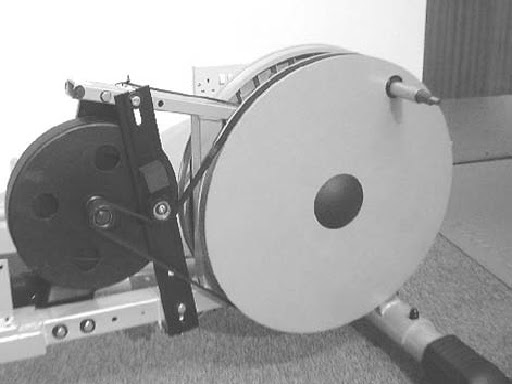
The transmission system consists of a rear drum which drives the resistance flywheel via a grooved belt which is adjusted and controlled with a tensioning wheel device. This system has varied between models and the 2 main different systems are shown.


TRANSMISSION BELT
The transmission belt if not correctly aligned tensioned can cause noise and long-term damage to the belt and other associated components. It will be necessary to remove both covers and disconnect both foot –tubes to work on transmission problems.  If the drive belt has removed itself or is worn/damaged after replacing the belt it will be necessary to check the tension and alignment to establish the cause of the failure.

REPLACING DRIVE BELT [FOR TYPE-1]
  • Slacken off the vertical tensioning bar by loosening the upper and lower locking bolts (f) and then remove lower adjusting bolt (g)
  • Remove the belt rotating by the drum clockwise whist feeding the belt off the flywheel boss. (See diagram 16 below) (Warning! Be careful not to trap fingers at this point.)
  • Before replacing the belt ensure that the grooves of the rear drum and resistance flywheel boss are cleared off any dirt or debris.
  • Recommend that at this point the lower adjuster bolt is unscrewed, the spring that is sometimes located at the bottom of the vertical tensioning bar is removed, and the adjusting bolt re-fitted but not tightened. The spring can be discarded as it is not absolutely required.
  • Set the rear drum so that the axle stub is in a vertical position. Introduce the belt by fitting it over the resistance flywheel boss (groove side down) and under the upper tension wheel.
  • Run the belt on to the rear drum by feeding it round the top of the drum whilst rotating the drum in a clockwise direction. Continue to rotate the drum whilst forcing the belt to remain in place with your hand. Please ensure that at this point the belt remains on the resistance flywheel boss by observing its position during rotation. (Warning! Be careful not to trap fingers at this point.)


  • Adjust the drive belt tension. Screw the lower adjusting bolt until a satisfactory tension is achieved. The recommended tension should be set so that with firm pressure the drive belt can only be deflected in one direction by approximately 3 mm at the point shown. Inadequate tension can cause the belt to slip producing a squealing noise and unsmooth action Too greater tension will place undue pressure on the rear drum and bearings. When set re-tighten upper and lower locking bolts.

CHECKING THE SETTING BELT ALIGNMENT
  • Rotate drum in an anti – clockwise direction (simulating forward motion in use). Observe the belt alignment. Rotate the drum in the opposite direction (simulating reverse motion in use).  Observe the belt alignment. If the belt runs out of line it may be caused by incorrect tolerance of frame components.
  • Dressing the belt. We recommend that at this point that both sides of the belt are ‘dressed’ with light coating of French chalk as this can reduce noise and increase longevity of the belt
TYPE -2
  • Slacken off the vertical tensioning bar by loosening the upper and lower locking bolts (h) and then remove lower adjusting bolt. Unhook the spring attached to the floating tension wheel and let the wheel and arm fall away.
  • Remove the belt rotating by the drum clockwise whist feeding the belt off the flywheel boss. Se diagram 16 above) (Warning! Be careful not to trap fingers at this point.)
  • Before replacing the belt ensure that the grooves of the rear drum and resistance flywheel boss are cleared of any dirt or debris.
  • Recommend that at this point the lower adjuster bolt (i) is unscrewed, the spring that is sometimes located at the bottom of the vertical tensioning bar is removed, and the adjusting bolt re-fitted but not tightened. The spring can be discarded as it is not absolutely required. If you wish to remove the vertical tensioning bar then unscrew and remove the upper and lower locking bolts completely and the bar can be removed.
  • Set the rear drum so that the axle stub is in a vertical position. Introduce the belt by fitting it over the resistance flywheel boss (groove side down) and under the upper tension wheel (k), under over the top of the floating tension wheel.
  • Run the belt on to the rear drum by feeding it round the top of the drum whilst rotating the drum in a clockwise direction. Continue to rotate the drum whilst forcing the belt to remain in place with your hand. Ensure that at this point the the belt remains on the resistance flywheel boss by observing its position during rotation. (Warning! Be careful not to trap fingers at this point.)
ADJUST THE DRIVE BELT TENSION
  • Screw the lower adjusting bolt until a satisfactory tension is achieved. The recommended tension should be set so that with firm pressure the drive belt can only be deflected in one direction by approximately 3 mm at the point shown. Inadequate tension can cause the belt to slip producing a squealing noise and unsmooth action Too greater tension will place undue pressure on the rear drum and bearings. When set re-tighten upper and lower locking bolts.
CHECKING AND SETTING BELT ALIGNMENT

  • Rotate drum in an anti – clockwise direction (simulating forward motion in use). Observe the belt alignment.  Rotate the drum in the opposite direction (simulating reverse motion in use).  Observe the belt alignment. If the belt runs out of line it may be caused by incorrect tolerance of frame components. Now reattach the floating tension arm spring so that the wheel is now applying pressure to the drive belt. Rotate the drum as indicated previously. If the belt moves out of alignment the floating arm assembly may need to be adjusted by bending the floating wheel arm in or out. If the belt is running out (towards the covers) bend the arm towards the frame. If the belt is running in (towards the frame) bend the arm towards the covers. Only a small amount of movement may be necessary to realign the belt. This operation can be assisted if the floating wheel assembly is removed from the machine by unscrewing the securing nut.
DRESSING THE BELT
  • Recommend that at this point that both sides of the belt are ‘dressed’ with light coating of French chalk as this can reduce noise and increase longevity of the belt.