REPAIRING AND NOT THROWING AWAY

Richtige Fernseher haben Röhren!

Richtige Fernseher haben Röhren!

In Brief: On this site you will find pictures and technical information about Service Modes, Circuit Diagrams, Firmware Update procedure, Disassemble procedure, Universal remote control set-up codes, Troubleshooting and more....

If you go into the profession, you will obtain or have access to a variety of tech tips databases HERE IT IS Master Electronics Repair !.

These are an excellent investment where the saying: 'time-is-money' rules. However, to learn, you need to develop a general troubleshooting approach - a logical, methodical, method of narrowing down the problem. A tech tip database might suggest: 'Replace C536' for a particular symptom. This is good advice for a specific problem on one model. However, what you really want to understand is why C536 was the cause and how to pinpoint the culprit in general even if you don't have a service manual or schematic and your tech tip database doesn't have an entry for your sick TV or VCR.

While schematics are nice, you won't always have them or be able to justify the purchase for a one-of repair. Therefore, in many cases, some reverse engineering will be necessary. The time will be well spent since even if you don't see another instance of the same model in your entire lifetime, you will have learned something in the process that can be applied to other equipment problems.
As always, when you get stuck, checking out a tech-tips database may quickly identify your problem and solution.In that case, you can greatly simplify your troubleshooting or at least confirm a diagnosis before ordering parts.

Happy repairing!
Today, the West is headed for the abyss. For the ultimate fate of our disposable society is for that society itself to be disposed of. And this will happen sooner, rather than later.

How to use the site:

- If you landed here via any Search Engine, you will get what you searched for and you can search more using the search this blog feature provided by Google. You can visit more posts scrolling the left blog archive of all posts of the month/year,
or you can click on the main photo-page to start from the main page. Doing so it starts from the most recent post to the older post simple clicking on the Older Post button on the bottom of each page after reading , post after post.

You can even visit all posts, time to time, when reaching the bottom end of each page and click on the Older Post button.

- If you arrived here at the main page via bookmark you can visit all the site scrolling the left blog archive of all posts of the month/year pointing were you want , or more simple You can even visit all blog posts, from newer to older, clicking at the end of each bottom page on the Older Post button.
So you can see all the blog/site content surfing all pages in it.

- The search this blog feature provided by Google is a real search engine. If you're pointing particular things it will search IT for you; or you can place a brand name in the search query at your choice and visit all results page by page. It's useful since the content of the site is very large.

Note that if you don't find what you searched for, try it after a period of time; the site is a never ending job !

..............The bitterness of poor quality is remembered long after the sweetness of todays funny gadgets low price has faded from memory........ . . . . . .....
Don't forget the past, the end of the world is upon us! Pretty soon it will all turn to dust!

©2010, 2011, 2012, 2013, 2014 Frank Sharp - You do not have permission to copy photos and words from this blog, and any content may be never used it for auctions or commercial purposes, however feel free to post anything you see here with a courtesy link back, btw a link to the original post here , is mandatory.
All posts are presented here for informative, historical and educative purposes as applicable within fair use. NOTHING HERE IS FOR SALE !

Showing posts with label COPIER PRINTER. Show all posts

Monday, 1 April 2019

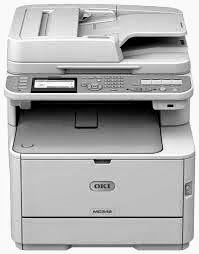
OKI DATA - MB460 MB470 MB480 - PRINTER - CLEANING PROCEDURE

OKI Data - MB460_MB470_MB480 - PRINTER - CLEANING PROCEDURE 

Cleaning of LED lens array_ paper path in the ADF_ INSIDE OF THE MFP_ PAPER FEEDING ROLLER AND PAD_ LED HEAD

The following parts should be replaced at a specified cycle.
The above mentioned regular parts exchange should be done by users.
* Toner Cartridge > After printing approx. 3,500 pages > LED head
* Image Drum Cartridge > After printing approx. 25,000 pages.
[After using a normal cartridge, the starter toner cartridge (attached at the printer purchase) can not be used. Use the starter toner cartridge fist, and then, use the normal toner after [LOW TONER] is displayed]
Cleaning
Remove toner powder and dust in the printer inner section. Clean the inside of and the periphery of the printer with the cloth as needed. Clean the printer inner section with the handy cleaner.
[Do not touch the image drum, LED lens array, and LED head terminal.]
CLEANING PAGE FUNCTION
The printer has the charging roller cleaning function implemented by the user.
The following shows the procedure in the printer operation panel.
1. From the panel menu , Select the [Menu] - [Printer Menu] - [Printer Adjust] - [Cleaning] - [Execute] .
2
. Feed a piece of A4 paper in the multi-purpose tray or the manual feeder slot.
3.
Press the "start" Button. (In case of MB470/MB480 )
4.
The toner attached with the image drum is transferred on the paper fed, and paper is fed under the condition where the remaining toner is printed. While this processing is in progress, LCD shows the [Print Cleaning Page] message is displayed.
5.
The display on LCD is returned to [Function].
Cleaning of LED lens array
If the vertical white lines, and white belt (white spot, pale printing) occur in printing, the LED lens array should be cleaned or the toner cartridge should be replaced.
CLEANING LED HEAD
If there appear line breaks or white lines, or the letters and characters are blurred, please clean your LED head.
* Switch off the power supply.
* Lift the scanner. The
* Press OPEN button and open the top cover. [fuser unit is extremely hot. Do not touch it.]
* Lightly wipe the lens (4 points) of the LED head with soft tissues. [Do not use solvents as methyl alcohol or thinner, as they might cause damage to the LED head.]
* Close the top cover.
* Lower the scanner.
Cleaning the pick-up roller
If there appear vertical lines on the printing side, please clean the pick-up roller. [In order not to cause damage to the surface of roller, please use soft cloths to clean it.]
CLEANING PAPER FEEDING ROLLER AND PAD
* Draw out the paper cassette.
* Get the cloths wet and wring it out. Then use the cloths to wipe paper feeding roller (large)and paper feeding roller (small).
* Get the cloths wet and wring it out. Then use the cloths to wipe the pad part of paper cassette.
CLEANING THE INSIDE OF THE MFP
* Switch off the power supply.
* Lift the scanner.
* Press OPEN button and open the top cover. [The fuser unit is extremely hot. Do not touch it.]
* Take out the image drum cartridge. { Take out the image drum cartridge and put them on a flat surface.  Cover the image drum cartridge with black paper.  The image drum (the green cylinder) is very easy to be damaged, please be careful when handling it.  Don’t put the image drum cartridges in direct sunlight or strong light (above1500 lux).  And don’t put them in indoor lighting condition for more than 5 minutes}
* Get the cloths wet and wring it out. Then use the cloths to wipe any paper dust of the Guide-Paper-R.
* Gently put the image drum cartridge back into your MFP.
* Close the top cover.
* Lower the scanner.
Cleaning the paper path in the ADF { When dirt is found on an image read by the ADF.}
* Turn off the power of MFP.
* Open the ADF Top cover
* Pinch the ADF lock lever and turn the Kernel Assy up until it is locked
* Using a soft cloth, remove dirt with a sweeping action to the direction of the arrow. [Do not use benzene, thinner and alcohol.]
* Get back the Kernel Assy to the initial position.
* Close the ADF Top Cover.
Cleaning the underside of the ADF [When dirt is found on an image read by the ADF]
* Open the ADF Doc Lid.
* Wipe the A part (transparent) to remove dirt with a soft cloth. [Do not use benzene, thinner and alcohol.]
* Close the ADF Doc Lid.
CLICK ON THE PICTURES TO MAGNIFY

HOW TO DISASSEMBLE OKI B460 MB470 MB480

HOW TO DISASSEMBLE OKI B460_MB470_MB480

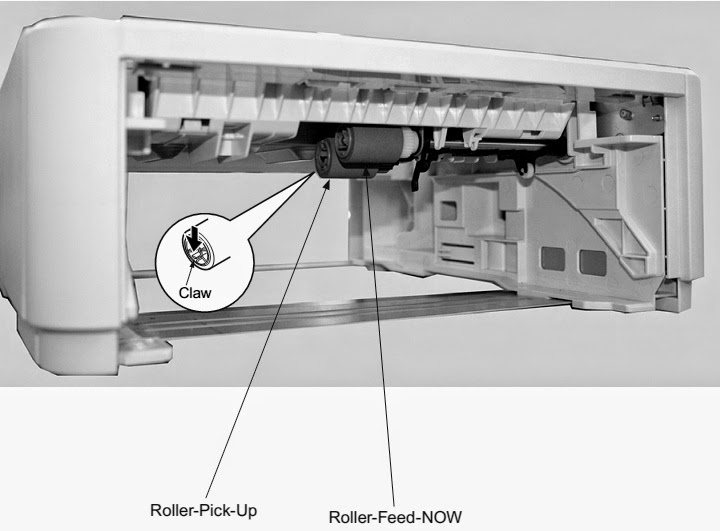
Disassemble Roller-Pick-Up, Roller-Feed-Now; Guard-Connector, Connector(9715S-08Z02-G4C); Roller-Feed
* Remove Cassette-Assy.
* Push the claw in the direction of the arrow to remove Roller-Pick-Up (1) .
* Push the claw in the direction of the arrow to remove Roller-Feed-NOW (2) .
* As for reinstalling, take the opposite sequence to removal sequence.
> When reinstalling Roller-Pick-Up (1) , push it until it clicks.
> When installing Roller-Feed-Now (2) , push it until it clicks.
Guard-Connector, Connector (9715S-08Z02-G4C)
* Turn off the printer and pull the AC cord. Remove the printer from the device.
* Remove two Screw-Shoulders (1).
* Remove the connector (2) to remove Guard-Connector(3) , Connector (9715S-08Z02-G4C)(4) 
As for reinstalling, take the opposite sequence to removal sequence.
Roller-Feed
* Turn off the printer and pull the AC cord. Remove the printer from the device.
* Remove the 4 screws (Black) (1) , Remove the clamp of claw at the 2 places and remove CoverFront (2) .
* Slide the left side of Shaft-Roller-Feed (3) to the front, and remove three Roller-Feeds (4).

Saturday, 30 March 2019

HOW TO SET LANGUAGE TO CANON PRINTER NP6035 – NP6028 – NP6230

HOW TO SET LANGUAGE TO CANON PRINTER NP6035 – NP6028 – NP6230

SERVICE MODE & Language Selection_ CANON PRINTER NP6035 – NP6028 – NP6230
SERVICE MODE
To select the language, you have to enter its service mode option.
The NP6035’s service mode is classified into the following six: Under each of the modes are items.
Using the Service Mode.
 Open the front door, and insert the door switch actuator. If you want to make checks under I/O display mode while making copies, set the appropriate copying mode.
* Open the front door, and insert the door switch actuator. If you want to make checks under I/O display mode while making copies, set the appropriate copying mode. Press the service mode switch (SW3) with a hex key.
* Press the service mode switch [SW3] with a hex key.
* The copier will indicate “ $ ” in the upper left corner of the message display when it has started the service mode.
* Press the “ * “ key twice.  The copier will show the service initial screen.
* Select the appropriate mode on the screen.
* Using the ►►/◄◄ key, select the appropriate screen.
* Make the appropriate check or adjustment.
To end the service mode:
> Press the reset key [ // ] once to leave the current mode.
> Press the reset key once again to end the service mode.
 The copier ends service mode when you turn off the power switch or disconnected the power plug.  However, opening the front door, right door, delivery door, pedestal right door or pedestal left door will not end the service mode.
Service mode key position
Using Adjustment Mode and Options Mode
 Using adjustment mode or options mode, you can store the settings made on the control panel in the RAM on the DC controller, thereby simulating the functions of the conventional VRs and SWs.
 Each machine is adjusted at the factory, and the effective adjustment values are recorded on the label.
 If you have replaced the DC controller PCB or initialized the RAM, you must enter the values recorded on the label and the drum label attached to the front of the drum unit. Further, you must always record any values you entered newly in the field.
LANGUAGE SELECTION
Control Display Mode (* 1 *): Using the ►►/◄◄   key, select the following screens.
CLICK ON THE PICTURES TO ZOOM IN

Monday, 18 March 2019

MALFUNCTION TROUBLESHOOTING - CANON LPB1120 - COPIER

MALFUNCTION TROUBLESHOOTING - CANON LPB1120 - COPIER

TROUBLESHOOTING
Laser Failure/BD Failure
Possible Causes
  The laser shutter cannot be opened due to the damaged claw of the cartridge cover.
Action: Replace the cartridge cover.
  Poor contact in the connectors in the laser scanner unit.
Action: Reconnect the connector J801F, J802F on the laser/scanner unit and connector J208F on the engine controller PCB.
  Defective laser/scanner unit.
Action: Turn ON the printer. Immediately after turning ON the printer, if the voltage between the connectors J208M-5 and J208M-6 on the engine controller PCB is about +5V and also the voltage between the connectors J208M-1 and J208M-4 is about +24V, replace the laser/scanner unit.
  Defective engine controller PCB.

Action: Replace the engine controller PCB.

Fixing Unit Failure
Possible Causes
  Poor contact in the connectors.
Action: Reconnect the connector J206 on the engine controller PCB.
  Broken wire or short-circuited thermistor.
Action: Turn OFF the power and remove the fixing unit from the printer. Measure the resistance between the connectors J703-1 and J703-2 on the fixing unit side. If the resistance is not within the range from about 250 kΩ to about 800 kΩ (room temperature), replace the fixing film unit.
  Broken wire of the heater or blown thermal fuse.
Action: Remove the fixing unit. Check the connectors J102F-1 and J102F-2 on the fixing unit side for continuity. If the connectors have no continuity between them, replace the fixing film unit.
  Defective engine controller PCB.
Action: Replace the engine controller PCB.

Although a paper jam has not occurred, the printer cannot enter the READY mode, outputting a “JAM” status.
Possible Causes
  Defective paper delivery sensor spring.
Action: If the spring is not installed correctly, reinstall it correctly. Or, if the spring is deformed or damaged, replace it.
  Defective paper delivery sensing lever.
Action: If the lever is not installed correctly, reinstall it correctly. Or, if the lever is deformed or damaged, replace it.
  Defective paper top sensor spring.
Action: If the spring is not installed correctly, reinstall it correctly. Or, if the spring is deformed or damaged, replace it.
  Defective paper top sensing lever.
Action: If the lever is not installed correctly, reinstall it correctly. Or, if the lever is deformed or damaged, replace it.
  Defective engine controller PCB.
Action: Replace the engine controller PCB.

Although the door is closed after installing the cartridge, the printer cannot enter the READY mode, outputting a “DOOR OPEN” status.
Possible Causes
  Damaged claw of the door switch on the connector holder.
Action: Replace the connector holder.
  Defective door open detection unit.
Action: Replace the door open detection unit.
  Defective door open detection switch / engine controller PCB.
Action: Replace the engine controller PCB.

Although paper is set in the printer, the printer cannot enter the READY mode, outputting a “PAPER OUT” status.
Possible Causes
  Defective paper out sensing lever.
Action: If the lever is not installed correctly, reinstall it correctly. Or, if the lever is deformed or damaged, replace it.
  Defective paper out sensor.
Action: Replace the paper out sensor (PS003.)
  Defective engine controller PCB.
Action: Replace the engine controller PCB.

Although the cartridge is installed in the printer, the printer cannot enter the READY mode, outputting a “NO CARTRIDGE” status.
Possible Causes
  Poor contact in the primary high-voltage contact on the engine controller PCB and cartridge contact.
Action: Clean the contacts if dirty. If the problem still remains after cleaning, or parts are deformed or damaged, replace them.
  Defective cartridge.
Action: Replace the cartridge.
  Defective engine controller PCB.
Action: Replace the engine controller PCB

SHARP AM400 DIGITAL COPIER PRINTER - POWER SUPPLY - [SMPS]-SCHEMATIC (CIRCUIT DIAGRAM)

SHARP AM400 DIGITAL COPIER PRINTER - POWER SUPPLY - [SMPS]-SCHEMATIC (Circuit Diagram)

AM-400 Sharp Digital Copier - SMPS Schematic
MAIN POWER SUPPLY
PRINTED CIRCUIT BOARD (TOP & BOTTOM VIEWS)
{CLICK ON PICTURES TO ZOOM}

SHARP - AM 300DE - AM 400 - DIGITAL COPIER PRINTER - HIGH-VOLTAGE PWB SCHEMATIC [CIRCUIT DIAGRAM]

AM 300DE - AM 400 - SHARP DIGITAL COPIER PRINTER - HIGH-VOLTAGE PWB SCHEMATIC [Circuit Diagram]

HIGH-VOLTAGE PWB - SCHEMATIC
PWB - TOP VIEW
CLICK ON PICTURES TO ZOOM
PWB - FOIL SIDE

SHARP AM 400 - SHARP AM300DE COPIER PRINTER - LASER SCANNER PRINTER - IMAGE FORMING OPERATION MECHANISM - DESCRIPTIONS - AND WORKING

   SHARP AM 400 - SHARP AM300DE COPIER PRINTER -  LASER SCANNER PRINTER - IMAGE FORMING OPERATION MECHANISM - DESCRIPTIONS - AND WORKING

SHARP AM 300DE - COPIER PRINTER - MECHANICAL OPERATIONS

Switching operation from the sheet scan mode to the fixed scan mode.
The planet gear A moves toward the scan unit drive side gear and stops at the intermediate position because the pin A on the planet gear.  A mounting arm is restricted its movement by the cam groove A. The planet gear B moves into engagement with the system gear so that the system gear rotates. Along with the rotation of the system gear, the scan unit locking lever starts rotating in the release direction.
Switching operation from the sheet scan mode to the fixed scan mode (2).
Rotation of the system gear releases the pin A on the planet gear A mounting arm from the cam groove A, and the planetary gear A is engaged with the scan unit drive side gear. The scan unit starts moving toward the fixed scan side.
Switching operation (3) from the sheet scan mode to the fixed scan mode.
Due to the system gear rotation, the pin B is guided in the cam groove B to turn the planet gear B mounting arm. The planet gear B is disengaged from the system gear, and the system gear loses its power.
Switching operation (4) from the sheet scan mode to the fixed scan mode.
The system gear is driven by the system gear biasing spring until it reaches the stopper at the release position of the scan unit locking lever.
{Click on Pictures to Zoom}

SHARP - AM 300DE - MECHANISM - DESCRIPTIONS - and Working


MECHANISM [GEAR LAYOUT]

FIXED SCAN MODE

SHEET SCAN MODE

Switching operation from the fixed scan mode to the sheet scan mode.
When the scan unit's lever that comes back to the sheet scan position pushes the system gear pin, the system gear starts rotating in clockwise direction.

Due to the system gear rotation, the pin B on the planet gear mounting arm is guided in the cam groove B, and the planet gear B is engaged with the system gear. Along with the system gear rotation, the scan unit locking lever moves toward the lock position.
Rotation of the system gear releases the pin A on the planet gear A mounting arm from the cam groove A. The planet gear A moves to the intermediate position between the scan unit drive side gear and the sheet scan drive side gear. At this time, the belt stops moving, and the scan unit stops accordingly just before the sheet scan position.
Click on pictures to zoom
Rotation of the system gear releases the pin B on the planet gear B mounting arm from the cam groove B, and the planet gear B is disengaged from the system gear. After the disengagement, the system gear is kept rotating in clockwise direction by the system gear biasing spring. The scan unit locking lever is moved by the system gear, and it stops after pushing the scan unit to the locking rib. Keep rotating the motor in the counter-clockwise direction for the sheet feeding operation.


COPIER PRINTER - SHARP AM 400 - SHARP AM300DE Laser Scanner Printer - Image Forming Operation

IMAGE FORMING

The main charger is a rotating brush roller.  The main charger removes residual toner from the OPC drum by its rotating sweeping action and causes it to stick to the brush.  At the same time, a high voltage of -950V is applied to the main charger roller to generate a discharge of electricity between the roller and the OPC drum, generating positive and negative charges. The negative charges are attracted to the OPC drum, and evenly distributed on the OPC drum. (The OPC drum surface is evenly charged.)


Laser beam scanning light corresponding to the print data is radiated on the OPC drum.  Positive and negative charges are generated in the OPC drum CGL exposed with the laser beam.  Positive charges generated in the CGL are attracted toward the OPC drum surface (negative charges), and negative charges toward the aluminium layer (positive charges).  Therefore, the positive and negative charges neutralize each other in the laser-exposed area of the OPC drum surface and the aluminium layer, decreasing the potential of the OPC drum surface.  The area, which is not exposed to laser beam, has no change, and the OPC drum surface remains negatively charged to keep a high potential. As a result, latent electrostatic images are formed on the OPC drum.


CLICK ON PICTURES TO ZOOM

Development

Toner is attached to the latent electrostatic images on the OPC drum to form visible images.  Toner is transported to the scraper area by the toner supply roller and the developing roller. The scraper controls the quantity of toner to be transported to the doctor section. Toner transported to the doctor section is then passed between the developing roller and the doctor to form a thin toner layer on the developing roller by the pressure applied by the doctor.  When toner passes between the developing roller and the doctor, it is charged negatively by friction. When an area of OPC drum, which was exposed, to laser beam and lost its charge comes in contact with the developing roller, toner moves from the developing roller to the OPC drum surface.  The principle of toner movement from the developing roller to the OPC drum surface is as follows.

The bias voltage of DC-280V is applied to the developing roller. Toner is charged negatively by the difference (electrical energy) between the bias voltage and the OPC drum surface potential and is attracted to the OPC drum surface which is positively charged.  At that time, the potential of the area of the OPC drum, which was exposed to the laser beam and lost its charge, is higher than that of the developing roller.


On the other hand, when an area of OPC drum, which was not exposed to the laser beam and did not lose its charge comes in contact with the developing roller, any residual toner attached to the OPC drum is transferred to the developing roller which is more positively charged.  As a result, the developing unit collects unnecessary toner on the OPC drum.  The operating principle for that case is contrary to that for transfer of toner from the developing roller to the OPC drum surface. (The electric field energy direction is contrary.

Visible images of toner on the OPC drum are transferred to the paper.

The high voltage of DC+3600V plus AC760V (P-P) is applied to the transfer roller to generate electric discharge between the roller and the OPC drum, generating positive and negative charges. Positive charges are attracted to the OPC drum and attached to the paper transported between the transfer roller and the OPC drum. Therefore the paper has a strong positive charge.  Negatively charged toner on the OPC drum is attracted by the paper which is positively charged, and the visible images of toner are transferred onto the paper.


The paper is separated from the OPC drum.  There is an electrostatic force between the paper, which is positively charged in transfer operation, and the OPC drum which is negatively charged. The positive charge on the paper is released to the separation electrode, which is the same potential as the aluminum layer of the OPC drum, to reduce the potential difference between the OPC drum and the paper, reducing the electrostatic force.  This operation facilitates separation of the paper from the OPC drum.


The drum surface is discharged to facilitate cleaning of the drum surface. (The main charger roller easily collects the remaining toner.)  The main charger is a rotating brush roller.  The main charger removes residual toner from the OPC drum by its rotating sweeping action and causes it to stick to the brush. The main charger brush is in close contact with the mesh-type brush cleaning plate which removes toner and paper dust from the main charger brush mechanically.


OPC drum surface potential


Transition of OPC drums surface potential by print operation.


OPC drum surface potential and developing bias voltage in development.