REPAIRING AND NOT THROWING AWAY

Richtige Fernseher haben Röhren!

Richtige Fernseher haben Röhren!

In Brief: On this site you will find pictures and technical information about Service Modes, Circuit Diagrams, Firmware Update procedure, Disassemble procedure, Universal remote control set-up codes, Troubleshooting and more....

If you go into the profession, you will obtain or have access to a variety of tech tips databases HERE IT IS Master Electronics Repair !.

These are an excellent investment where the saying: 'time-is-money' rules. However, to learn, you need to develop a general troubleshooting approach - a logical, methodical, method of narrowing down the problem. A tech tip database might suggest: 'Replace C536' for a particular symptom. This is good advice for a specific problem on one model. However, what you really want to understand is why C536 was the cause and how to pinpoint the culprit in general even if you don't have a service manual or schematic and your tech tip database doesn't have an entry for your sick TV or VCR.

While schematics are nice, you won't always have them or be able to justify the purchase for a one-of repair. Therefore, in many cases, some reverse engineering will be necessary. The time will be well spent since even if you don't see another instance of the same model in your entire lifetime, you will have learned something in the process that can be applied to other equipment problems.
As always, when you get stuck, checking out a tech-tips database may quickly identify your problem and solution.In that case, you can greatly simplify your troubleshooting or at least confirm a diagnosis before ordering parts.

Happy repairing!
Today, the West is headed for the abyss. For the ultimate fate of our disposable society is for that society itself to be disposed of. And this will happen sooner, rather than later.

How to use the site:

- If you landed here via any Search Engine, you will get what you searched for and you can search more using the search this blog feature provided by Google. You can visit more posts scrolling the left blog archive of all posts of the month/year,
or you can click on the main photo-page to start from the main page. Doing so it starts from the most recent post to the older post simple clicking on the Older Post button on the bottom of each page after reading , post after post.

You can even visit all posts, time to time, when reaching the bottom end of each page and click on the Older Post button.

- If you arrived here at the main page via bookmark you can visit all the site scrolling the left blog archive of all posts of the month/year pointing were you want , or more simple You can even visit all blog posts, from newer to older, clicking at the end of each bottom page on the Older Post button.
So you can see all the blog/site content surfing all pages in it.

- The search this blog feature provided by Google is a real search engine. If you're pointing particular things it will search IT for you; or you can place a brand name in the search query at your choice and visit all results page by page. It's useful since the content of the site is very large.

Note that if you don't find what you searched for, try it after a period of time; the site is a never ending job !

..............The bitterness of poor quality is remembered long after the sweetness of todays funny gadgets low price has faded from memory........ . . . . . .....
Don't forget the past, the end of the world is upon us! Pretty soon it will all turn to dust!

©2010, 2011, 2012, 2013, 2014 Frank Sharp - You do not have permission to copy photos and words from this blog, and any content may be never used it for auctions or commercial purposes, however feel free to post anything you see here with a courtesy link back, btw a link to the original post here , is mandatory.
All posts are presented here for informative, historical and educative purposes as applicable within fair use. NOTHING HERE IS FOR SALE !

Showing posts with label MEDICAL ELECTRONICS. Show all posts

Thursday, 11 April 2019

VALLEYLAB FORCE FX ELECTROSURGICAL GENERATOR – TEST PROCEDURE - CHECKING THE BIPOLAR OUTPUT - CHECKING THE OUTPUT FOR THE CUT MODES - CHECKING THE OUTPUT FOR THE COAG MODES

Valleylab Force FX Electrosurgical Generator – Test procedure - Checking the Bipolar Output - Checking the Output for the Cut Modes - Checking the Output for the Coag Modes – Medical electronics repair and service

Checking the Bipolar Output
1. Verify that the generator successfully completes the self-test as described in Testing the Generator in this section.
2. Connect the test equipment for bipolar output.
a. Connect the two test cables to the Bipolar Instrument receptacle.
b. Pass one test cable through the current transformer and connect the current transformer to the voltmeter.
c. Connect the 100 ohm power resistor across the output jacks at the end of the test cables.
d. Connect the bipolar footswitch to the Bipolar Footswitch receptacle on the rear panel.
3. Press the Precise button and set the bipolar power to 10 watts.
4. Test the output current for the selected Bipolar mode.
a. Press the footswitch pedal and, while activating the generator, note the output on the voltmeter.
b. Release the footswitch pedal.
c. Based on the voltmeter setting and the current transformer you are using, calculate and record the output current.
5. Press the Standard button and repeat step 4.
6. Press the Macro button and repeat step 4.
7. Verify that the generator output for each mode is 316 ± 17 mA rms.
If the output is outside the specified range, calibrate the bipolar output as described in calibration steps 5, 6, 7, and 8. Then repeat this procedure

Check the Output for the Cut Modes
A. Verify that the generator successfully completes the self-test as described in Testing the Generator in this section.
B. Connect the test equipment for monopolar output.
(1) Connect one test cable to the left jack in the Monopolar 1/CEM
Instrument receptacle. Pass the test cable through the current transformer and connect the current transformer to the voltmeter.
(2) Use a test cable to short the two pins on the Patient Return Electrode receptacle.
(3) Connect the second test cable from the voltmeter to both pins of the Patient Return Electrode receptacle.
(4) Connect the 300 ohm resistor across the output jacks at the end of the test cables.
(5) Connect the monopolar footswitch to the Monopolar 1
Footswitch receptacle on the rear panel of the generator.
C. Press the Pure button.
D. Press the Cut up or down arrow buttons to set the cut power to 80 watts.
E. Test the monopolar cut output.
(1) Press the footswitch cut pedal and, while activating the generator, note the output on the voltmeter.
(2) Release the footswitch pedal.
(3) Based on the voltmeter setting and the current transformer you are using, calculate and record the output current.
F. Press the Low cut button and repeat step 1.E.
G. Press the Blend button and repeat step 1.E.
H. Verify that the generator output for each mode is 516 ± 37 mA rms.
If the output is outside the specified range, calibrate the monopolar output as described in calibration steps 5, 6, 7, and 8. Then repeat this procedure.
Check the Output for the Coag Modes
A. Complete items A and B of the previous step, replacing 300 ohm resistor with 500 ohm resistor in item B.4.
B. Press the Desiccate button.
C. Press the Coag up or down  arrow buttons to set the coag power to 80 watts.
D. Test the monopolar coag output.
(1) Press the footswitch coag pedal and, while activating the generator, note the output on the voltmeter.
(2) Release the footswitch pedal.
(3) Based on the voltmeter setting and the current transformer you are using, calculate and record the output current.
E. Press the Fulgurate button and repeat step 2.D.
F. Press the Med (Fulgurate) button and hold for two seconds. After the tone sounds and the "L" appears on the left side of the Coag display, repeat step 2.D.
G. Press the Spray button and repeat step 2.D.
H. Verify that the generator output for each mode is 400 ± 28 mA rms. If the output is outside the specified range, calibrate the monopolar output as described in calibration steps 5, 6, 7, and 8. Then repeat this procedure.
Checking Low Frequency Leakage Current and Ground Resistance
Check the low frequency leakage current and ground resistance before returning the Force FX-8C generator to clinical use.
Equipment required:
# DVM
# Leakage current tester
Output Receptacles and REM Source Current
1. Set the DVM to AC volts (200 millivolts [mV]) and connect the leakage current test circuit.
2. Turn on the generator.
3. Measure between all the output receptacles (including the Patient
Return Electrode receptacle) and earth ground. Record the largest reading.
4. Determine the leakage current using the conventional
1 microamp (µA) per 1 mV.
5. Verify under normal conditions (ground closed, normal polarity) the leakage current is less than 10 µA.
6. Verify single fault conditions (ground open) the leakage current is less than or equal to 50 µA.
Chassis or Earth Leakage
1. Set the DVM to AC volts (200 mV) and connect the leakage current test circuit.
2. Turn on the generator.
3. Measure between the chassis and earth ground.
4. Determine the leakage current using the conventional 1 µA per 1 mV.
5. Verify under normal conditions (ground closed, normal polarity) the
leakage current is less than 100 µA.
6. Verify single fault conditions (ground open) the leakage current is less than or equal to 300 µA.
Output Receptacles and REM Sink Current
1. Set the DVM to AC volts (200 mV) and connect the leakage current test circuit.
2. Turn on the generator and connect the end of the leakage current test circuit to mains voltage through a 120 kΩ resistor.
3. Connect the other side of the IEC leakage load to all of the output receptacles (including the Patient Return Electrode receptacle).
4. Determine the leakage current using the conventional 1 µA per 1 mV.
5. Verify the leakage current is less than or equal to 20 µA.
Checking High Frequency Leakage Current
Check the high frequency leakage current and ground resistance before returning the Force FX-8C generator to clinical use. Check the leakage current
# After calibrating the generator
# Every six months.
Equipment required:
# 200 ohm, 250 watt, noninductive resistor
# Current transformer
# True RMS voltmeter (Fluke 8920 or equivalent)
# Bipolar and monopolar footswitches
Checking Monopolar High Frequency Leakage Current
1. Connect the 200 ohm load from the active accessory through the current transformer to the equipotential ground lug on the rear of the generator.
2. Connect the current transformer to a true RMS voltmeter.
3. Connect a monopolar footswitch to the Monopolar 1 Footswitch receptacle on the rear panel.
4. Activate the footswitch in each Monopolar mode at the maximum control setting. Record the leakage current. If using the leakage table, leakage current should not exceed 150 mA for any mode.
Checking Bipolar High Frequency Leakage Current
1. Remove the monopolar accessories, and connect the 200 ohm load from one side of the bipolar output through the current transformer to the equipotential ground lug on the rear of the generator.
2. Connect the current transformer to the true RMS voltmeter.
3. Connect a bipolar footswitch to the Bipolar Footswitch receptacle on the rear panel.
4. Activate the footswitch in each mode at maximum control setting.
Record the leakage current. It should not exceed 60 mA for any mode using either the leakage table or short lead configuration.

Monday, 1 April 2019

TERUMO TE331 - TE332 -TERUFUSION SYRINGE PUMP - E2PROM INITIALIZE AND AGING

TERUMO TE331 - TE332 -Terufusion Syringe Pump - E2PROM INITIALIZE and AGING

TERUMO TE-331 – TE332 Terufusion Syringe Pump. How to initialize E2PROM.
Medical (Electronic) Equipment.
E2PROM INITIALIZING
RAM data is erased and E2PROM is refreshed by ROM data [default data at factory].  This operation resets all the settings to the default.  Readjust required.
  1. Set the internal DIP switches 1 and 2 to ON and OFF respectively.
  2. While holding down the [STOP] switch, press the On/Off switch.  The display first shows “888.8”, then “FACt”, and a short beep follows.  Release the switches and check the display has changed to “”dIAg”; which stands for Diagnosis.  Note:  If you press the On/Off switch without pressing the Stop switch “Er91” appears on the 7 segment display.  Turn off the pump, and repeat the procedure above.  If you do not release the switches at the beep, the display changes to ‘Er 8”.  Once ‘Er 8’ appears, you have to turn off the pump, and repeat the procedure above.
  3. When “dIAg” is displayed, press the Display Select switch  3 times.  Check the display shows “CLEA” which stands for clear.
  4. Press ‘Stop ‘switch, and the display shows “E or J”.  E is for Europe, and J is for Japan.
  5. Press and hold 'PURGE’ switch about 1.5 seconds to choose ‘E for Europe’.
  6. Initialization of E2PROM starts.  The display changes to ‘Eur’.  As the initialization proceeds, first “      “, then “00     “,and “000 “, lastly “0000” appears on the display.the switch for Japan is the Start.  If the Start switch is pressed, “JP” appears on the display.
  7. When successfully completed, can hear a short beep and see the display of “good”.
  8. In case of failure, “bAd” is displayed.  Then the display returns to “CLEA”.
  9. Press On/Off switch to Exit the initializing E2PROM mode.
Aging.
  1. Set the DIP switches 1 and 2 to On and Off, respectively.
  2. While holding the Stop switch, press On/Off switch.  The display first shows “888.8”, then “FACt” and a short beep follows.  Release the switches and check the display has changed to “dLAg” which stands for Diagnosis.  Note: If you press the On/Off switch without pressing the ‘Stop’ switch “Er91” appears on the 7 segment display.  Turn off the pump, and repeat the procedure above.  If you do not release the switches at the beep, the display changes to “Er 8”.  Once “Er 8” appears, you have to turn Off the pump and repeat the procedure above.
  3. When “dIAG” is displayed, press the Display Select switch 4 times.  Check the display shows “Aging”, which stands for Aging.
  4. Press Start switch, and Aging starts.
  5. When completed, press the On/Off switch to Exit the Aging Mode.
The following actions should be recognized while aging is performed.
* Motor rotates [slider moves approximately 9mm/h].
* All LED elements connected flash at 1 Hz / 50% duty.
* While the motor is rotating the minimum purge sound comes out.
Attention You can stop aging at any time by pressing the ‘Stop’ switch, and start again by pressing the Start switch.
* The motor stops if occlusion is detected with the load on the slider at approx. 4606N=4.7kgf.

Wednesday, 20 March 2019

ATLAS PATIENT MONITOR - SELF TEST- FUNCTIONAL TEST - BP TEST [MEDICAL EQUIPMENTS]

ATLAS PATIENT MONITOR - SELF TEST- FUNCTIONAL TEST - BP TEST [MEDICAL EQUIPMENTS]


SELF TEST [POWER ON]
  • Plug in Atlas into AC power with no sensors attached. Verify that the AC~ LED indictor is lit. Install paper in printer if fitted.
Turn on power and verify the following:
  • Green light in power button.
  • Loud beep when Power On button pressed.
  • Three dashes in SYSTOLIC.
  • Three dashes in DIASTOLIC.
  • Two dashes in SpO2  (takes several seconds after BP dashes come on).
  • Three dashes in PULSE (takes several seconds after BP dashes come on).
  • Single bar at the bottom of  Plethysmograph.
  • No lights in TEMP.
  • No lights in ALARMS OFF buttons.
  • X lit on AUTO.
  • CRT display may comes on slowly if cold or quickly if still warm from last use.
  • May see version string in center if comes on quickly. It isn't a problem if not seen because it comes on slowly.
On the CRT you should see:
  • Three dashes for Heart Rate
  • Heart symbol
  • Lead select symbol
  • Scale bar
  • One or two lines of dashes for wave-forms – depends upon settings.
  • Three dashes for MAP – or blank, depending upon settings.
  • Error message /(s) at bottom of screen?
On models 622 or 623, disconnect AC cable. You should see no change except the AC~ LED indicator will not be lit. If you see warnings of a low, very low or depleted battery, or if the system turns off by it’s self, plug the Atlas back into the AC outlet and let the unit charge with unit turned off. Repeat test in 2 hours.
  • Plug the monitor back into AC
MENU FUNCTIONAL TEST
  • Press DATE/TIME button to enter menu page. Press TREND button to access the Advanced Configuration menu.
  • Write down all configuration settings so that they can be reset to customer preferences later. If you have a printer press the PRINTER button to print out customer configuration settings.
  • Set language to your native tongue if necessary to allow you to write down the other settings. The top item is always the language, press either SET buttons to step through list.
  • Press TREND button to return to idle screen. Press DATE/TIME button and verify that date and time are correct. Set date and time if necessary.
NOTE:An incorrect date may indicate a battery problem. If date was incorrect, turn off unit, disconnect AC power cable, wait 5 minutes then reconnect the power cable. Turn Atlas on. Check date again. If date comes back incorrect on model 621 then replace main board. On model 622 and 623, if battery was not dead then replace main board.
  • Press DATE/TIME button to return to waveform screen if needed.
  • Press DATE/TIME button then press LEAD SELECT button to access service mode
  • Version/configuration data is in lower half of menu, write it all down.
  • Press SELECT button to highlight reset to factory defaults.
  • Press BP START/CANCEL button to reset configuration.
  • Press TREND button to return to idle screen.
  • Press DATE/TIME button then press TREND button to access the Advanced Configuration menu.
  • Set language to your native tongue if necessary
NOTE: We have just reset the monitor to factory defaults. Compare settings to factory defaults appropriate for the country in Operator manual. If the factory defaults do not match then that may indicate a memory problem. Changing only the language should not change any of the other factory default settings.
  • Press DATE/TIME button then press LEAD SELECT button to access service mode.
  • Press SELECT button to highlight CRT test pattern.
  • Press BP START/CANCEL button to show test pattern. Examine display. Press any key to end display.
  • Press Select button to highlight Printer test pattern (if fitted). Press BP START/CANCEL button to start test pattern. Printer should print a test pattern. Press any key to end  display. Examine printout.
  • Press SELECT button to highlight LED test. Press AUTO button to turn on all LEDs.  Press BP START/CANCEL button to show automatic test pattern. Watch for a while, look for glitches in pattern. Press SET button to go to manual mode and step through individual segments if needed to observe a problem.
  • Press SELECT button to highlight Button test. Press BP START/CANCEL button to start test. Press every button on system, press BP ART/CANCEL button last.
  • Verify that buttons match up with their names and that all buttons are functional.
NOTE:If name does not correspond to the button pushed then this may indicate memory corruption. You may need to replace the main board.
  • Press SELECT button to highlight Display A/D channels. Press SET button and write down all values for each of the four screens for later review. Press TREND button to return to idle screen.
BP TEST
  • Press DATE/TIME button then press TREND button to access the Advanced Configuration menu. Press SELECT button to highlight Initial pressure. Press SET button to change Initial pressure to 280 mmHg. Press SELECT button to highlight MAP. Press SET button to change MAP to Yes. Press TREND button to return to idle screen.
  • Connect the BP port to the BP simulator. Set the simulator for a normal reading (140/80, 100BPM, NSR). Press BP START/CANCEL button. Atlas should start to pump and display a manometer value in SYSTOLIC LED. This value should track and be very close to pressure displayed by manometer on BP simulator (if fitted).  Largest number shown in SYSTOLIC LED should be very close to the initial pressure setting recorded above from Advanced Configuration. System should start stepping down pressure, showing step values in SYSTOLIC LED display. It then should display the correct SYSTOLIC and DIASTOLIC values. System may show MAP value depending upon country language setting.
  • Press BP START/CANCEL button. System should start pump, display manometer value in SYSTOLIC LED. This value should track and be very close to pressure displayed by manometer in BP simulator (if fitted). Largest number shown in SYSTOLIC should be very close to the Initial pressure setting of 280 mmHg. If pressure shown exceeds 300 mmHg then re calibrate the Atlas BP.
  • System should start to step down pressure, showing step values in SYSTOLIC LED and then display correct SYSTOLIC and DIASTOLIC values. System should show MAP value. MAP value should match what simulator shows.
  • Set simulator to (120/70, 60(beats per minute)bpm, NSR).
  • Press the AUTO button. The X manual BP cycle indicator will go out and the 1 minute auto BP cycle indicator will flash for 10 seconds. 20 seconds after the 1 minute auto BP cycle indicator stops flashing, BP measurement starts.
  • Verify the BP reading. If BP measurement incorrect re-calibrate.
  • No less than 30 seconds after completing the measurement another measurement should start. While it is pumping up, press the BP START/CANCEL button.
  • Measurement should stop immediately and pressure should be dumped (as seen on the simulator manometer).
  • Press AUTO button and X manual BP cycle indicator should light (not flashing).
  • Disconnect the tubing from the BP port on the Atlas. Press BP START/CANCEL button and note the time (to the second) when the Atlas aborts the BP cycle and gives you an alarm. It should take no longer than 1 minute. Turn Atlas off.

ATLAS PATIENT MONITOR - TROUBLESHOOTING [MEDICAL EQUIPMENT]

ATLAS PATIENT MONITOR - TROUBLESHOOTING [MEDICAL EQUIPMENT]

TROUBLESHOOTING
Static Manometer Accuracy Test
Required materials.
  1. Serial interface cable
  2. PC with HyperTerminal (Windows 95 or above)
  3. 500cc vessel with inflation system.
  4. Calibrated manometer
  • Turn computer on and activate Hyper terminal. 
Hyper Terminal Settings are:
  • 9600 Baud, 8 bit word, 1 stop bit no parity, no flow control ANSI character set Start àPrograms àAccessories àCommunication àHyperTerminal
  • Turn Atlas on. 
  • Enter the following command sat the PANGEA> prompt.
PANGEA> bp safety off<ENTER>
PANGEA> bp valve close<ENTER>
Pressurize the Atlas monitor to the applied pressures in Table.
  • To compare the applied pressure to the transducer readings use the following command.
  • PANGEA> bp press<ENTER>
  • Verify that the primary transducer and secondary transducer are within the specifications listed in Table.
NOTE: The Atlas monitor will return a response to the computer screen as follows.
If you tested at the 50mmHg pressure you would receive a message similar to: px = 5279,sx = 5305 x 0.01. Where px is the primary transducer and 5279 = 52.79 mmHg and sx is the secondary transducer and 5305 = 53.05 mmHg.
BP Leak Test
NOTE: Unit must not leak more than 5 mmHg in a 15 second interval while attached to a 100cc test cavity pressurized at50 mmHg, 150 mm Hg and 250 mmHg.
  • Required Materials: 100cc test vessel (+10cc/-0cc), stopwatch, and squeeze bulb, calibrated manometer.
  • Connect Atlas to 100cc test vessel and calibrated manometer.
  • Turn Atlas on.
  • Press DATE/TIME button then press LEAD SELECT button to access the Service Mode.
  • Press SELECT button and choose Verify manometer.
  • Pressurize the Atlas with squeeze bulb to 50mmHg and allow reading to stabilize.
  • Observe pressure for 15 seconds.
  • Unit should not leak more than 5mmHg during this time.
  • Repeat this process at 150mmHg and 200mmHg.
BP Dump Verification Test
  • Connect the Atlas to a 500 cc vessel.
  • Turn Atlas on.
  • Press DATE/TIME button then press LEAD SELECT button to access the Service Mode.
  • Select Verify manometer.
  • Pressurize the Atlas to just over 260 mmHg.
  • Allow reading to stabilize for 15 seconds.
  • Ensure the reading is still over 260 mmHg.
  • Start the stop watch when you press the SELECT button. When the SELECT button is pressed the Atlas will start a pressure dump.
  • Verify that the pressure drops to below 15 mmHg within 10 seconds.
Hardware Fail Safe Tests
  • NOTE: Atlas hardware must detect over pressure on unit pneumatic system between 296.0 mmHg and 330.0 mmHg.
  • Connect the Atlas for testing.
  • Turn Atlas on.
  • Press CLOCK/DATE button then press LEAD SELECT button to access Service Mode.
  • Press SET button to highlight the Manometer.
  • Pump system up and record at what pressure the Atlas dumps.
ECG/Respiration Test
NOTE: Simulator should support ECG impedance respiration.
  • Cycle power on Atlas, connect a 5 lead ECG cable set to the simulator. Configure the simulator for NSR, 100 bpm and set the impedance respiration rate to 20.
  • Press DATE/TIME button then press TREND button to access Advanced Configuration menu.
  • Press SELECT button to highlight ECG lead set and press SET button to select 5 wire.
  • Set ECG gain to Automatic, ECG speed to 25mm/s, ECG bandwidth to Monitor, Second trace selection to ECG.
  • Press TREND button to return to idle screen.
  • Verify you see:
1. ECG cascading onto second line
2. Scale bar on top left of CRT
3. Heart rate displayed as set on simulator
4.Lead Selected = II
5. Pulse tone high pitched
  • Press LEAD Select button and step through each of the lead settings. (I,II,III,aVR,aVL,aVF,V)
  • Verify that you see a different ECG waveform for each lead selected.  Heart Rate will go to dashes and alarms on some leads.
  • Set lead selected to II.
  •  Press DATE/Time button then press Trend button to access Advanced Configuration menu.
  •  Change Second trace selection to Respiration. Press Trend button to return to idle screen.
  • Verify that you see:
1. ECG on top line
2. Scale bar on left of top line
3. Heart rate displayed as set on simulator
4. Lead Selected = II 5. Pulse tone high pitched
6. Respiration trace on second line and rate as set on simulator
7. Respiration rate displayed on CRT as set on simulator.
  • Disconnect ECG simulator.
SpO2 Test
  • Turn SpO2 alarms on.
  • Connect SpO2 cable to simulator.
  • Set simulator pulse rate to 60 beats/minute and verify that pulse rate is 60 ±3 beats/minute or3%, whichever is greater.
  • Set SpO2 between 70% and 100% and verify that SpO2 is accurate ±2 digits.

ATLAS PATIENT MONITOR - DISASSEMBLE PROCEDURE & REPAIR [MEDICAL EQUIPMENT]

ATLAS PATIENT MONITOR - DISASSEMBLE PROCEDURE & REPAIR [MEDICAL EQUIPMENT]


BATTERY REMOVAL
  • Remove the two screws holding the battery door. Remove the battery door.
  • Remove the battery connector from the main PCB. Remove battery.
Rear Housing Removal
  • Remove the four Torx head machine screws. Use a #10 Torx driver.
  • Pull the rear housing away from the front panel. Take special care not to damage any cables.
  • Flip the housing forward. Take special care not to damage any cables.
Observe how hose fits in E-Pac Foam. The hose fits over wiring keeping wiring secure.
Printer cable and Display Cable Removal

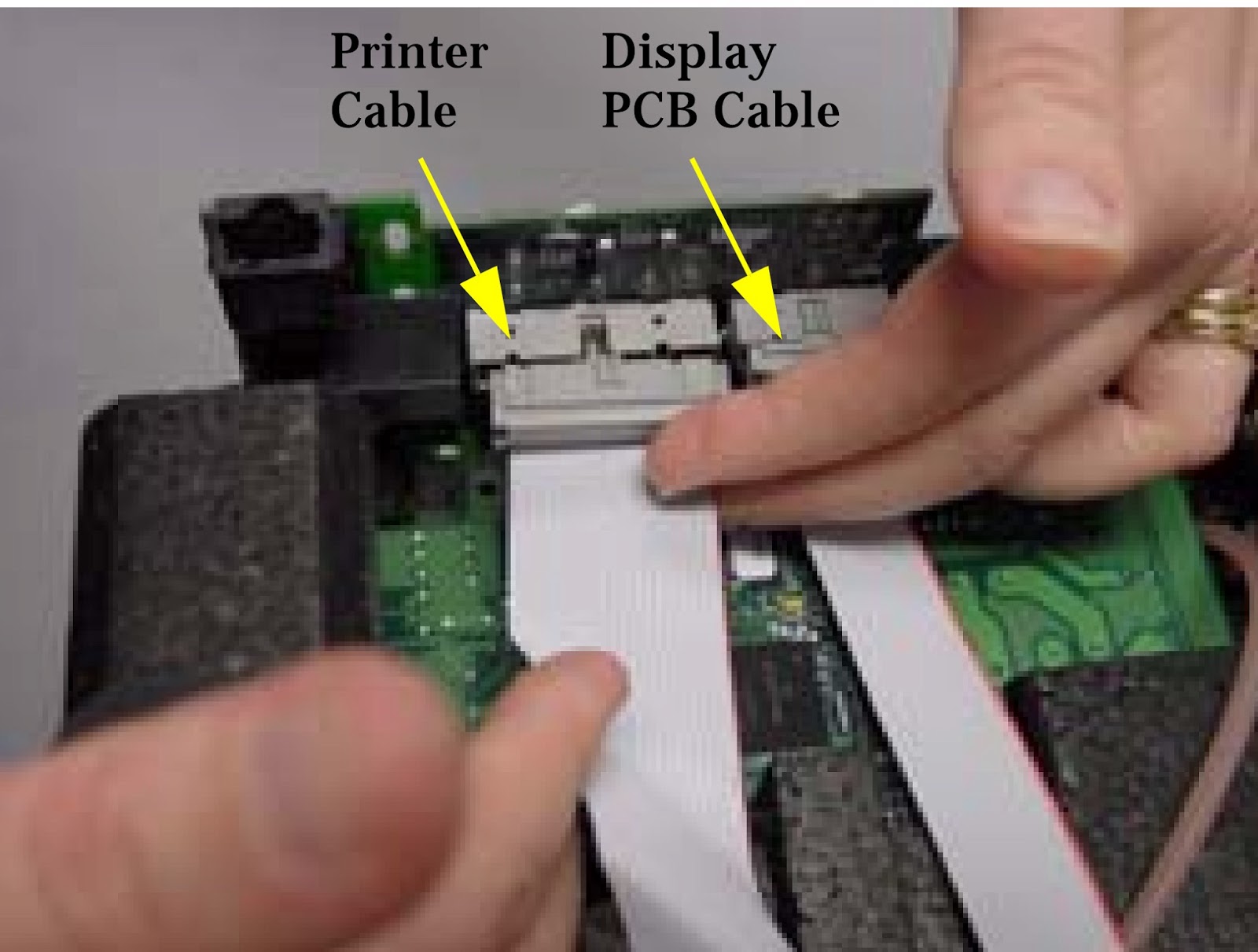
  • Remove both Printer and Display PCB cables from the Main PCB.
Power Supply Ground Wire Removal
  • Remove the two ground connectors from power supply chassis.
Tie Wrap Removal
  • Cut the tie wrap that secures the ground wires to the E-pac foam.
CPU Removal
  • Remove the CPU from the Main PCB.
Main PCB Removal
  • Use a tool T-16654 to pry the main Board away from the Deflection Board. Pull the E-pac tab to the right as you pry. Support the Main PCB while titling it away.
Main PCB Side Connector Removal.
  • Remove the four connectors(power supply, fan, speakers, BP pump) from the side of the main PCB.
Main PCB Hose and Wire Removal.
  • Disconnect hoses and connectors. BP hose, ecg cable, temp cable (modles 622 and 623 only, SpO2cable, CO2cable (model 623 only)and ground wire (NelcorSpO2only) from main PCB.
NOTE: Notice how hoses and connectors fit on Main PCB.
Pump Removal.
  • Remove the pump assembly from the EPac foam.
NOTE: Notice how pump fits in E-Pac Foam and how wires are routed out of pump.
CO2Exhaust Removal.
  • Remove the CO2exhaust cover and remove the CO2 connector from the E-Pac foam.
Pryon PCB Removal.

  • Remove connectors from Pryon PCB. Pull Pryon PCB from E-Pac foam.

ATLAS PATIENT MONITOR - POWER SUPPLY BOARD - FUSE LOCATION'S AND MORE [MEDICAL EQUIPMENT]

ATLAS PATIENT MONITOR - POWER SUPPLY BOARD - FUSE LOCATION'S AND MORE [MEDICAL EQUIPMENT]


POWER SUPPLY REMOVAL
  • Slide the power supply out from the E-Pac Foam.
  • Power Supply Fuse Location
NOTE: Notice power supply and power supply fuse location.
  • Fan Removal
Slide fan out from E-Pac foam.
  • E-Pac Removal (Lower)
Remove lower E-Pac foam from unit.
  • Deflection PCB Removal
Carefully remove the small deflection PCB from the CRT.
  • CRT Removal
Remove the two machine screws holding CRT to the front panel.
NOTE: Notice how the ground wire is attached and is located along the side of CRT.
NOTE: The CRT and deflection PCB are factory tuned as a unit and are sold only together as a unit.
  • Display PCB Removal
Remove all 9 self-tapping screws that hold the Display PCB to the Bezel.
NOTE: Notice the correct orientation of CRT screw and washer.
  • Printer Door Button Removal
Use a small screwdriver to push the door button tab up and away from the pin that locks it onto the printer frame.
NOTE: Notice how the printer button is being removed.
  • Printer Assembly Locking Tab Release.
Pull the locking tab down and towards the front of the rear housing assembly.
  • Printer Positioning Slot Removal
Make sure printer door is open. Begin to pull the positioning slots towards the front of the rear housing and then out from the rear housing.
  • Printer Assembly Removal.
After printer positioning slots have cleared the front rear housing, pull the printer down and out of the rear housing.
  • Printer Lip Assembly.
Observe how the printer assembly fits into the lip of the rear housing.
  • Printer Cable Routing.
Observe how the printer cable lies over the printer PCB.

ATLAS - PATIENT MONITOR - BP - CO2 & ET CO2 CALIBRATION PROCEDURE [MEDICAL EQUIPMENT]

ATLAS - PATIENT MONITOR - BP - CO2 & ET CO2 CALIBRATION PROCEDURE [MEDICAL EQUIPMENT]

CALIBRATION
Authorized Welch Allyn personnel or agents must service the Atlas Monitor at 6 month intervals. Maintenance requirements are specified for 6 month and 12 month service intervals. The monthly CO2.  Reset operation can be performed by the user.
  • Every 6 months: CO2Calibration.
  • Every 12 months: BP calibration, CO2 reset, battery voltage calibration, printer adjustment, and temperature calibration.  Complete functional test.
TOOLS REQUIRED FOR SERVICE Click on image to Enlarge
SETTING DATE & TIME
Check date and time before doing any calibration. Set date and time if incorrect. Set time and date as follows:
  • Turn Atlas on.
  • Press CLOCK button next to power on button to check date and time. Use the far right SELECT button to scroll. Highlight the date or time that needs changed.
  • Press the SET button to adjust date and time.
  • Press CLOCK button to exit.
Pangea Communication Protocol
The Pangea Communication Protocol allows interaction of the Atlas with the computer through the serial interface port. A prompt is emitted at the computer screen when the instrument powers up and is ready to accept commands. The prompt is Pangea>. A prompt is emitted after the completion of each pangea command. Pangea commands are case sensitive. They are in English only.
BP CALIBRATION
Required material.
  • 500cc vessel 4.
  • Squeeze bulb with one-way valve
  • PC with HyperTerminal
  • Calibrated digital manometer
  • Tubing and T fittings
  • Serial cable
  1. To start HyperTerminal you must have Windows7 95 or higher installed on your computer.
  2. From the Windows main screen follow the following sequence:  Start => Programs => Accessories => Communication => HyperTerminal.
  3. HyperTerminal setting are: 9600 baud rate, 8 bit word, 1 stop bit no parity, no flow control ANSI character set.
  • When you open HyperTerminal you will see a screen similar to the example in Figure. You will be prompted for a connection description. Choose any name. After you type in a name click OK.
  • The next window you will see will be the window as shown. Click on Connect using then click on COM1.
  • Set the port settings as shown in the example in Figure. Now click OK.
  • Connect the pressure meter, bulb, and 500cc vessel to BP port with “T” connectors as shown below..
  • Connect the Atlas to PC with serial cable.
  • Turn the Atlas on. Start Hyper Terminal on PC. Press the <Enter> key and you should see a Pangea>prompt.
NOTE: Take no more than 3 minutes for the 50mmHg calibration nor more than 3 minutes for the 250mmHg calibration as the Atlas will automatically, as a safety feature, open the blood pressure valve. If this happens you will have to turn the Atlas off then back on again and restart the calibration again.
50mmHg Calibration
  • Enter the following commands at the Pangea prompt.


Pangea> bp valve close<ENTER>
Pangea> bp safety off<ENTER>
Pangea> bp cal 5000 Do not press <ENTER> yet
  • Raise the pressure with bulb to as close to 50.00mmHg as possible.Now press <ENTER>.
  • Release the pressure.
250mmHg Calibration
  • Enter the following command Pangea> bp cal 25000 Do not press <ENTER> yet
  • Raise the pressure with bulb as close to 250.00 mmHgas possible. Now press < ENTER>
  • Enter the following command to save the calibration in the Atlas. Pangea> nvram write<ENTER>
  • Release the pressure.
CO2
Reset (623xx Models Only)
Required material.
  • Watertrap
  • Scrubber
NOTE: The Scrubber looks similar to a watertrap, but it is filled with white granules. The scrubber is a included withthe 623XX model only.
NOTE: Make sure date and time are correct before performing the CO2 reset.
  • Turn Atlas on. Make sure the watertrap and scrubber are Non attached to the Atlas.
  • Press the DATE/TIME button on the lower right of the monitor. The Set Date and Time and Other Options menu will be displayed.
  • Press the CO2 /RESP ALARMS Off button. The CO2.  Reset screen will appear.
  • You will see the following messages on the CRT.
“CO2
Reset”
“Install CO
2scrubber”
“Press Trend to abort”
  • Install the watertrap to the Atlas. Install the scrubber to the watertrap.
  • You will see the following instructions on the screen.
“Warming up” will be flashing on CRT.
“May take up to five minutes” on CRT.
“Press Trend to abort” on CRT.
  • After about 5 minutes you will see on the CRT.
“CO2
Reset”
“Reset complete”
“Remove CO2
scrubber”
“Press the trend button to exit”
  • Remove the CO2 watertrap and scrubber.
  • Press TREND button to return to idle screen.
Replace watertrap after every six hours of use. Treat watertrap and used CO2 sample lines as bio hazard material.
ET CO2 Calibration
Required material:
  • Tank of approximately 10% CO2, balance N2 (certified) Blood Gas Mixture.
  • Tubing and T connectors.
  • Watertrap and scrubber.
  1. Make sure the watertrap and scrubber is not attached to the Atlas. Turn the Atlas on.
  2. Place the instrument into the Service Mode by pressing the DATE/TIME button. Make sure date and time are correct. Press the LEAD SELECT button.
  3. Press SELECT button and scroll down to Calibrate CO2.
  4. The message “Install CO2Scrubber” will appear on the right side of screen.
  5. Attach the scrubber to the water trap.
  6. Insert the scrubber/water trap assembly into water trap socket. The message.  “Enter span gas value using Set button 10%” will appear.
  7. Press the SET button to change the value of span gas being used. The factory default value is 10%. Calibrate with a 8% to 12% certified CO2 concentration known to be ±0.01%).
  8. The message press “BP Start/Cancel” will appear at the bottom right of CRT. Press the BP/Start/Cancel button.
  9. If you receive a “Calibration Failed” message at this point, check the date. If date is 2022 or above it will fail CO2 calibration.
  10. Next you will see a message “Warming up”. After the Atlas warms up you will see a message “Attach CO2 gas”. Remove the scrubber from the CO2 water trap. Do not remove water trap.
  11. Attach the certified source of CO2gas to the CO2 side-stream sampling tube as per Figure below.
  • Adjust the CO2 regulator just enough to allow a small amount of gas to flow out of the vent (approximately 2 psi).
  • Press the BP START/CANCEL button. The message: “Sampling” will appear on CRT. “CO2 calibration successful” or “CO2calibration failed” will appear on the CRT display.
  • Press the TREND button to exit.
CAUTION: IMPROPER USE, STORAGE OR HANDLING OF COMPRESSED GAS VESSELS CAN CAUSE DEATH OR INJURY. FOLLOW GAS MANUFACTURES SAFETY PROCEDURES.