REPAIRING AND NOT THROWING AWAY

Richtige Fernseher haben Röhren!

Richtige Fernseher haben Röhren!

In Brief: On this site you will find pictures and technical information about Service Modes, Circuit Diagrams, Firmware Update procedure, Disassemble procedure, Universal remote control set-up codes, Troubleshooting and more....

If you go into the profession, you will obtain or have access to a variety of tech tips databases HERE IT IS Master Electronics Repair !.

These are an excellent investment where the saying: 'time-is-money' rules. However, to learn, you need to develop a general troubleshooting approach - a logical, methodical, method of narrowing down the problem. A tech tip database might suggest: 'Replace C536' for a particular symptom. This is good advice for a specific problem on one model. However, what you really want to understand is why C536 was the cause and how to pinpoint the culprit in general even if you don't have a service manual or schematic and your tech tip database doesn't have an entry for your sick TV or VCR.

While schematics are nice, you won't always have them or be able to justify the purchase for a one-of repair. Therefore, in many cases, some reverse engineering will be necessary. The time will be well spent since even if you don't see another instance of the same model in your entire lifetime, you will have learned something in the process that can be applied to other equipment problems.
As always, when you get stuck, checking out a tech-tips database may quickly identify your problem and solution.In that case, you can greatly simplify your troubleshooting or at least confirm a diagnosis before ordering parts.

Happy repairing!
Today, the West is headed for the abyss. For the ultimate fate of our disposable society is for that society itself to be disposed of. And this will happen sooner, rather than later.

How to use the site:

- If you landed here via any Search Engine, you will get what you searched for and you can search more using the search this blog feature provided by Google. You can visit more posts scrolling the left blog archive of all posts of the month/year,
or you can click on the main photo-page to start from the main page. Doing so it starts from the most recent post to the older post simple clicking on the Older Post button on the bottom of each page after reading , post after post.

You can even visit all posts, time to time, when reaching the bottom end of each page and click on the Older Post button.

- If you arrived here at the main page via bookmark you can visit all the site scrolling the left blog archive of all posts of the month/year pointing were you want , or more simple You can even visit all blog posts, from newer to older, clicking at the end of each bottom page on the Older Post button.
So you can see all the blog/site content surfing all pages in it.

- The search this blog feature provided by Google is a real search engine. If you're pointing particular things it will search IT for you; or you can place a brand name in the search query at your choice and visit all results page by page. It's useful since the content of the site is very large.

Note that if you don't find what you searched for, try it after a period of time; the site is a never ending job !

..............The bitterness of poor quality is remembered long after the sweetness of todays funny gadgets low price has faded from memory........ . . . . . .....
Don't forget the past, the end of the world is upon us! Pretty soon it will all turn to dust!

©2010, 2011, 2012, 2013, 2014 Frank Sharp - You do not have permission to copy photos and words from this blog, and any content may be never used it for auctions or commercial purposes, however feel free to post anything you see here with a courtesy link back, btw a link to the original post here , is mandatory.
All posts are presented here for informative, historical and educative purposes as applicable within fair use. NOTHING HERE IS FOR SALE !

Showing posts with label AUDIO-SYSTEM. Show all posts

Sunday, 12 July 2020

SONY MHC-V6D – HOW TO RESET, SERVICE MODE, SERVICE ADJUSTMENTS, MAIN AMPLIFIER SCHEMATIC, ERROR CODES

Sony MHC-V6D – how to reset, service mode, service adjustments, main amplifier schematic, error codes


MHC V6D Sony hd audio system, user reset, system reset, tuner step change, version display, power amplifier circuit diagram and more

DVD Mechanism Type:  CDM90-DVBU202 or CDM90-DVBU204

Optical Pick-up Block Name:  CMS-S76RFS7G or CMS-S76RFS7G1 or CMS-S76RFS7GP

COLD RESET
It can clears all data including preset data stored in the memory to initial conditions. Execute this mode when returning the this unit to the customer.

1. Press the [Power] button to turn the power on.
2. Press two buttons of the [
Stop] and [PAN] simultaneously for three seconds.
3. The message “COLD RESET” is displayed on the fluorescent indicator tube, then becomes the standby state.

USER RESET
It can clears all data including preset data stored in the memory to initial conditions (Only the connection history information of Bluetooth is not initialized).

1. Press the [Power] button to turn the power on.
2. Press two buttons of the [
Stop] and [BASS BAZUCA] simultaneously for three seconds.
3. The message “RESET” is displayed on the fluorescent indicator tube, then becomes the standby state.
AM TUNER STEP CHANGE
It can change AM step interval into 9 kHz or 10 kHz.
1. Press the [Power] button to turn the power on.
2. Press the [FUNCTION] button to turn the AM function.
3. Press the [
Power] button to turn the power off.
4. While pressing the [
|>> TUNING+] button, press the [Power] button.
5. The message “9K STEP” or “10K STEP” is displayed on the fluorescent indicator tube, and AM step interval changed.
DISC TRAY LOCK MODE
It can be unable to take sample disc out of disc tray in the shop
1. Press the [Power] button to turn the power on.
2. Press the [FUNCTION] button to turn the DVD/CD function.
3. Press the [
UP] button to open the disc tray and set the disc.
4. Press the [
UP] button to close the disc tray.
5. Press two buttons of the [
Stop] and [ENTER] simultaneously for three seconds.
6. The message “LOCKED” is displayed on the fluorescent indicator tube and the disc tray is locked.
(Even if pressing the [
UP] button, the message “LOCKED” is displayed on the fluorescent indicator tube and the disc tray is locked).
Releasing method:
1. Press two buttons of the [Stop] and [ENTER] simultaneously for three seconds.
2. The message “UNLOCKED” is displayed on the fluorescent indicator tube and the disc tray is unlocked.
Bluetooth PAIRING HISTORY CLEAR
It can clear the Bluetooth pairing history.

1. Press the [Power] button to turn the power on.
2. Press the [FUNCTION] button to turn the Bluetooth function.
3. Press two buttons of the [
Stop] and [FLANGER] simultaneously for three seconds.
4. The message “BT HISTORY” → “CLEAR” is displayed on the fluorescent indicator tube, and the pairing history of Bluetooth is cleared.

VERSION DISPLAY
It can confirm the SC and MTK version.

1. Press the [Power] button to turn the power on.
2. Press two buttons of the [ENTER] and [MOVIE/GAME] simultaneously for three seconds.
3. The SC and MTK version is displayed on the fluorescent indicator tube, and it returns to the display of the normal mode.

PANEL TEST
It can confirm the fluorescent indicator tube, LEDs, model name, destination, software version and button.

1. Press the [Power] button to turn the power on.
2. Press two buttons of the [ENTER] and [FOOTBALL] simultaneously for three seconds.
3. It enters the panel test mode, and all segments on the fluorescent indicator tube and all LEDs light up.

4. Each time the [ENTER] button is pressed; the screen display is changed in order as follows.

5. When pressing the [+PRESET+] button, the model name is displayed on the fluorescent indicator tube.

6. Each time [ +PRESET+] button is pressed, the display changes destination → SC version → MTK version → OPU version → UI version → PF version → SYS version → CD version → CMA version → CMB version → ST version → TA version → TM version this order, and returns to the model name display.

7. When pressing the [Stop] button while the each version is displayed, month and day of the software creation is displayed.  When pressing the [Stop] button again, the display returns to the each version display.

8. When pressing the [ –PRESET–] button, “K 0 V0” is displayed on the fluorescent indicator tube.

9. Each time a button is pressed, “K 0” value increases. However, once a button is pressed, it is no longer taken into account.
When pressing the all buttons, “K22” and “OK” are displayed alternately.

10. “V0” value increases “V1”, “V2”, “V3” · · · “V8”, “V9”, “V0” if turn the [VOLUME/DJ CONTROL] knob clockwise, or it decreases “V9”, “V8”, “V7” · · · “V2”, “V1”, “V0” if turn the knob counterclockwise.

Releasing method:
Press two buttons of the [ENTER] and [FOOTBALL] simultaneously for three seconds.

DVD COLOR SYSTEM CHANGE
It can change DVD color system into NTSC or PAL.

1. Press the [Power] button to turn the power on.
2. Press the [FUNCTION] button to turn the DVD/CD function.
3. Press two buttons of the [PAN] and [LED COLOR] simultaneously for three seconds.
4. The message “COLOR NTSC” or “COLOR PAL”is displayed on the fluorescent indicator tube, and DVD color system changed.

5. When the “NTSC” mark is lights up, DVD color system is NTSC.
When the “NTSC” mark is turns off, DVD color system is PAL.

5. When the “NTSC” mark is lights up, DVD color system is NTSC.  When the “NTSC” mark is turns off, DVD color system is PAL.
TEST DISC LIST
Be sure to use the DVD disc that matches the signal standards of your region.
For CD - Part No. Description

3-702-101-01
4-225-203-01
J-2501-307-A
DISC (YEDS-18), TEST
DISC (PATD-012), TEST
DISC (HLX-A1), TEST

For DVD SL (Single Layer)

Part No. Description

J-6090-069-A
J-6090-088-A
J-6090-077-A
DISC (HLX-503), TEST (NTSC)
DISC (HLX-504), TEST (NTSC)
DISC (HLX-506), TEST (PAL)

For DVD DL (Double Layer)
Part No. Description

J-6090-071-A
J-6090-089-A
J-6090-078-A
DISC (HLX-501), TEST (NTSC)
DISC (HLX-505), TEST (NTSC)
DISC (HLX-507), TEST (PAL)

Procedure to enter to DVD Service Mode:
1. Press the [Power] button to turn the power on.
2. Press the [FUNCTION] button to turn the DVD/CD function.
3. Press two buttons of the [WAH] and [LED COLOR] simultaneously for three seconds.
4. The message “SERVICE IN” appears on the fluorescent indicator tube and the Top Menu of Remocon Diagnosis Menu appears on the on-screen display on the TV. The model name, main unit’s micom version information (IF-con) and DVD firmware version information (Syscon) are displayed at the bottom of the on-screen display.
Remocon Diagnosis Menu
0. External Chip Check
1. Servo Parameter Check
2. Drive Manual Operation
3. Emergency History
4. Version Information
Model Name : V6D_GA
IF
–con : Ver. 01.02 (0000)
Syscon : Ver. 1.020

5. To execute each function, press its number by using numeric button on the remote commander.

Releasing method:
Press the [Power] button to turn the power off.

Execute IOP Measurement
In order to execute IOP measurement; the following standard procedures must be followed.
1. From the Top Menu of Remocon Diagnosis Menu, select “2.
Drive Manual Operation” by pressing the [2] button on the remote commander. The following screen appears on the onscreen display.

2. Select “3. Manual Adjustment” by pressing the [3] button on the remote commander. The following screen appears on the on-screen display.

3. Select “6. Iop:” by pressing the [6] button on the remote commander.
4. Wait until a hexadecimal number appears in the on-screen display as below:
Manual Adjust
1. Track Balance Adjust:
2. Track Gain Adjust:
3. Focus Balance Adjust:
4. Focus Gain Adjust:
5. Eq Boost Adjust:
6. Iop: ED
7. TRV. Level:
8. S curve(FE) Level:
9. RFL(PI) Level:
0. MIRR Time:
O Change Value
[RETURN] Return to previous menu.

5. Convert data from hexadecimal to decimal by using conversion table.
6. Please find the label on the rear of the BU (Base Unit).
The default IOP value is written in the label.
7. Subtract between these two values.
8. If the remainder is smaller than 93 (decimal), then it is OK.
However if the value is higher than 93, then the BU is defective and need to be change.
9. Press the [RETURN] button on the remote commander to return to previous menu.
10. Press the [0] button on the remote commander to return to the
Top Menu of Remocon Diagnosis Menu.
11. Press the [
Power] button to turn the power off.
Check Emergency History
To check the emergency history, please follow the following procedure.

From the Top Menu of Remocon Diagnosis Menu, select “3. Emergency History” by pressing the [3] button on the remote commander. The following screen appears on the on-screen display.

2. You can check the total time when the laser is turned on during playback of DVD and CD from the above menu. The maximum time, which can be displayed are 999h 59min.
3. You can check the error code of latest 10 emergency history from the above menu. To view the previous or next page of emergency history, press the [|<<
.] button or [>>|] button on the remote commander. The error code consists of “Error Code”, “Parameter of error code” and “Time of error code”.

Error code

Parameter of error code
This is the detail of error code.

Time of error code
This is the laser time when an error occurred.

To clear the Laser Hours
While pressing the [SHIFT] button on the remote commander, press the [ DISPLAY] button on the remote commander and then press the [CLEAR] button on the remote commander. The data for both CD and DVD data are reset.

To clear the Emergency History
Press the [DVD TOP MENU] button on the remote commander.
And then while pressing the [SHIFT] button on the remote commander, press the [CLEAR] button on the remote commander.
The error code for all emergency history would be reset.

To clear the Initialize Setup Data
Press the [DVD/TUNER MENU] button on the remote commander. And then while pressing the [SHIFT] button on the remote commander, press the [CLEAR] button on the remote commander

To return to the Top Menu of Remocon Diagnosis Menu Press the [0] button on the remote commander.

Check Version Information
To check the version information, please follow the following procedure.

1. From the Top Menu of Remocon Diagnosis Menu, select “4.
Version information” by pressing the [4] button on the remote commander.

To return to the Top Menu of Remocon Diagnosis Menu, press the [0] button on the remote commander.
Power amplifier schematic

NOTES ON HANDLING THE OPTICAL PICK-UP BLOCK OR BASE UNIT The laser diode in the optical pick-up block may suffer electro- static break-down because of the potential difference generated by the charged electrostatic load, etc. on clothing and the human body. During repair, pay attention to electrostatic break-down and also use the procedure in the printed matter which is included in the repair parts. The fl exible board is easily damaged and should be handled with care.

NOTES ON LASER DIODE EMISSION CHECK The laser beam on this model is concentrated so as to be focused on the disc refl ective surface by the objective lens in the optical pickup block. Therefore, when checking the laser diode emission, observe from more than 30 cm away from

SONY MHC-V71D HOME AUDIO SYSTEM DISASSEMBLY, TEST MODES, SMPS BOARD FAULT DIAGNOSIS

Sony HOME AUDIO SYSTEM MHC-V71D disassembly, test modes, SMPS board fault diagnosis

How to disassemble Sony MHC V71 home audio system, test modes, how to take the disc out at emergency, Power board fault diagnosis
US Model, Canadian Model-MHC-V71
AEP Model, UK Model, E Model, Australian Model-MHC-V71D
Destination setting method
The destination information isn’t written in the MOTHERBOARD board for the service.
Therefore, when the MOTHERBOARD board is replaced, be sure to perform the destination setting (Important work).
Note 1: The initial setting destination of the MOTHERBOARD board for the service is temporary set as “LATIN”. The message “LATIN (T)” is displayed on the screen display panel.
Note 2: When distinguishing the destination of the product, refer to the “MODEL IDENTIFICATION”
Note 3: If destination setting isn’t performed, it is possibility to occur the defect to each operation of this unit.
Note 4: Destination would be locked if it has changed for 5 times.
Touch two touch keys of the [FIESTA] and { TUNING + >>| } simultaneously for 10 seconds during the demonstration mode.
2. It enters the destination setting mode, the message "D XXXXX" is displayed on the screen display panel.
Note 5: If the message "DESTLOCK" is displayed on the screen display panel, touch the [>] touch key to release from this mode.
Because the destination is locked, and it cannot change the destination..
3. Touch [ 0+ ] / [ - ] touch key to select the destination based on the set's country.
4. Touch [ > ] touch key to confirm the selection.
5. "RESET" appears on the screen display panel. After that, "SONY “appears on the screen display panel. The system automatically turn on and off once. Please be sure that the system stay at demo mode finally before switch off the power supply.
6. Mode in "MODEL, DESTINATION AND VERSION DISPLAY MODE" again to confirm on the model & destination.

Power output and total harmonic distortion:
(US models only)
With 4 ohm loads, both channels driven, from 400 Hz – 20,000 Hz; rated 60 watts per channel minimum RMS power, with no more than 0.7% total harmonic distortion from 250 milliwatts to rated output.
Speaker section
3-way, Double Bass Reflex Speaker unit:
Tweeter L/R: 50 mm (2 in), cone type
Midrange L/R: 120 mm (4 3/4 in), cone type
Woofer: 300 mm(11 7/8 in), cone type
Supported audio formats
Supported bit rate and sampling frequencies:
MP3:
32/44.1/48 kHz, 32 kbps –
320 kbps (VBR)
AAC:
44.1 kHz, 48 kbps – 320 kbps
(CBR/VBR)
WMA:
44.1 kHz, 48 kbps – 192 kbps
(CBR/VBR)
WAV:
44.1/48 kHz (16 bit)
Supported video formats (V71D)
Xvid:
Video codec: Xvid video
Bit rate: 4.854 Mbps (MAX)
Resolution/Frame rate:
720 × 480, 30 fps
720 × 576, 25 fps (except for Latin American model)
Audio codec: MP3
MPEG4:
File format: MP4 File Format
Video codec: MPEG4 Simple
Profile (AVC is not compatible.)
Bit rate: 4 Mbps
Resolution/Frame rate:
720 × 480, 30 fps
720 × 576, 25 fps (except for Latin
American model)
Audio codec: AAC-LC (HE-AAC is
not compatible.)
DRM: Not compatible.
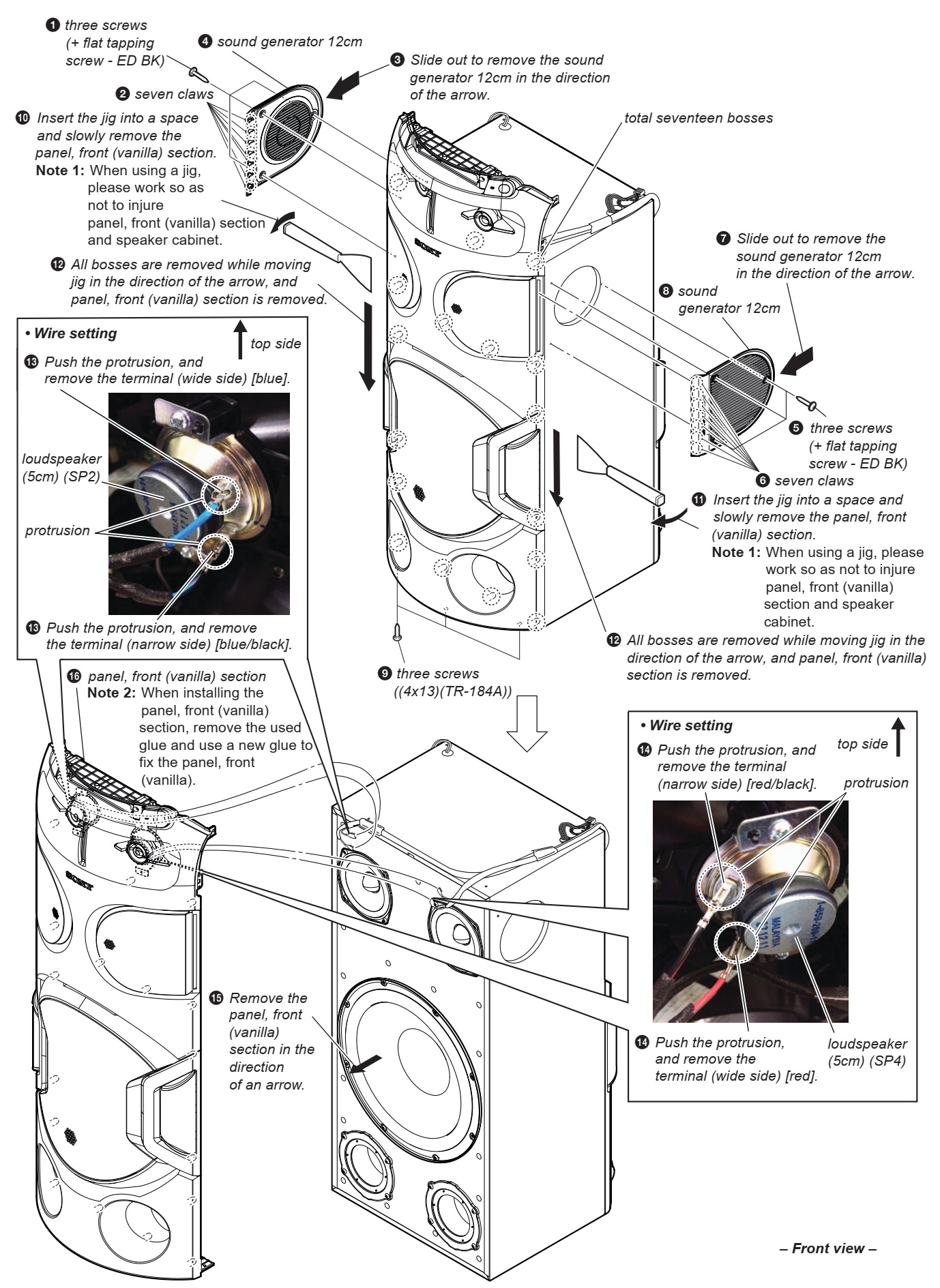
When disassembling the set, use the following jig (for front panel removal).
Part No.: J-2501-238-A JIG FOR SPEAKER REMOVAL
When the SENSOR board is defective, exchange the SERVICE, TOP PANEL ASSY.
When the MS-476 board is defective, exchange the entire LOADING COMPLETE ASSY (T).
When IC2002 on the MOTHERBOARD board and the complete MOTHERBOARD board are replaced, it is necessary to spread the heat-sink compound between parts and heat sink.
Releasing the disc tray lock
The disc tray lock function for the antitheft of sample disc in the shop is equipped.
It can release the lock function in the following procedure.
Press the [Power] button to turn the power on.
2. Touch the [FUNCTION] touch key to turn the DVD/CD function.
3. Touch [MEGA BASS] and [VOCAL FADER] touch keys simultaneously for three seconds.
4. The message “UNLOCKED” is displayed on the screen display panel and the disc tray is unlocked.
Note: When “LOCKED” is displayed on the screen display panel, the disc tray lock is not released by turning the power on/off with the [Power] button.
IF “PROTECTX” (X IS A NUMBER) AND “CHECK MANUAL” FLASHES ON THE DISPLAY
immediately unplug the AC power cord (mains lead), and check if anything is blocking the ventilation openings of the unit.
After you have checked and found no problems, reconnect the AC power cord (mains lead), and turn on the system. If the issue persists, contact your nearest Sony dealer or the authorized service center.
How to open the tray when power switch turn off/ How to take out the disc in emergency
Note 1: After the side panel L, R are removed, this work is done.
Note 2: prepare the thin wire (clip etc. processed to the length of 8 cm or more)
Remove side panel L, R.
Insert the clip etc. processed to the length of 8 cm or more in the hole on the side of the CDM and push. [Refer to the fig below]
Service position
Disassembly procedure of the side panel
Disassembly procedure of loading panel assembly
Disassembly procedure of the top panel [be very careful not to damage any of the flat cables, while tacking the assembly apart]
Rear cover & ventilation cover disassembly
Disassembly of the back panel section
Disassembly of the CDM section
Optical device [7G] & flexible cable service
Dismantling the Motherboard
SMPS/ the power board removal
Front panel [Vanilla] section disassembly
Bottom cover removal
Test modes
Panel test mode
This mode is used to check the screen display panel, LEDs, buttons, touch keys and GESTURE CONTROL sensor.
1. Press [Power] button to turn on the system.
2. Touch [<] touch key and [MIC/GUITAR LEVEL -] touch key simultaneously for 3 seconds.
3. All LEDs and segments in screen display panel are lighted up.
This is the display check mode.
Touch [ > ] touch key repeatedly to toggle different display mode as below:
Segments on screen display panel:
All On → 1st Group On → 2nd Group On → All On → All Off
Single color LEDs:
All On → All Off → 1st Group On → 2nd Group On → All Off
Multi Color LEDs:
All On → Red → Green → Blue → All Off
4. Touch [0 - ] touch key, the key check mode is activated.
5. In the key check mode, the screen display panel displays “K 0”
Each time a button/touch key is pressed/touched, “K” value increases. However, once a button/touch key has been pressed/touched, it is no longer taken into account. After all the buttons and touch keys have been pressed/touched, “K”
value will toggle between “OK” and “K30”.
The screen display panel displays “<” or “>” or “U” or “u” on the right side of “K30 OK” each time swing left, right, up and down at GESTURE CONTROL.
6. To release from this mode, touch the touch keys in the same manner as step 2, or disconnect the power cord.
Model, destination and version display mode
This mode is used to check the model, destination and software version of the set.
1. Press [Power] button to turn on the system.
2. Touch [<] touch key and [MIC/GUITAR LEVEL -] touch key simultaneously for 3 seconds.
All segments in screen display panel are lighted up.
3. Touch [ +] touch key. Model information appears on the screen display panel.
4. Touch [ +] touch key. Destination information appears on the screen display panel.
5. Touch [ +] touch key. Serial number appears on the screen display panel.
6. During serial number appears, touch [0 +] touch key. Each time [ +] touch key is touched, the screen display panel shows the version of each category software in the following sequence: SC, MTK, BT, BTE, PF, SUB and return back to
model information display.
7. Touch [<] touch key and [MIC/GUITAR LEVEL -] touch key simultaneously for 3 seconds to exit.
User reset
The user reset clears all data including preset data stored in the data flash to initial conditions.
1. Press [Power] button to turn on the system.
2. Touch [GUITAR] touch key and [MEGA BASS] touch key simultaneously for 3 seconds.
3. “RESET” appears on the screen display panel. After that, the screen display panel becomes blank for a while, and the system goes to demo mode.
Cold reset
This mode is used to reset all the user settings to factory setting.
Execute this mode when returning the set to the customer.
1. Press [Power] button to turn on the system.
2. Touch [<] touch key and [MIC/GUITAR LEVEL +] touch key simultaneously for 3 seconds.
3. “COLD RST” appears on the screen display panel. After that, “SONY DEMO” appears on the screen display panel. The system automatically turn on and off once. Please be sure that the system stays at demo mode finally before switch off the power supply.
Disc tray lock
When the disc tray does not open and “LOCKED” appears on the screen display panel, disc tray lock mode has been activated by the shop front.
To release from Disc Tray Lock Mode:
1. Press [Power] button to turn on the system.
2. Touch [FUNCTION] touch key repeatedly to select the DVD/CD function.
3. Touch [MEGA BASS] touch key and [VOCAL FADER] touch key simultaneously and hold down until “UNLOCKED” displayed on the screen display panel.
Shop front demo
The playback started automatically and the “ * DEMO * ” appears on the screen display panel.
This is the Shop Front Demo mode which is activated by the shop front.
Release from Shop Front Demo
1. Touch [<] touch key and [MIC ECHO] touch key simultaneously for 5 seconds.
2. The message "STANDBY" appears on screen display panel.  After that, the screen display panel blinks for a few times and the system goes to demo mode.
SMPS board and fault diagnosis

Thursday, 11 April 2019

SONY HCD-ESX6 - ESX8 - ESX9 COMPACT DISC RECEIVER – SMPS AND FRONT PANEL SCHEMATIC

HCD-ESX6 is the amplifier, USB, CD player and tuner section in MHC-ESX6.

HCD-ESX8 is the amplifier, USB, CD player and tuner section in MHC-ESX8.
HCD-ESX9 is the amplifier, USB, CD player and tuner section in MHC-ESX9
Abbreviation
E2 : 120 V AC area in E model
E4 : African model
E51 : Chilean and Peruvian models
E93 : 240 V AC area in E model
MX : Mexican model
MHC-ESX9/ESX8:
AC 120 V – 240 V, 60 Hz
MHC-ESX6:
AC 127 V, 60 Hz
Other models:
AC 120 V – 240 V, 50/60 Hz
MHC-ESX9
Power output (rated):
High channel
140 W + 140 W (at 6 ohms, 1 kHz, 1% THD)
Low channel
140 W + 140 W (at 6 ohms, 100 Hz, 1% THD)
RMS output power (reference):
High channel
250 W + 250 W (per channel at 6 ohms, 1 kHz)
Low channel
250 W + 250 W (per channel at 6 ohms, 100 Hz)
MHC-ESX8
Power output (rated):
120 W + 120 W (at 5 ohms, 1 kHz, 1% THD)
RMS output power (reference):
300 W + 300 W (per channel at 5 ohms, 1 kHz)
MHC-ESX6
Power output (rated):
100 W + 100 W (at 4 ohms, 1 kHz, 1% THD)
RMS output power (reference):
180 W + 180 W (per channel at 4 ohms, 1 kHz)
Mechanism Type: CDM90-DVBU202//C
Optical Pick-up Block Name: CMS-S76RFS7G
300W SMPS schematic (Circuit diagram)
600W SMPS schematic
400W SMPS schematic
Front panel schematic

Wednesday, 10 April 2019

BOSE AUDIO - BOSE SOUNDLINK MINI – DISASSEMBLING PROCEDURE – TEST PROCEDURE

Bose Audio - Bose soundlink Mini – Disassembling procedure – Test procedure

DISASSEMBLING PROCEDURE 
1. Grille Removal
Note: The grille is held in place by Pressure Sensitive Adhesive (PSA) strips located in the center of the grille  and also by two tabs on either end of the grille .
To avoid destroying the grill during the removal process, brush alcohol over the PSA stripsbefore attempting to remove it.
Important Note: To avoid damage to the cabinet, do not use the cabinet as a pry point to remove the grille.
1.1 At the location shown in Figure, insert the tip of a plastic tool, such as a spudger, between the grille and its rubber gasket.
Note: The location shown is between the PSA and grille tabs securing the grille.
1.2 Rotate the spudger away from you while prying against the rubber gasket.
1.3 Once a portion of the grille is released, grasp the grille and pull it across the unit lengthwise to release the PSA.
2. Battery Removal
The Battery in SoundLink Mini II is hardwired to the Boost PCB. See figure . Place the product in ship mode prior to disassembly.
The rear grille, I/O PCB, rear baffle and Amp PCB must be removed before the Battery and Boost board can be removed. Use the following procedure to remove the battery and the boost board in order to unsolder the cable and replace the battery.
2.1 Remove the foot by pulling it away from the battery.
2.2 Remove the four screws securing the battery to the cabinet.
2.3 Remove the four screws securing the I/O PCB to the cabinet as shown in.
2.4 Carefully peel away the foam tape securing the FFC cable to the I/O PCB connector. This foam will be damaged when removing, plan to replace the foam with part number 373978-0010.
Note: When handling the I/O board, do not to touch the microphone filter with fingers. Gloves should be used to avoid contact with the filter..
The replacement I/O PCB does not include the microphone filter. Install new part (744588-0010) when replacing the I/O PCB.
2.4 Move the I/O PCB to the right until the AUX connector clears the housing and then lift the top edge of the PCB until the USB connector clears the housing.
2.5 Partially lift out the I/O PCB. Lift up the connector locking tab to release the FFC cable from the I/O PCB connector.
2.6 Pull the battery cover out of the retaining slot in the cabinet.
2.7 Remove the four screws securing the rear baffle.
2.8 Lift the battery up and away from the enclosure. The battery will still be connected to the boost board but cannot be fully removed until the end of the procedure.
2.9 As shown in Figure , insert your thumb into the battery cavity and press upward on the rear baffle.
2.10 Hold the FFC against the transducer through the battery opening while rocking the baffle back/ forth as you slide it out of the cabinet. The FFC will slide out of the slot in the rear baffle while extracting the baffle in this way.
Note: Placing strain on the FFC Main PCB connector can damage the connector if the FFC is not held.
2.11 Using your thumb, push up on the Amp PCB as shown in Figure to release it from the boost board.
2.12 Disconnect the speaker wire harness from the AMP PCB.
2.13 Release the Boost board from the main board connector by pushing upward, left.
2.14 Once the connector is unplugged, pull outward on the boost board to release it from the slot, right.
2.15 Lift the battery away from the enclosure by twisting the boost board to allow it to exit from the assembly along with the battery.
2.16 Once the battery and boost board are removed from the enclosure, the battery cable can be unsol dered and a new battery can be installed. Figure  shows the solder connections for the battery cable.
3. Driver Removal
3.1 Remove the eight screws securing the front baffle.
3.2 As shown in Figure, insert your thumb into the back of the unit or the battery cavity and push the front baffle out of the cabinet.
3.3 Lift the left driver out of the cabinet. With a plastic tool, such as a spudger, release the speaker harness cable from the AMP PCB
4. Main PCB Removal
Important Note! To avoid damage to the switches on the Main PCB, the front and rear baffle should be removed. The Main PCB is held in place by a shelf on the front and rear baffles which restricts the ability of the Main PCB to be rotated downward enough for the switches to clear the cabinet holes.
4.1 Perform procedures 1, 2, 3.1 and 3.2 to gain access to the Main board.
4.1 Detach the speaker wire from the wire clip on the main board.
4.1 lift upward on the main board and remove.
5. Lens Removal
5.1 Perform procedures 1, 2, 3 and 4 to gain access to the lens
5.2 The Lens is held in place by Pressure Sensitive Adhesive (PSA). Insert your thumbs into the cabinet and press upward on the Lens to release the PSA.
6. Button Pad Removal
5.1 Perform procedures 1, 2, 3 and 4 to gain access to the button pad.
6.1 Insert a plastic tool, such as a spudger, under the corner of the button pad and lift it up.
6.2 Peel up the button pad.
TEST PROCEDURES
Equipment Required
Computer w/USB port
PolyComm Software
USB TYPE A to micro B cable
Audio frequency generator
Cell Phone with Bluetooth Capabilities
USB current meter
Prior to the functional test, the integrity of the external flash IC holding all non English languages should be checked.
A. Factory default the product by pressing the power button for 10 seconds until the LED’s turn off. Once the button is released, voice prompts will ask you to select the language.
B. Scroll through the different languages by pressing the volume plus button. Then select a language.
The integrity of the flash IC is confirmed if the different languages can be heard.
1. Test Setup
1.1 Turn on the SoundLink Mini II by pressing the power button.
1.2 Run the Polycomm software and connect the USB cable from the computer to the SoundLink Mini II. Then select TAP mode.
2. Left/Right Driver/ AUX Input Test
2.1 Connect a signal generator to the left AUX input of the Bose Mini II Soundlink.
2.2 Adjust the signal generator to 50mVrms, 800Hz.
2.3 Issue TAP command VO 86 to set the volume to 60 (range is 0 to 99)
2.4 Confirm audio plays from the left driver.
2.5 Connect the signal generator to the right AUX input of the Soundlink Color.
2.6 Confirm audio plays from the right driver.
3. Air Leak Test/ AUX Input Test
3.1 Connect a signal generator the AUX input of the SoundLink Mini II.
3.2 Adjust the signal generator to 1.00Vrms, 60Hz.
3.3 Issue TAP command VO 86 to set the volume to 99 (range is 0 to 99)
3.4 Listen for air leaks around the cabinet edges and keypad.
PASS if no audible air leaks can be heard at a distance of less than 1 ft (0.3M).
FAIL if any audible air leaks can be heard at a distance of less than 1 ft (0.3M).
4. Frequency Sweep Test/ AUX Input Test
4.1 Connect a signal generator to the AUX input of the SoundLink Mini II.
4.2 Adjust the signal generator to 1.0Vrms, 50Hz.
4.3 Issue TAP command VO 99 to set the volume to 99 (range is 0 to 99)
4.4 Sweep the signal generator from 50Hz to 2kHz.
4.5 Listen for any extraneous noises such as buzzes, rattles, ticks, or distortion. PASS if no noise can be heard at a distance of less than 1ft (0.3M).
FAIL if any noise can be heard at a distance less than 1ft (0.3M).
5. Bluetooth Functional Test
For this test, use a Cell phone with A2DP Bluetooth, such as an iPhone (Advanced Audio Distribution Profile)
Pair SoundLink Mini II and Bluetooth device.
Note: Make sure to remove the 3.5mm connector from the AUX jack. The product switches to AUX when a connector is inserted.
5.1 Remove power from the unit and turn on the SoundLink Mini II.
Note: Removing power will test the units ability to play audio from the battery also.
5.2 Press and hold the Bluetooth button until the LED blinks blue to make the unit discoverable.
5.3 From the Bluetooth device list, select the device named “Bose Mini II SoundLink”. Once paired, the LED on the unit should turn a solid white and a voice prompt will identify what device you have connected to.
Note: If you are prompted for a pass code, enter 0000.
5.4 Play a familiar audio track from the Bluetooth device.
5.5 Listen for a clean undistorted sound with no audio drop outs.
6. Speakerphone Test
6.1 Using the cell phone, pair to the SoundLink Mini II via Bluetooth.
6.2 Using a different phone, make a call to the bluetooth connected cell phone.
6.3 The product will announce an incoming call. Answer the call using the multifunction button.
6.4 Listen on the second phone as you talk into the
SoundLink Mini II for clear, undistorted audio from its microphone.
Note: The microphone on the SoundLink Mini II is located on a PCB mounted on the back right of the product.

7. Battery Charging/ USB Port Test
7.1 Connect a USB current meter between the power adapter and the SoundLink Mini II.
7.2 Confirm the reading on the current meter is 1.5A.
Note: It is possible the reading will be a number less than 1.5 if the battery is close to being fully charged.
7.3 Connect a USB current meter between a computer and the SoundLink Mini II.
7.4 Confirm the reading on the current meter is 0.5A.
Note: It is possible the reading will be a number less than 0.5 if the battery is close to being fully charged.
8. Battery Level Check - Optional Test
8.1 Enter TAP command “ba 4” to read the battery voltage level.
8.2 The results are returned in percentage of charge.
Example: The unit responds with 80 = 80% of a full charge.
9. Battery Age Check
9.1 The battery is not able to supply age information by TAP. Use the product’s Date Of Manufacture (DOM) to estimate the battery age or the DOM printed on the battery. The DOM is the 8th,9th,10th,11th number in the serial number in the from YDDD.
Example: 4175 is the 175th day of 2104 or June 24th, 2014.
9.2 The battery should be less than 30 months old