REPAIRING AND NOT THROWING AWAY

Richtige Fernseher haben Röhren!

Richtige Fernseher haben Röhren!

In Brief: On this site you will find pictures and technical information about Service Modes, Circuit Diagrams, Firmware Update procedure, Disassemble procedure, Universal remote control set-up codes, Troubleshooting and more....

If you go into the profession, you will obtain or have access to a variety of tech tips databases HERE IT IS Master Electronics Repair !.

These are an excellent investment where the saying: 'time-is-money' rules. However, to learn, you need to develop a general troubleshooting approach - a logical, methodical, method of narrowing down the problem. A tech tip database might suggest: 'Replace C536' for a particular symptom. This is good advice for a specific problem on one model. However, what you really want to understand is why C536 was the cause and how to pinpoint the culprit in general even if you don't have a service manual or schematic and your tech tip database doesn't have an entry for your sick TV or VCR.

While schematics are nice, you won't always have them or be able to justify the purchase for a one-of repair. Therefore, in many cases, some reverse engineering will be necessary. The time will be well spent since even if you don't see another instance of the same model in your entire lifetime, you will have learned something in the process that can be applied to other equipment problems.
As always, when you get stuck, checking out a tech-tips database may quickly identify your problem and solution.In that case, you can greatly simplify your troubleshooting or at least confirm a diagnosis before ordering parts.

Happy repairing!
Today, the West is headed for the abyss. For the ultimate fate of our disposable society is for that society itself to be disposed of. And this will happen sooner, rather than later.

How to use the site:

- If you landed here via any Search Engine, you will get what you searched for and you can search more using the search this blog feature provided by Google. You can visit more posts scrolling the left blog archive of all posts of the month/year,
or you can click on the main photo-page to start from the main page. Doing so it starts from the most recent post to the older post simple clicking on the Older Post button on the bottom of each page after reading , post after post.

You can even visit all posts, time to time, when reaching the bottom end of each page and click on the Older Post button.

- If you arrived here at the main page via bookmark you can visit all the site scrolling the left blog archive of all posts of the month/year pointing were you want , or more simple You can even visit all blog posts, from newer to older, clicking at the end of each bottom page on the Older Post button.
So you can see all the blog/site content surfing all pages in it.

- The search this blog feature provided by Google is a real search engine. If you're pointing particular things it will search IT for you; or you can place a brand name in the search query at your choice and visit all results page by page. It's useful since the content of the site is very large.

Note that if you don't find what you searched for, try it after a period of time; the site is a never ending job !

..............The bitterness of poor quality is remembered long after the sweetness of todays funny gadgets low price has faded from memory........ . . . . . .....
Don't forget the past, the end of the world is upon us! Pretty soon it will all turn to dust!

©2010, 2011, 2012, 2013, 2014 Frank Sharp - You do not have permission to copy photos and words from this blog, and any content may be never used it for auctions or commercial purposes, however feel free to post anything you see here with a courtesy link back, btw a link to the original post here , is mandatory.
All posts are presented here for informative, historical and educative purposes as applicable within fair use. NOTHING HERE IS FOR SALE !

Showing posts with label MACBOOK. Show all posts

Wednesday, 10 April 2019

HOW TO REPLACE THE OPTICAL DRIVE - APPLE MACBOOK PRO 15

How to replace the optical drive - Apple MacBook Pro 15


OPTICAL DRIVE REPLACEMENT PROCEDURE 
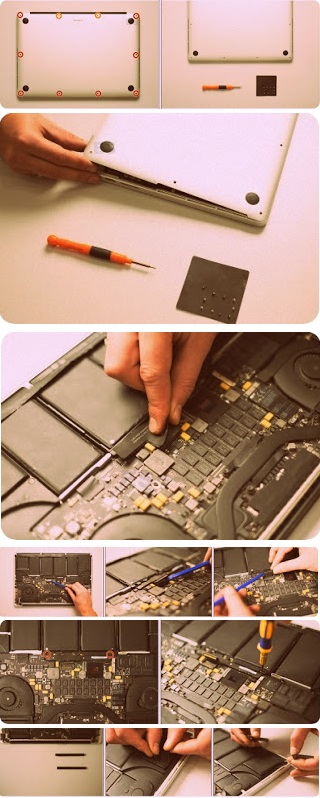
Remove the following ten screws securing the lower case to the upper case: Three 13.5 mm (14.1 mm) Phillips screws. Seven 3 mm Phillips screws.
Using both hands, lift the lower case near the vent to pop it off two clips securing it to the upper case. Remove the lower case and set it aside.
Remove the two 7.4 mm Y1 Tri-Wing screws securing the battery to the upper case. Note: For certain repairs (e.g. hard drive), removing the battery is not necessary but it prevents any accidental shorting of electronics on the motherboard. If you do not remove the battery, please be careful as parts of the motherboard might be electrified. You do not necessarily have to follow steps 3-6 to remove the battery in order to replace the hard drive. However it is recommended to remove all power sources from electronics before working on them.
Use the tip of your finger to carefully peel back the corner of the warning label to reveal a hidden Tri-Wing screw. Remove the last 7.4 mm Y1 Tri Wing screw securing the battery to the upper case.
Lift the battery by its plastic pull tab and slide it away from the long edge of the upper case.
Do not try to completely remove the battery just yet.
Tilt the battery away from the logic board enough to access the battery cable connector. Pull the battery cable connector away from its socket on the logic board and remove the battery from the upper case. Pull the battery cable connector away from the center of the logic board.
Use the flat end of a spudger to pry the AirPort/Bluetooth ribbon cable connector up off the logic board.
Disconnect the camera cable by pulling its connector away from the socket (toward the optical drive) on the logic board.
Use the flat end of a spudger to pry the optical drive connector up off the logic board.
Remove the two Phillips screws securing the AirPort/Bluetooth board housing. Carefully rotate the AirPort/Bluetooth board housing (with AirPort/Antenna cables still attached) out of the lower case.
Remove the following three Phillips screws securing the optical drive to the upper case: One 4.5 mm Phillips screw securing the optical drive bracket to the upper case near the fan.
Two 2.5 mm Phillips screws securing the optical drive to the upper case near the optical drive opening.
Lift the optical drive near its connector and pull it away from the upper case to remove it from the computer.
Pull the optical drive cable out of the optical drive. Be sure to pull by the edges of the connector, not by the cable itself. Optical drive remains.Transfer this bracket to your new optical drive or hard drive enclosure.

Monday, 8 April 2019

APPLE MACBOOK PRO 17HOW TO REPLACE THE KEYBOARD OF MACBOOK

How to replace the keyboard of Macbook – Apple MacBook Pro 17


Apple MacBook Pro 17
Use your fingers to push both battery release tabs away from the battery and lift the battery out of the computer.
Remove the four identical Phillips 3.4 mm screws from the memory door. These screws have 4 mm diameter heads rather than the 3 mm heads on the body screws.
Lift the memory door up enough to get a grip on it, and slide it toward you, pulling it away from the casing. Remove the three Phillips screws in the battery compartment near the latch. Apple was nice enough to tilt these screws at a slight angle to make them easier to remove. On the A1261 these screws have 4 mm diameter heads rather than the 3 mm heads on the body screws.
Remove the following six screws: Two 14.5 mm T6 Torx screws on either side of the RAM slot.
Four 3.4 mm Phillips screws along the hinge.
Remove the four 3.4 mm Phillips screws on the port side of the computer.
Rotate the computer 90 degrees and remove the two Phillips screws from the rear of the computer. Rotate the computer 90 degrees again and remove the four Phillips screws from the side of the computer.
Do not yank the upper case off quickly. The case is attached to the logic board via a ribbon cable. Lift up the back of the case and work your fingers along the sides, freeing the case as you go. Once you have freed the sides, you may need to rock the case up and down to free the front of the upper case. Disconnect the trackpad and keyboard ribbon cable from the logic board. Remove the upper case.
Use a spudger to pry up the translucent plastic sheath covering the keyboard connector. Use the tip of a spudger to flip up the black plastic flaps locking down the keyboard and keyboard backlight ribbon cables.
Slide the orange keyboard backlight ribbon out of its connector. Peel up the orange tape covering the keyboard backlight connector.
Use the tip of a spudger to flip up the brown plastic flap locking down the keyboard backlight ribbon cable. Use a spudger or your finger to slide the keyboard backlight ribbon out of its connector.
Carefully peel up the orange ribbon cable which carries the power and sleep signals. Peel up the two black protective sheaths on the bottom of the keyboard. It is not necessary to fully remove these, but only to peel them back enough to access the screws beneath.
Remove the ten identical Phillips screws attaching the keyboard to the casing. The keyboard on A1261 models is secured with twelve screws. Their locations are shown in the second picture.
There are four locking tabs along the back edge of the keyboard holding it in place. These tabs must be straightened before you can remove the keyboard. The keyboard on A1261 models has five locking tabs. Their locations are shown in the second picture.
The first frame shows a tab in the "locked" position and the second frame shows the same tab in the "unlocked" position. Use needlenose pliers or a spudger to bend each of the four tabs so that they are all in the "unlocked" position.
Slide the keyboard ribbon out of its connector. If the keyboard ribbon won't slide out, make sure that the black plastic flap holding the ribbon in place is vertical.
Place the upper casing on its edge and use a spudger to push the keyboard away from the casing, poking the spudger through the central keyboard screw hole. Grasp the keyboard as it separates from the casing. Maintaining your hold on the keyboard, lay the casing flat and gently bow the keyboard until the two tabs on either side of the keyboard come free. Slide the keyboard away from the trackpad and out of the upper case.

APPLE MACBOOK AIR - HOW TO REPLACE THE MICROPHONE OF APPLE MACBOOK AIR 11

Apple MacBook Air - How to replace the microphone of Apple MacBook Air 11


Apple MacBook Air 11: Microphone replacement procedure 
Before proceeding, close your computer and lay it on a soft surface top-side down. Remove the following ten screws: Two 8 mm 5-point Pentalobe screws
Eight 2.5 mm 5-point Pentalobe screws
Wedge your fingers between the display and the lower case and pull upward to pop the lower case off the Air. Remove the lower case and set it aside.
Use the flat end of a spudger to pry both short sides of the battery connector upward to disconnect it from its socket on the logic board. Bend the battery cable slightly away from the logic board so the connector will not accidentally contact its socket.
Remove the following five screws securing the battery to the upper case:
Two 5.2 mm T5 Torx screws
One 6 mm T5 Torx screw
Two 2.6 mm T5 Torx screws
When handling the battery, avoid squeezing or touching the six exposed lithium polymer cells.
Lift the battery from its edge nearest the logic board and remove it from the upper case.
Use the flat end of a spudger to pry the I/O board cable connector upward out of its socket on the I/O board.
Use the tip of a spudger to flip up the retaining flap on the microphone ribbon cable ZIF socket. Be sure you are prying up on the hinged retaining flap, not the socket itself. Pull the microphone ribbon cable straight out of its socket.
Use the tip of a spudger to de-route the left speaker cable from the notch cut into the edge of the I/O board.
Use the flat end of a spudger to pry the left speaker connector up and out of its socket on the I/O board. Pry upward from beneath the wires.
Use the flat end of a spudger to pry the left speaker off the adhesive securing it to the upper case. Only pry up on the speaker from the areas of bare aluminum on the upper case. Prying up from the keyboard area may damage the keyboard and the speaker itself.
Remove the left speaker from the upper case.
Use the tip of a spudger to pry the microphone away from the side of the upper case. Remove the microphone from the upper case.

HOW TO REPLACE THE SPEAKER OF MACBOOK PRO RETINA – APPLE MACBOOK PRO 15 INCH RETINA

How to replace the speaker of MacBook pro Retina – Apple MacBook Pro 15 Inch Retina


How to replace the speaker of MacBook pro Retina – Apple MacBook Pro 15 Inch Retina – How to remove the case – How to remove the logic board – How to disconnect the battery
 Apple MacBook Pro 15:  SPEAKER REPLACEMENT PROCEDURE 
Remove the following pentalobe screws securing the lower case to the MacBook Pro:
Eight 3.0 mm
Two 2.3 mm
Lifting from the edge nearest the clutch cover, lift the lower case off the MacBook Pro. Set the lower case aside.
Battery Connector
Peel back the warning label covering the battery connector.
Using the flat end of a spudger, gently pry the battery connector straight up out of its socket on the logic board. Bend the battery cables back and out of the way, ensuring that the battery connector doesn't accidentally make contact with the logic board.
AirPort/Camera Cable
Use the tip of a spudger to pry the three AirPort antenna cables straight up off of their sockets on the AirPort board. Use the tip of a spudger to push the camera cable connector out of its socket on the logic board. Be sure to push parallel to the board, pushing first on one side, then the other to "walk" the connector out of its socket.
Insert the flat end of a spudger underneath the rubber heat sink cover on the right fan.
Slide the spudger underneath the length of the cover, releasing the adhesive.
Lift the cover and flip it back so that you can access the cables underneath.
Use your fingers to pull the AirPort/Camera cables up off the fan.
The cables are adhered to the fan, so peel them up carefully to avoid damaging them. Carefully de-route the cables from the plastic cable guide.
I/O Board Cable
Using the flat end of a spudger, pry the I/O Board connector straight up out of its socket on the logic board. On reassembly, connect this end first as it does not flex.
In a similar fashion, remove the I/O Board connector from its socket on the I/O Board.
Remove the I/O Board cable from the MacBook Pro.
Right Fan
Remove the single 2.9 mm T5 Torx screw securing the AirPort card to the logic board.
Grasp the thin sides of the AirPort card and pull parallel to the logic board, removing the AirPort card from the MacBook Pro.
Use the tip of a spudger to flip up the retaining flap on the right fan ribbon cable ZIF socket. Be sure you are prying up on the hinged retaining flap, not the socket itself. Starting at the top of the cable, slide a plastic opening tool under the right fan cable to free it from the logic board. Use caution when freeing the cable, as it is strongly adhered to the logic board.
Remove the following three screws securing the right fan to the logic board:
One 4.4 mm T5 Torx screw One 3.9 mm T5 Wide Head Torx screw
One 5.0 mm T5 Torx screw with 2 mm collar
Lift and remove the right fan out from the MacBook Pro.
Left Fan
Use the flat end of a spudger to lift the rubber heat sink cover up off the left fan.
Remove the following three screws securing the left fan to the logic board:
One 4.4 mm T5 Torx screw One 5.0 mm T5 Torx screw with 2 mm collar.
One 3.9 mm T5 Wide Head Torx screw
Use the tip of a spudger to flip up the retaining flap on the left fan ribbon cable ZIF socket.
Be sure you are prying up on the hinged retaining flap, not the socket itself. Starting at the top of the cable, slide a plastic opening tool under the left fan cable to free it from the logic board.
 Use caution when freeing the cable, as it is strongly adhered to the logic board. Lift the left fan out of the device.
SSSD
Remove the single 3.1 mm T5 Torx screw securing the SSD to the logic board.
Slightly lift the rightmost side of the SSD and firmly slide it straight away out of its socket on the logic board.
Use the tip of a spudger to flip up the I/O board data cable lock and rotate it toward the battery side of the computer. Use the flat end of a spudger to slide the I/O board data cable straight out of its socket on the logic board. Do not lift up on the I/O board data cable, as its socket is very fragile. Pull the cable parallel to the face of the logic board.
Remove the two 3.1 mm T5 Torx screws securing the I/O board to the logic board. Carefully lift the I/O board and remove it from the lower case.
Logic Board Assembly
Use the flat end of a spudger to pry the left speaker connector up and out of its socket on the logic board. Use the tip of a spudger to pry the right speaker connector up and out of its socket on the logic board Be sure to pry on the cable head, and not on the socket itself. Prying on the socket may cause it to separate from the logic board.
Peel back the tape covering the top of the keyboard ribbon cable connector. Use the flat end of a spudger to flip up the retaining flap on the keyboard ribbon cable ZIF socket.
Be sure you are prying up on the hinged retaining flap, not the socket itself. Use the flat end of a spudger to push the keyboard ribbon cable out of its socket.
Use the flat end of a spudger to pry the trackpad ribbon cable connector up out of its socket.
Use the flat end of a spudger to pry the keyboard backlight connector up from its socket on the logic board.
Use the tip of a spudger or your fingernail to flip up the retaining flap on the microphone ribbon cable ZIF socket. Be sure you are prying up on the hinged retaining flap, not the socket itself.
Pull the microphone ribbon cable out of its socket.
Use the tip of a spudger to flip up the display data cable lock and rotate it toward the DC-In side of the computer. Pull the display data cable straight out of its socket on the logic board. Do not lift up on the display data cable, as its socket is very fragile. Pull the cable parallel to the face of the logic board.
Use the flat end of a spudger to carefully pry off the rubber screw cap on the raised screw head near the MagSafe 2 connector.
Remove the following six screws securing the logic board to to the upper case:
One 3.1 mm T5 Torx screw
One 2.5 mm T5 Torx screw One 5.5 mm silver, raised-head T5 Torx screw
Two 5.7 mm T5 Torx screws
One 3.8 mm silver T5 Torx screw
Lifting from the side nearest the battery, rotate the logic board toward the top of the MacBook Pro. You may need to slide the logic board a few millimeters to the left in order to get clearance for the ports along the right edge of the board.
Using the flat end of a spudger, carefully push the MagSafe 2 connector out of its socket on the bottom of the logic board.
Remove the logic board assembly from the MacBook Pro.
Speakers
Remove the following three screws securing the left speaker to the upper case:
One 5.6 mm T5 Torx screw
One 6.9 mm T5 Torx screw
One 2.6 mm T5 Torx screw
Lift the left speaker out of the upper case and set it aside
Remove the following three screws securing the right speaker to the upper case:
One 5.6 mm T5 Torx screw
One 6.9 mm T5 Torx screw
One 2.6 mm T5 Torx screw
Remove the right speaker from the MacBook Pro

APPLE MACBOOK AIR – DISASSEMBLING PROCEDURE – HOW TO REMOVE THE REAR COVER – HOW TO DISASSEMBLE THE DISPLAY UNIT

Apple MacBook Air – Disassembling procedure – How to remove the rear cover – How to disassemble the display unit


Apple MacBook Air: DISASSEMBLING PROCEDURE 
Remove the following 10 screws securing the lower case to the Air:
Six 2.8 mm Phillips screws.
Two 3.8 mm Phillips screws.
Two 5.4 mm Phillips screws.
Slightly lift the lower case near the vents and push it toward the rear of the computer to free the mounting tabs.
Disconnect the battery connector by pulling it straight out of its socket. Remove the following nine screws securing the battery to the Air:
Four 2.9 mm Phillips.
Four 3.8 mm Phillips.
One 7.2 mm Phillips.
Lift the battery out of the Air.
Disconnect the port hatch ribbon cable from the logic board by pulling it straight up by its black pull tab. Pull the audio out ribbon cable off the adhesive securing it to the upper case. Use a spudger to pry the audio out ribbon cable connector board off the hard drive bracket.
Disconnect the audio out cable from its socket on the port hatch ribbon cable. Use a spudger to pry the hard drive cable connector up off the logic board.
Use the sharp end of a spudger to de-route the microphone cable from the hard drive bracket. Remove the cosmetic screw cover from the adhesive securing it to the hard drive bracket.
Remove the four Phillips screws securing the hard drive assembly to he upper case:
Two 4.7 mm screws.
Two 3.9 mm screws.
Lift the hard drive assembly out of the upper case.
Use the tip of a spudger to pull the fan cable connector straight away from its connector on the logic board.
Use the tip of a spudger to move the cosmetic fan cover aside.
If you have the original version of the MacBook Air (A1237), refer to picture 1. Remove the following screws securing the heat sink to the logic board:
One 5.9 mm Phillips screw.
Two 1.9 mm Phillips screws.
One 1.9 mm Phillips screw. If you have the A1304 version of MacBook Air, refer to picture 2. Remove the following screws securing the heat sink to the logic board:
One 5.0 mm Phillips screw
Five 1.9 mm Philips screws.
One 2.5 mm Phillips screw.
Lift the processor clamp off the heat sink. Deroute the microphone cable away from the channel in the fan.
Lift the heat sink up off the logic board. Be mindful of the microphone cable when lifting the heat sink, as it can get tangled on the top edge of the fan. When you mount the heat sink back onto the logic board, be sure to apply a new layer of thermal paste. Use a spudger to pry the audio cable connector up off the logic board.
If present, remove the small piece of black tape covering the microphone cable connector. Disconnect the microphone cable by pulling its connector straight away from the socket on the logic board.
Remove the two small Phillips screws securing the logic board bracket to the upper case. Lift the logic board bracket out of the upper case.
Use a spudger to pry the AirPort/Bluetooth and trackpad control cable connectors up off the logic board.
Disconnect the DC-In cable by pulling its connector straight away from the socket on the logic board.
Remove the small Phillips screw securing the display data cable ground loop to the upper case. Disconnect the display data cable by pulling its connector straight away from the socket on the logic board.
Remove the three Phillips screws securing the logic board to the upper case.
Lift the logic board out of the upper case.
Remove the two following screws securing the AirPort/Bluetooth board bracket to the upper case:
One 4.7 mm Phillips.
One 3.9 mm Phillips.
Lift the AirPort/Bluetooth bracket out of the upper case.
Use a spudger to pry the three antenna cables up off the AirPort/Bluetooth board.
Peel the antenna cables up off the adhesive securing them to the upper case.
Remove the single Phillips screw securing the microphone cable ground loop to the upper case.
Remove the following 15 screws:
Thirteen 2.3 mm Phillips.
Two T6 Torx. Leave one T6 Torx screw in each side of the display bracket.
Open the Air so the display is perpendicular to the upper case and place it on a table as shown. While holding the top of the Air with one hand, remove the T6 Torx screw from the lower display bracket.
Be sure to hold the Air together while you remove the last Torx screw. Failure to do so may cause the display/upper case to fall, potentially damaging both components. Remove the T6 Torx screw from the upper display bracket.
Pull the upper case straight away from the display, minding any cables that may get caught.

APPLE MACBOOK PRO 13 – DISASSEMBLING PROCEDURE – HOW TO REPLACE THE OPTICAL DRIVE

Apple MacBook Pro 13 – Disassembling procedure – How to replace the optical drive


Apple MacBook Pro 13:  DISASSEMBLING PROCEDURE 
Remove the following ten screws:
Three 14.4 mm Phillips #00 screws
Three 3.5 mm Phillips #00 screws
Four 3.5 mm shouldered Phillips#00 screws
Use your fingers to pry the lower case away from the body of the MacBook near the vent. Remove the lower case.
Use the edge of a spudger to pry the battery connector upwards from its socket on the logic board. It is useful to pry upward on both short sides of the connector to "walk" it out of its socket. Be careful with the corners of the connectors, they can be easily broken off.
Bend the battery cable slightly away from its socket on the logic board so it does not accidentally connect itself while you work.
Use the flat end of a spudger to pry the AirPort/Bluetooth ribbon cable connector up from its socket on the logic board. Carefully pull the camera cable out of its socket on the logic board. Though not recommended by iFixit staff, some users opt to omit this step completely. For information on this, see the step comments. Pull the cable parallel to the face of the logic board. Pulling it upward may damage the logic board or the cable itself.
Carefully move the AirPort/Bluetooth ribbon cable out of the way as you peel the camera cable off the adhesive securing it to the subwoofer and the AirPort/Bluetooth bracket. De-route the camera cable out from under the retaining finger molded into the AirPort/Bluetooth bracket.
Use the tip of a spudger to pry the antenna connector closest to the logic board up from its socket on the AirPort/Bluetooth board. De-route the antenna cable from under the finger molded into the AirPort/Bluetooth bracket.
Remove the following five screws:
Two 10.3 mm Phillips screws
Two 3.1 mm Phillips screws
One 5 mm Phillips screw
Pull the AirPort/Bluetooth assembly and the Subwoofer upward near the center of the side of the optical drive until they clear each other. Move the AirPort/Bluetooth assembly and the subwoofer away from the top of the optical drive.
Pull the right speaker/subwoofer cable out from under the retaining finger near the side of the optical drive. Pull the right speaker/subwoofer cable upward to disconnect it from the logic board.
Use the flat end of a spudger to pry the hard drive cable connector up from its socket on the logic board. Bend the hard drive cable away from the optical drive. Use the flat end of a spudger to pry the optical drive connector up from its socket on the logic board.
Remove the three 2.7 mm Phillips screws securing the optical drive to the upper case. Pull the optical drive upward from its edge closest to the display and remove it from the upper case.
Pull the optical drive cable away from the optical drive.
Be sure to pull on the connector, not the cable itself. Remove the two black Phillips #0 screws securing the small metal mounting bracket. Transfer this bracket to your new optical drive.

APPLE MACBOOK 15 RETINA – DISASSEMBLING PROCEDURE

Apple MacBook 15 Retina – Disassembling procedure


How to replace battery of Apple MacBook 15 Retina – Disassembling procedure - How to replace the SSD – How to remove the case – Trackpad replacement
Apple MacBook 15 Retina: How to Remove the Battery and Trackpad
Remove the following pentalobe screws securing the lower case to the MacBook Pro:
Eight 3.0 mm
Two 2.3 mm
Lifting from the edge nearest the clutch cover, lift the lower case off the MacBook Pro. Set the lower case aside.
Peel back the warning label covering the battery connector.
Do not use any metal tools.
Using the flat end of a spudger, gently pry the battery connector straight up out of its socket on the logic board.
Bend the battery cables back and out of the way, ensuring that the battery connector doesn't accidentally make contact with the logic board.
Remove the battery screws as shown in following picture.
There is risk to damage the battery.
Note: carefully cut the duct tape layer under the battery with thin wire string.
Be sure you did not damage the loopback of the track-pad.
Please lift up the plaque under the battery with metal spudger.
Remove batteries on by one as shown in the flowing picture
Using the flat end of a spudger, pry the trackpad connector.
Unscrew the light-colored screws
Remove trackpad.
How to replace SSD
Remove the cover remove the battery connectors as follows
Peel back the warning label covering the battery connector.
Using the flat end of a spudger, gently pry the battery connector straight up out of its socket on the logic board.
Bend the battery cables back and out of the way, ensuring that the battery connector doesn't accidentally make contact with the logic board.
Remove the single 3.1 mm T5 Torx screw securing the SSD to the logic board.
Slightly lift the rightmost side of the SSD and firmly slide it straight away out of its socket on the logic board.

Thursday, 21 March 2019

APPLE MACBOOK-PRO - HOW TO REPLACE MEMORY CARD

HOW TO REPLACE MEMORY CARD TO APPLE MacBook PRO


TOOLS
  • #0 Phillips screwdriver (magnetized) •
  • Clean non-marring work surface •
  • ESD wrist strap and mat.
PART LOCATION
  • If the computer has been recently operating, allow it to cool down before performing this procedure.
  • Place the computer face down. 1.
  • Remove the three screws from the memory door.
  • Remove the door, as shown.
  • If only one memory card is installed, the factory installs it in the bottom memory slot.
  • Memory must be removed from the top slot before removing from the bottom slot.
  • To remove memory cards, carefully spread the two locking tabs for the slot (top or bottom) away from the card on both sides and allow the card to pop up slightly.
  • Pull the card straight back and out of the memory slot.
REPLACEMENT PROCEDURE
  • DDR memory cards do not fit in this slot (different notch location).
  • If installing two cards, install into the bottom slot first.
  • When finished installing memory into the bottom slot, use a black stick leveraged against the frame to push the back of the card toward the slot to verify that the card is firmly seated.
  • Align the notch in the memory card with the tooth in the slot before inserting.
  • To install a memory card, insert the card at a 25-degree angle behind the locking tabs of the top slot.
  • Firmly push the card straight into the slot until it is fully and securely seated along its length.
  • Note: If the back of the card drops down before it is fully seated, raise it up enough to push it fully into the slot.
  • When the card is fully seated, push the card straight down until the tabs click onto both sides of the card, locking it into place.
To ensure that the memory cards are fully and securely seated, for the lower card, use a black stick leveraged against the frame to evenly push along the back of the card.

For the upper memory card, push with your thumbs to verify the card is fully seated.
Check that the cards are secured by the brackets on both sides.
Install the memory door.
Replace the battery.
Use Apple System Profiler to verify that the memory is recognized. (Choose the menu bar Apple logo  > About This Mac, click More Info..., select the System Profile tab, open the Memory Overview.)

APPLE MACBOOK-PRO - HOW TO REMOVE AND REPLACE HARD DRIVE

HOW TO REMOVE AND REPLACE HARD DRIVE TO APPLE MacBook PRO


TOOLS
  • #0 Phillips screwdriver (magnetized)
  • Torx T6 screwdriver (magnetized)
  • Black stick (nylon probe 922-5065) (or other non-conductive nylon or plastic flat-blade tool
  • Kapton tape (922-1731 (0.5-inch x 12-yard roll))
PART LOCATION
  • Carefully pry up the flex cable from the hard drive.
  • Lift up cabling to gain some clearance.
  • Remove the two screws from the drive holder.
  • Lift the hard drive up slightly to allow it to move right.
  • Push the hard drive away from the left side to clear the rubber grommets, then lift up just enough to access its flex connector.
  • Carefully push off the flex cable connector to disconnect it from the hard drive.
  • Transfer the rubber grommets and screws.
REPLACEMENT
  • Make sure that the rubber grommets fit securely into the frame holes.
  • Use a black stick to lift the hard drive and guide the rubber grommets securely into the holes in the frame, while holding the bracket in place on the other grommets.
  • Use a black stick to guide the hard drive past the blue tooth card.
  • Press the flex cable to re-adhere it to the hard drive.