REPAIRING AND NOT THROWING AWAY

Richtige Fernseher haben Röhren!

Richtige Fernseher haben Röhren!

In Brief: On this site you will find pictures and technical information about Service Modes, Circuit Diagrams, Firmware Update procedure, Disassemble procedure, Universal remote control set-up codes, Troubleshooting and more....

If you go into the profession, you will obtain or have access to a variety of tech tips databases HERE IT IS Master Electronics Repair !.

These are an excellent investment where the saying: 'time-is-money' rules. However, to learn, you need to develop a general troubleshooting approach - a logical, methodical, method of narrowing down the problem. A tech tip database might suggest: 'Replace C536' for a particular symptom. This is good advice for a specific problem on one model. However, what you really want to understand is why C536 was the cause and how to pinpoint the culprit in general even if you don't have a service manual or schematic and your tech tip database doesn't have an entry for your sick TV or VCR.

While schematics are nice, you won't always have them or be able to justify the purchase for a one-of repair. Therefore, in many cases, some reverse engineering will be necessary. The time will be well spent since even if you don't see another instance of the same model in your entire lifetime, you will have learned something in the process that can be applied to other equipment problems.
As always, when you get stuck, checking out a tech-tips database may quickly identify your problem and solution.In that case, you can greatly simplify your troubleshooting or at least confirm a diagnosis before ordering parts.

Happy repairing!
Today, the West is headed for the abyss. For the ultimate fate of our disposable society is for that society itself to be disposed of. And this will happen sooner, rather than later.

How to use the site:

- If you landed here via any Search Engine, you will get what you searched for and you can search more using the search this blog feature provided by Google. You can visit more posts scrolling the left blog archive of all posts of the month/year,
or you can click on the main photo-page to start from the main page. Doing so it starts from the most recent post to the older post simple clicking on the Older Post button on the bottom of each page after reading , post after post.

You can even visit all posts, time to time, when reaching the bottom end of each page and click on the Older Post button.

- If you arrived here at the main page via bookmark you can visit all the site scrolling the left blog archive of all posts of the month/year pointing were you want , or more simple You can even visit all blog posts, from newer to older, clicking at the end of each bottom page on the Older Post button.
So you can see all the blog/site content surfing all pages in it.

- The search this blog feature provided by Google is a real search engine. If you're pointing particular things it will search IT for you; or you can place a brand name in the search query at your choice and visit all results page by page. It's useful since the content of the site is very large.

Note that if you don't find what you searched for, try it after a period of time; the site is a never ending job !

..............The bitterness of poor quality is remembered long after the sweetness of todays funny gadgets low price has faded from memory........ . . . . . .....
Don't forget the past, the end of the world is upon us! Pretty soon it will all turn to dust!

©2010, 2011, 2012, 2013, 2014 Frank Sharp - You do not have permission to copy photos and words from this blog, and any content may be never used it for auctions or commercial purposes, however feel free to post anything you see here with a courtesy link back, btw a link to the original post here , is mandatory.
All posts are presented here for informative, historical and educative purposes as applicable within fair use. NOTHING HERE IS FOR SALE !

Showing posts with label HISENSE. Show all posts

Friday, 24 April 2020

AOC 715G5665P02, TCL 01E 04021 / HISENSE RSAG7.820 SMPS BOARD SCHEMATICS

AOC 715G5665P02000003M Power board schematic
 TCL 01E 04021 Power board schematic

Hisense RSAG7.820 4716 power board schematic

Friday, 7 February 2020

HISENSE LCD32W57 SERVICE MENU INSTRUCTIONS

Hisense LCD32W57
Service Menu Instructions

    Power ON the TV.
    Press 'Menu" button to call up User OSD menu.
    Select 'Sound => Balance.
    When the 'Balance' is "0", Enter {0 => 5 => 3 => 2} in sequence.
    Factory OSD will appear.
    Press 'Standby' button then AC Turn OFF, and restart the TV, to "EXIT" Service Mode.

Saturday, 14 December 2019

HISENSE 40LE45S TV SERVICE MENU

Hisense 40LE45S 40LC45S LCD TV–How to enter service mode–Software update–Chassis MT5380


How to enter service mode - How to update the firmware - Hisense 40LE45S and Hisense 40LC45S LED LCD TV
There are two ways to enter the service mode [Factory mode].  With a factory remote control [Service remote control] and with the User's remote control

To enter the Factory OSD Menu
With factory RC (remote control)
1. Press the “M” button and enter factory mode.
2. Press the“Menu” button and enter factory OSD menu.
3. Press “CH+”/“CH-” button select the function menu, press “VOL+”/“VOL-” enter the selected
function menu. Press “VOL+”/“VOL-” button adjust values in the menu.
With user’s RC

1. Power TV On
2. Press the Menu button and call up User OSD Menu
3. Select Audio > Balance
4. Enter 0 > 5 > 3 > 2 in sequence.
Note: If necessary, re-enter the number keys.
5. Factory OSD appears.
6. Press Menu again to leave factory OSD. [Exit the factory mode]
Factory OSD Menu
White Balance
Note: Different source has different WB values. Before adjusting, please change to desired source.
1. Auto Color
For VGA and Component Video sources, WB values must be adjusted. Before adjusting, prepare the signal instruments such as DVD or K-8256 first, and find the video picture with gray and color bars. Then change to desired source.
a.Press “M” button and enter factory mode.b.Press “Menu” button and enter factory OSD menu.c.Select the item “Auto Color”.d.Press VOL+ button to auto color.e.Close the OSD menu after 5 seconds.
To clear the EEPROM
Note: The factory menu date varies according to different sources. In case changing the factory data by error, you can choose to “Clean Protected”, by which you can resume the
a Select the item “Clean All”.
b Press VOL+ button to clear the EEPROM data.
c Close the OSD menu after 5 seconds.
d Restart the TV.
To Exit the Aging Mode
If There is a red “M” moving on the screen, it means the TV is in Aging mode. To exit the Aging mode, use your user RC, and enter 8 > 0 > 8 > 7 in sequence.
Software Upgrading
The software is upgraded by a burning toll-MtkTool, which can burn the program file *.bin to the main board of the unit.
Install the driver
Select the default value, the driver will be installed step by step.
Hardware connecting
Connect the unit to your PC with a USB-to-serial port cable. USB port connects to your PC, and serial port to the TV’s RS232 port.
For the first connecting, the PC will recognize and automatically install the USB device. The process is just like the installation of a mini disk, see the following picture.
Upgrading with the MtkTool
MTKtool is a green program needing no installation. It is saved in the folder.
The MtkTool using log is restored in the MtkLog folder. It records the running time and date whenever the tool is used. The log will be a txt file named by the date and time.
After connecting the TV with your PC, double click icon, open the MtkTool
Flash chip model
Refer to follow steps to update the software:
1 Select mode of Flash chip to MT538X as the below picture.
2 Refer to the next page instruction to select the communicate port.
3 Press the icon beside the baud rate and make sure it is green as the below picture.
4 Set the flash baud rate to 115200 as the below picture.
5 Click the browse button to select the *.bin file that will be updated.
6 Click the “start” button to update software.
Open “Device Manager” and find which port is connected with the TV. In above picture, COM4 is connected to the TV; so, select “COM4” in the MtkTool main interface. Select the right baud rate according to chip model. For this unit( chip model is MT538X), select 115200
Note: Where or not click the “Auto Set Flash Baud Rate” in the “window” menu depends on the chip type. If the flash chip does not support high speed transport, do not select this option; otherwise, reserve the selected mode.
Click “Browse” button, find the upgrading program file, and select it. Press “Upgrade” button and start upgrading.
The above shown interface appears on the screen, indicating upgrading successfully.

Saturday, 6 April 2019

HISENSE TLM1510EU 15" TFT-LCD TV/MONITOR - CIRCUIT DIAGRAM

HISENSE TLM1510EU 15" TFT-LCD TV/MONITOR - CIRCUIT DIAGRAM

AUDIO
CONTROL
DRIVE

Friday, 5 April 2019

HISENSE LHDN26W57 HOW TO ENTER SERVICE MODE - [MT5380 CHASSIS] - LCD TV

How to enter Service Mode - HISENSE LHDN26W57 [MT5380 Chassis] - LCD TV

How to enter service mode _ Aging Mode _ Hisense LHDN 26W57 LCD TV
SERVICE MODE
With factory RC (remote control)
  • Press "M" button and enter factory mode.
  • Press "Menu" button and enter factory OSD menu.
  • Press "CH+"/"CH-" button select the function menu, press "VOL+"/"VOL-" enter the selected function menu. Press "VOL+"/"VOL-" button adjust values in the menu.
With user's RC
  1. Power TV On
  2. Press Menu button and call up User OSD Menu
  3. Select Audio > Balance
  4. Enter 0 >5 >3 2 in sequence. [Note: If necessary, re-do number keys.]
  5. Factory OSD appears.
  6. Press Menu again and leave factory OSD.
WHITE BALANCE
 [Note: Different source has different WB values. Before adjusting, please change to desired source.]
Auto Color
For VGA and Component Video sources, WB values must be adjusted.  Before adjusting, prepare the signal instruments such as DVD or K-8256 first, and find the video picture with gray and color bars. Then change to desired source.
  • Press ‘M’ button and enter the factory mode.
  • Press ‘Menu’ button and enter factory OSD menu.
  • Select the item ‘Auto Color’.
  • Press ‘Vol +’ button to auto color.
  • Close the OSD menu after 5 seconds.
Clear the EEPROM
Note: The factory menu date varies according to different sources. Incase changing the factory data by error, you can choose to "Clean Protected", by which you can resume the default value, To clear the EEPROM:
  1. Select the item ‘Clean All’.
  2. Press ‘Vol +’ button to clear the EEPROM data.
  3. Close the OSD menu after 5 seconds.
  4. Restart the TV.
To Exit the Aging Mode
If there is a red "M" moving on the screen, it mean the TV is in Aging mode.
To exit the Aging mode, use your user RC, and enter 80 87 in sequence.

HISENSE TLM 1510EU - 15" TFT LCD MONITOR - EXPLODED VIEW & PARTS DETAILS

HISENSE TLM 1510EU - 15" TFT LCD MONITOR - EXPLODED VIEW & PARTS DETAILS


EXPLODED VIEWS
CLICK ON THE PICTURES TO MAGNIFY

Wednesday, 3 April 2019

HISENSE & ELEMENT (ELCHW321) 32 INCH LCD TVs - HOW TO REMOVE STAND & BACK COVER

HISENSE & ELEMENT (ELCHW321) 32 inch LCD TVs - HOW TO REMOVE STAND & BACK COVER


STAND REMOVAL
Remove the 4 screws that secure the stand to the unit.
Slide stand from unit by gently pulling it towards you.
BACK COVER REMOVAL
Remove the 14 screws from the perimeter of the back cover.
Remove the remaining 2 screws from the centre section of the back cover.
Carefully lift the back cover from the unit.
WIRING PART NUMBERS
PARTS LIST

Tuesday, 2 April 2019

HISENSE LCD32W58R - LCD32P69R SERVICE MODE

SERVICE MODE - HISENSE LCD32W58R - LCD32P69R

                                       How to enter Service Mode to Hisense LCD TVs
TO ENTER FACTORY OSD MENU
 (a)  With factory RC (remote control)
1. Press “M” button and enter factory mode.
2. Press “Menu” button and enter factory OSD menu.
3. Press “CH+”/“CH-” button select the function menu, press “VOL+”/“VOL-” enter the selected function menu. Press “VOL+”/“VOL-” button adjust values in the menu.
(b) With user’s RC  
1.  Power TV On 
2.  Press Menu button and call up User OSD Menu
3.  Select Audio-> Balance
4.  Enter 0->5->3 ->2 in sequence.  Note: If necessary, re-do number keys.
5.  Factory OSD appears. 
6.  Press Menu again and leave factory OSD.
White Balance
Note: Different source has different WB values. Before adjusting, please change to desired source.
Auto Color
For VGA and Component Video sources, WB values must be adjusted. And at others signal sources, the “auto colour “does not work.  Before adjusting, prepare the signal instruments such as DVD or K-8256 first, and find the video picture with gray and color bars. Then change to desired source.
PressMbutton and enter factory mode.
Press “Menu” button and enter factory OSD menu.
Select the item “Auto Color”.
Press VOL+ button to auto color.
Close the OSD menu after 5 seconds.
The factory menu date varies according to different sources. Incase changing the factory data by error, you can choose to “Clean Protected”, by which you can resume the default value.
To clear the EEPROM:
Select the item “Clean All”.
Press VOL+ button to clear the EEPROM data.
Close the OSD menu after 5 seconds.
Restart the TV.

Thursday, 28 March 2019

SANYO LCE32FX LED TV – HISENSE MSD309PX – SERVICE MODE – SOFTWARE UPDATE – POWER SCHEMATIC

SANYO LCE32FX LED TV – HISENSE MSD309PX – Service Mode – Software Update – Power  Schematic

SANYO LCE32FX LED TV [PAL - NTSC]HISENSE MSD309PX [PAL - NTSC]  – Service Mode – Software Update – Power and Back-light Inverter Circuit Diagram - SMPS voltage outputs
USED ICS - NCP1271 SMPS CONTROLLER – OZ9902 BACK-LIGHT INVERTER CONTROLLER
HOW TO ENTER FACTORY (SERVICE) MODE
With factory RC (remote control)
1. Press “M” button and enter factory mode.
2. Press “Menu” button and enter factory OSD menu.
3. Press “CH+”/“CH-” button select the function menu, press “VOL+”/“VOL-” enter the selected function menu. Press “VOL+”/“VOL-” button adjust values in the menu.
4. Press “M” button to exit factory mode in the factory OSD menu. When TV outgoing factory, user cannot enter factory OSD menu with Factory Remote
Note: In the “Factory Menu”, item “Function”>”TOFAC” ,you can select “M” or “U”, default is “U”.
> M-Means you can enter factory mode with factory RC or user RC.
>> U-Means you can enter factory mode only with user’s RC. 2. Mode “M” is only used for factory production.
With user’s RC
Power on the TV.
1. Press “Menu” button and call up User OSD Menu.
2. Select“ Sound” Menu > “Balance” item.
3. Press number key 1> 9 > 6 > 9 in sequence when “Balance” item is focused.
If necessary, re-do number keys.
4. Factory OSD appears.
Press the standby button then AC turn off and restart the TV, which can exit factory OSD menu.
Software can update with USB device
1. Copy the “*.BIN” file such as “MERGE.BIN” to the root directory of a USB disk.
2. Insert the USB disk into the USB slot of the TV SET.
3. Press “Menu” button and call up User OSD Menu, choose "Channel">”Software Update(USB)” item.
4. Press “OK”, it will show a confirm message box, Press [◀] button to select “yes” in the confirm message box, to start automatic update.
5. Then it will update the software automatically, don’t power off during the updating process.
6. After the software is successfully upgraded, TV SET will restart automatically.
Note: 1. In some TV SET, ”Software Update(USB)” item maybe in “OPTION” menu. 2.After updating, you must confirm the software version in the “Factory Menu” and you'd better do " UnProtected Clear" in the “Factory Menu”.
POWER [SMPS] BOARD SCHEMATIC
The Power board have 5V&12V output. Other voltages are converted from 5V & 12V.
a Vcc-Panel is converted by N1 from 12V,5V-Tuner converted by N21 from 12V supplies to tuner.
b 3.3Vstb is converted from 5V-stb by N2, It’s standby power supply for main IC (N7), Keyboard, Remote board ,Flash( N11) and HDMI CEC.
c 12V supplies for Amplifier( N17 R2A15120FA) .
d 5VAIN supplies for main IC , Headphone and USB
e 3.3VA is converted by N4 from 5VAIN, It supplies for N39(main IC), N8(HDCP),N9(EEPROM).
f 2.5VA is converted by N5 form 5VAIN.
g 1.32V is converted by N3 from 5VAIN.
h 1.8VA is converted by N6 from 5VAIN.
i 3.3V_Demod is converted by N18 from 5VAIN, 1.2V_Demod is converted by N19 from 3.3V_Demod.


Board 1 (Panel has not 120HZ refurbish ratio)
Board 2 (Panel has 120HZ refurbish ratio)
[Image is reference only. Different models refer to the actual units to determine the boards.]
Click on the Pictures to Zoom In

HISENSE LED42K01P – LED LCD TV SMPS CIRCUIT DIAGRAM

HISENSE LED42K01P – LED LCD TV SMPS CIRCUIT DIAGRAM

Used Semiconductors - NCP1396 – 10N60-FET x 2 - STR-A6000
SMPS SCMEMATIC [Click on the schematics to Magnify]

Friday, 22 March 2019

HISENSE - HYDFSR-A202TY - REMOTE CONTROL SETUP CODES AND DETAILS - COMES WITH HISENSE TC-24FS2H TV

HISENSE - HYDFSR-A202TY - REMOTE CONTROL SETUP CODES AND DETAILS - COMES WITH HISENSE TC-24FS2H TV


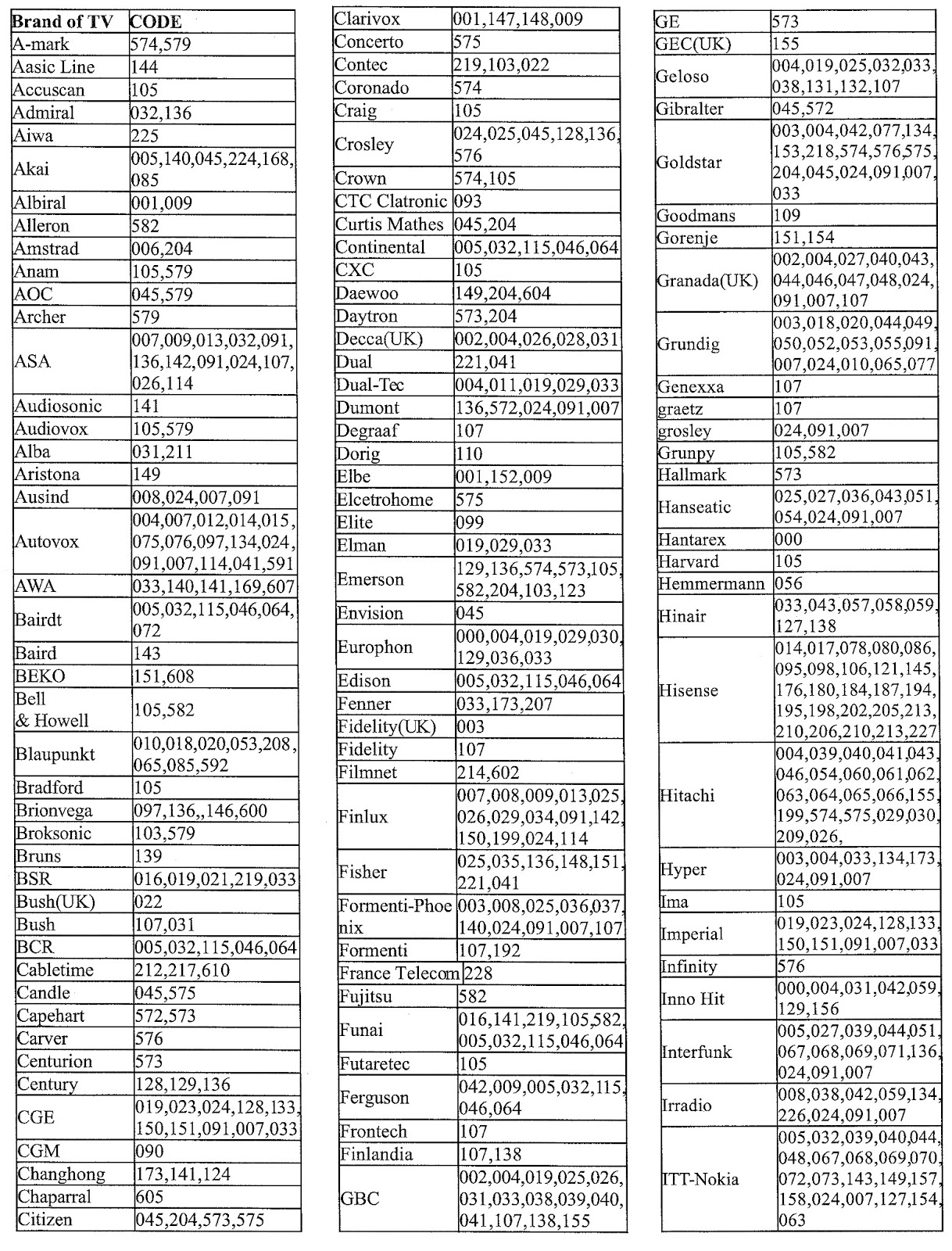

                                                     SETUP PROCEEDINGS
Click on image.
                                                            SETUP CODE LIST