REPAIRING AND NOT THROWING AWAY

Richtige Fernseher haben Röhren!

Richtige Fernseher haben Röhren!

In Brief: On this site you will find pictures and technical information about Service Modes, Circuit Diagrams, Firmware Update procedure, Disassemble procedure, Universal remote control set-up codes, Troubleshooting and more....

If you go into the profession, you will obtain or have access to a variety of tech tips databases HERE IT IS Master Electronics Repair !.

These are an excellent investment where the saying: 'time-is-money' rules. However, to learn, you need to develop a general troubleshooting approach - a logical, methodical, method of narrowing down the problem. A tech tip database might suggest: 'Replace C536' for a particular symptom. This is good advice for a specific problem on one model. However, what you really want to understand is why C536 was the cause and how to pinpoint the culprit in general even if you don't have a service manual or schematic and your tech tip database doesn't have an entry for your sick TV or VCR.

While schematics are nice, you won't always have them or be able to justify the purchase for a one-of repair. Therefore, in many cases, some reverse engineering will be necessary. The time will be well spent since even if you don't see another instance of the same model in your entire lifetime, you will have learned something in the process that can be applied to other equipment problems.
As always, when you get stuck, checking out a tech-tips database may quickly identify your problem and solution.In that case, you can greatly simplify your troubleshooting or at least confirm a diagnosis before ordering parts.

Happy repairing!
Today, the West is headed for the abyss. For the ultimate fate of our disposable society is for that society itself to be disposed of. And this will happen sooner, rather than later.

How to use the site:

- If you landed here via any Search Engine, you will get what you searched for and you can search more using the search this blog feature provided by Google. You can visit more posts scrolling the left blog archive of all posts of the month/year,
or you can click on the main photo-page to start from the main page. Doing so it starts from the most recent post to the older post simple clicking on the Older Post button on the bottom of each page after reading , post after post.

You can even visit all posts, time to time, when reaching the bottom end of each page and click on the Older Post button.

- If you arrived here at the main page via bookmark you can visit all the site scrolling the left blog archive of all posts of the month/year pointing were you want , or more simple You can even visit all blog posts, from newer to older, clicking at the end of each bottom page on the Older Post button.
So you can see all the blog/site content surfing all pages in it.

- The search this blog feature provided by Google is a real search engine. If you're pointing particular things it will search IT for you; or you can place a brand name in the search query at your choice and visit all results page by page. It's useful since the content of the site is very large.

Note that if you don't find what you searched for, try it after a period of time; the site is a never ending job !

..............The bitterness of poor quality is remembered long after the sweetness of todays funny gadgets low price has faded from memory........ . . . . . .....
Don't forget the past, the end of the world is upon us! Pretty soon it will all turn to dust!

©2010, 2011, 2012, 2013, 2014 Frank Sharp - You do not have permission to copy photos and words from this blog, and any content may be never used it for auctions or commercial purposes, however feel free to post anything you see here with a courtesy link back, btw a link to the original post here , is mandatory.
All posts are presented here for informative, historical and educative purposes as applicable within fair use. NOTHING HERE IS FOR SALE !

Showing posts with label MICROSOFT. Show all posts

Wednesday, 10 April 2019

MICROSOFT LUMIA 435 – DISASSEMBLING PROCEDURE – HOW TO REPLACE THE TOUCH SCREEN GLASS

Microsoft Lumia 435 – Disassembling procedure – How to replace the touch screen glass

Switch off the phone.
Remove the battery and any inserted SIM and memory cards.
Use a screwdriver Torx T6 and remove the 4x black screws.
There are several plastic locking clips hold the back cover to the frame.
Use a tool with a sharp edge to unlock them and a plastic tool to separate the back cover.
Unhook:
The touch screen flex cable
The LCD Display flex cable
Use a plastic tool lift up and remove the Logic board.
This is the logic board / main board - a front and rear view.
The Display metal shield is locked to the frame by 4x locking clips.
Use a tool with a sharp tip and careful unlock them and remove the shield.
The display is stuck tovthe touch screen glass with a double-sided adhesive tape.
Use a hair dryer or hot air gun and worm the glass to make adhesive soften.
Distort the frame a little and use a thin plastic tool to separate the display from the frame.
The display is very fragile, do the
separation very carefully.
Put some transparent scotch tape to prevent the glass from shattering.
Warm the glass for a minute to make adhesive soften.
Start the separation from the middle of the frame, where the contact area is smaller.
When you finished with the separation the glass, clean the frame from the old adhesive.
Install the new touch screen and start to reassemble the device.

MICROSOFT SURFACE PRO 3 – HOW REMOVE AND REPLACE THE CAMERA

Microsoft Surface Pro 3 – How remove and replace the camera

Use a heat gun to melt the glue.
Holding the heat gun on a single spot for too long can crack the screen or melt parts of the device.
Use the plastic opening tool to separate the screen from the device.
Start in the top right corner of the device for best results.
Carefully insert opening picks between the screen and the device.
Continue to heat sections of the screen with the heat gun.
As you make your way around the screen with the heat gun, use the plastic opening tool and the opening picks to pry the screen loose.
The screen is extremely thin and very easy to break. Be careful working with broken glass.
Once you have placed Opening Picks around the entire screen, carefully pry the screen
loose with the plastic opening tool.
Lift the screen up carefully so that no wires are torn.
Remove the single 4 mm T5 Torx screw securing the display cable.
Lift the connector up from the device.
Grasp the orange cable connected to the silver connecter.
Carefully lift the orange cable up until the connecter pops off.
The screen will now be completely disconnected.
Remove the 4mm screw with the T3 Torx Screwdriver.
Remove the four 7mm screws with the T3 Torx Screwdriver.
Locate the black piece shown.
Remove this piece by gently lifting it up with the tweezers until it pops off.
Remove the two 4mm screws with the T5 Torx Screwdriver.
Remove the rear camera with the tweezers.

Wednesday, 13 March 2019

SHARP PZ-43MR2E - PZ-50MR2E LCD TV- HOW TO SETUP XBOX-360 - MICROSOFT XBOX CONFIGURATION

SHARP PZ-43MR2E - PZ-50MR2E LCD TV- HOW TO SETUP XBOX-360 - MICROSOFT XBOX CONFIGURATION


SETUP PROCEDURE
  • Before you connect your XBOX-360, ensure that you have told your LCD-TV that you are going to use component signal input.  Using the sharp LC-42XD1E as an example:
  • Press ‘Menu’ button on the remote control.
  • Using the cursor arrows on your remote control, move to ‘Connections’ and press the “OK” button.
  • Using the cursor arrows, move to ‘Input select’ and press the “OK” button.
  • Using cursor arrows, move to ‘EXT4’.
  • Using cursor arrows, more to ‘Component’ and press the “OK” button.
  • Press the “End” button on the remote control.
Connecting XBOX360.
  • Before you can configure the XBOX360, you need to ensure the cable to your Sharps LCD-TV have been configured correctly.
  • Using the HD AV cable supplied with the XBOX360 PRIMIUM, using the 3 RCA to 15-pin D-sub adapter cable supplied with the Sharp LCD-TV, using the Sharp LC-42XD1E as an example.
  • Connect the HD AV cable to the XBOX360 and ensure the setting switch has been moved to “HDTV”
  • Connect the HD AV cable to the 3 RCA to 15-pin S-sub adapter cable using the corresponding colors.
  • Connect 3 RCA to 15-pin D-sub adapter cable to your LCD-TV.
CONFIGURING XBOX360
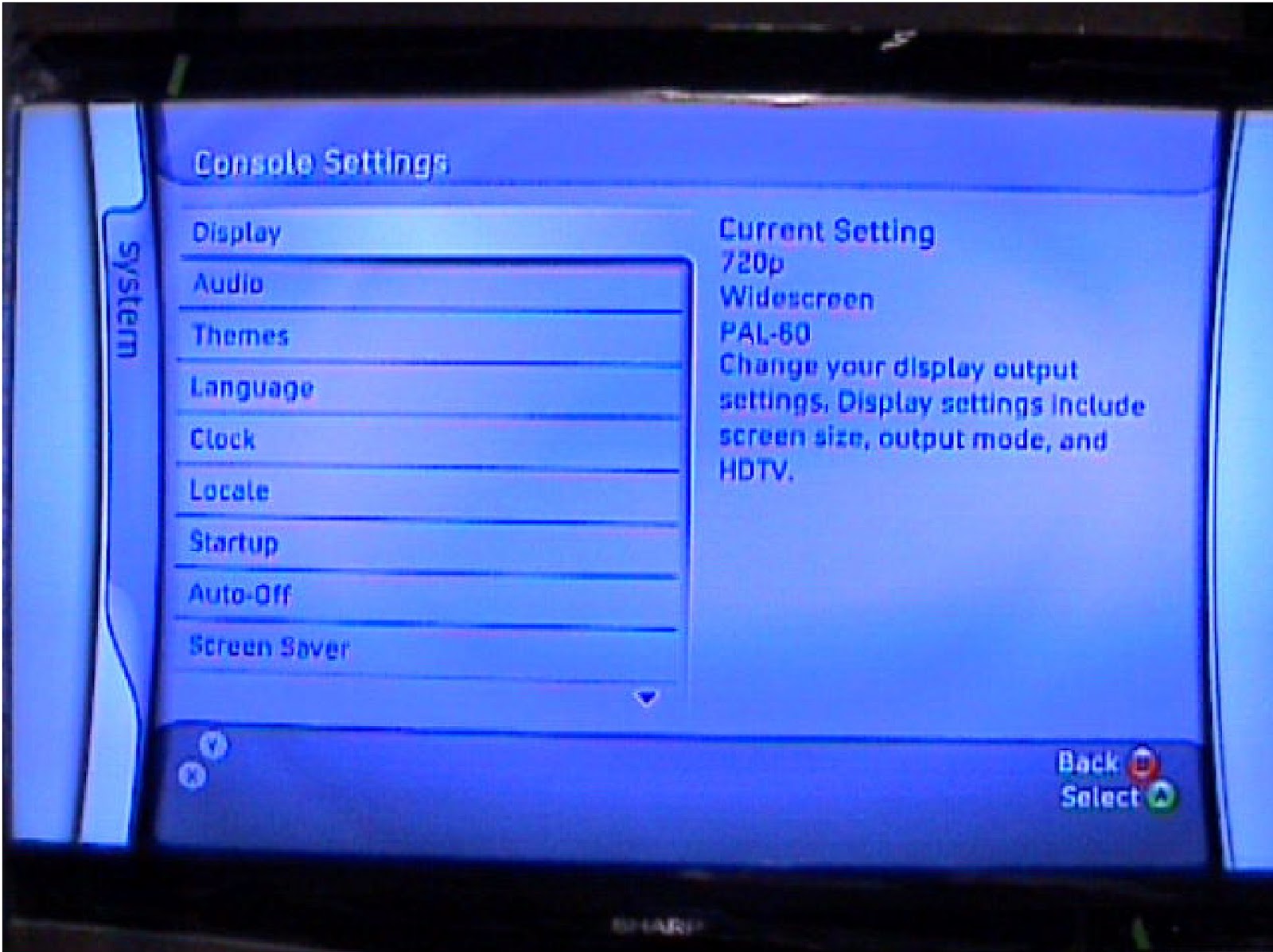
  • When you power ON the XBOX360, your unit will output 720P and display the following screen.
  • Using the cursor keys on the controller, move to “System”.
  • Press the “Select” button on the controller.
  • Using cursor keys on the controller, move to “Display”, and press the “Select” button.
  • Using cursor keys, move to “HDTV” setting, and press “Select”.
  • Using cursor keys, move to the output of your choice, and press “Select” button.
NOTE: Sharp LCD-TV’S only support 480p, 720p and 1080i output via component.  1080p is supported via the 2 x HDMI inputs {HDMI cable not available from Microsoft}
NOTE:  This screen is only available after downloading the XBOX360 update from XBLX live.  If the XBOX360  update has not been applied, you can only select 720p and 1080i.
  • After selecting your output, the screen will blank for a few seconds and then display the following.
  • Follow the on-screen instructions using the cursor keys on the controller and pressing the “Selsct” button.  The screen will blank again for a few seconds switching to 50Hz.  The following will be displayed.
  • Follow the on-screen instructions using the cursor keys on the controller and pressing “Select” button.
  • You've now configured your XBOX360 for use with your Sharp LCD-TV.