REPAIRING AND NOT THROWING AWAY

Richtige Fernseher haben Röhren!

Richtige Fernseher haben Röhren!

In Brief: On this site you will find pictures and technical information about Service Modes, Circuit Diagrams, Firmware Update procedure, Disassemble procedure, Universal remote control set-up codes, Troubleshooting and more....

If you go into the profession, you will obtain or have access to a variety of tech tips databases HERE IT IS Master Electronics Repair !.

These are an excellent investment where the saying: 'time-is-money' rules. However, to learn, you need to develop a general troubleshooting approach - a logical, methodical, method of narrowing down the problem. A tech tip database might suggest: 'Replace C536' for a particular symptom. This is good advice for a specific problem on one model. However, what you really want to understand is why C536 was the cause and how to pinpoint the culprit in general even if you don't have a service manual or schematic and your tech tip database doesn't have an entry for your sick TV or VCR.

While schematics are nice, you won't always have them or be able to justify the purchase for a one-of repair. Therefore, in many cases, some reverse engineering will be necessary. The time will be well spent since even if you don't see another instance of the same model in your entire lifetime, you will have learned something in the process that can be applied to other equipment problems.
As always, when you get stuck, checking out a tech-tips database may quickly identify your problem and solution.In that case, you can greatly simplify your troubleshooting or at least confirm a diagnosis before ordering parts.

Happy repairing!
Today, the West is headed for the abyss. For the ultimate fate of our disposable society is for that society itself to be disposed of. And this will happen sooner, rather than later.

How to use the site:

- If you landed here via any Search Engine, you will get what you searched for and you can search more using the search this blog feature provided by Google. You can visit more posts scrolling the left blog archive of all posts of the month/year,
or you can click on the main photo-page to start from the main page. Doing so it starts from the most recent post to the older post simple clicking on the Older Post button on the bottom of each page after reading , post after post.

You can even visit all posts, time to time, when reaching the bottom end of each page and click on the Older Post button.

- If you arrived here at the main page via bookmark you can visit all the site scrolling the left blog archive of all posts of the month/year pointing were you want , or more simple You can even visit all blog posts, from newer to older, clicking at the end of each bottom page on the Older Post button.
So you can see all the blog/site content surfing all pages in it.

- The search this blog feature provided by Google is a real search engine. If you're pointing particular things it will search IT for you; or you can place a brand name in the search query at your choice and visit all results page by page. It's useful since the content of the site is very large.

Note that if you don't find what you searched for, try it after a period of time; the site is a never ending job !

..............The bitterness of poor quality is remembered long after the sweetness of todays funny gadgets low price has faded from memory........ . . . . . .....
Don't forget the past, the end of the world is upon us! Pretty soon it will all turn to dust!

©2010, 2011, 2012, 2013, 2014 Frank Sharp - You do not have permission to copy photos and words from this blog, and any content may be never used it for auctions or commercial purposes, however feel free to post anything you see here with a courtesy link back, btw a link to the original post here , is mandatory.
All posts are presented here for informative, historical and educative purposes as applicable within fair use. NOTHING HERE IS FOR SALE !

Showing posts with label RESET. Show all posts

Thursday, 22 October 2020

JVC HD 70FH97, JVC HD 70FN97 HOW TO ENTER THE SERVICE MODE SERVICE ADJUSTMENTS, LAMP TIMER RESET, HOW TO REPLACE THE LAMP


JVC HD-70FH97, HD-70FN97 D-ILA PROJECTION TELEVISION

LAMP UNIT : TS-CL110UAA

PRECAUTION FOR LAMP UNIT
The lamp emits high intensity white, ultraviolet and infrared light. Do not look directly at the light during service.
Also, do not touch the lamp directly as it presents a burn hazard.
Handle with extra care. This lamp emits high heat and contains high-pressure during use.
Do not give any impact as this may cause the broken lamp.

HOW TO CONFIRM LAMP OPERATING TIME.
• MAXIMUM COUNT TIME= 65535 hours
(1) Set to "0 minutes" using the [SLEEP TIMER] key.
(2) Press the [VIDEO STATUS] key and [DISPLAY] key simultaneously, then enter the SERVICE MODE.
(3) When the SERVICE MENU SCREEN is displayed, press [2] key to enter the SELF CHECK MODE.
(4) The use time of a lamp is displayed on middle of the screen by the hexadecimal number of 4 figures.

LAMP UNIT REPLACEMENT.
(1) The lamp replacement message will appear when need to change the lamp. After replace the lamp, need to reset the timer which is built into TV.
(2) Lamp use time can be check at the lamp message MENU.
If lamp use time exceeds 5000 hours, the message below will be displayed on a screen.
(3) If this message appears when turn the TV on, need to replace the lamp.
(4) Use the lamp timer reset only after replacing the lamp.

This message will appear every time turn on the TV, when the lamp needs to be replaced. 

Press the [OK] key to make the message disappear, or replace the lamp.

HOW TO REPLACE THE LAMP UNIT.

Turn off the TV power.
(2) After the LAMP LED light has stopped blinking, disconnect the power cord from the AC outlet.
(3) Loosen 1 screw then take out the lamp cover below the left side of the TV.
(4) Loosen 2 screws then take out the lamp unit.
(5) Install the new lamp unit.
(6) Re-install the lamp cover.
NOTE:
• After installing the new lamp unit, do not forget to reset the lamp timer.

HOW TO RESET THE LAMP TIMER.

Press the [MENU] key to select CLOCK / TIMERS.
(2) Select the <LAMP TIMER RESET> with UP/DN keys.
(3) Enter the <LAMP TIMER RESET> mode, the following message will appears.

PRESS OK TO RESET THE LAMP TIMER”

(4) Press the [OK] key while the above message appears on the screen.
(5) The lamp timer has now been reset, and the following message will appear.

THE LAMP TIMER IS RESET SUCCESSFULLY”

OPTICAL / DRIVE ASS'Y CONSTRUCTION

Kit part number:  TS-COP13A-SAA

Kit part name:  OPTICAL / DRIVE ASS'Y

OPTICAL / DRIVE ASS'Y CONSTRUCTION
(1) OPTICAL BLOCK
(Included D-ILA DEVICE, PROJECTION LENS)
(2) OPTICAL BASE
(3) DRIVE PWB ASS'Y
This PWB is mounted with 1 memory IC saved with adjustment, setting data of the drive circuit.
(4) SHIELD COVER
*The following parts without the kits part.
• REMOTE SENSOR PWB ASS'Y
• LAMP UNIT
• LAMP FAN DUCT
• THERMOSTAT

PRECAUTION FOR USING.
(1) In the case of the following defects/problems, replace this kit (OPTICAL/DRIVE ASS'Y).
a) Picture defect caused by optical system/D-ILA device related parts.
b) Picture defect caused by drive circuit.
(2) The DRIVE PWB ASS'Y is mounted with a memory IC
[IC3753] saved with adjustment/setting data(GAMMA, SHADING, etc.) of the drive circuit.
The data of this memory IC is in the optimal state according to individual D-ILA devices and each section of the OPTICAL BLOCK.
(3) When replace the DRIVE PWB ASS'Y, take off the 1 memory IC from the original board and replace with new one. When replace the DRIVE PWB ASS'Y, do same manner. Replace 1 memory IC.
(4) After the replacement of the OPTICAL BLOCK, projection lens focus adjustment and drive convergence / projection adjustment are required.

SCREEN STORAGE
Store the SCREEN ASS'Y in a standing position in order to avoid deformation. If the screen is stored horizontally, there is risk of deforming the screen face.
When necessary to place the SCREEN ASS'Y horizontally, position the screen side upwards and sure to place spacers between the screen and resting site (floor or stand etc.) to prevent the screen from sagging.

 SPECIFIC SERVICE INSTRUCTIONS

SYSTEM SETTEING

“Be sure to carry out the following operation at the end of the procedure.”

Set to "0 minutes" using the [SLEEP TIMER] key.
(2) While "0 minutes" is displayed, press the [
VIDEO STATUS] key and [DISPLAY] key simultaneously, then enter the SERVICE MODE.
(3) When the SERVICE MENU SCREEN is displayed, press [2] key to enter the self check mode.
(4) Turn off the power by pressing the [POWER] key on the remote control unit.

FEATURES
Built in ATSC (Advanced Television Systems Committee)
TUNER
This TV can receive both Digital broadcasting (ATSC) and Analogue broadcasting.
D.I.S.T. (Digital Image Scaling Technology)
This system uses line interpolation to double the number of scanning lines and achieve high resolution, flicker-free picture.
SMART CAPTION
Smart caption will appear when you press the MUTING button, only on channels where the broadcast contains CLOSED CAPTION information.
VIDEO STATUS
Expression of a favorite screen can be chosen by the VIDEO STATUS function.
DIGITAL INPUT
Digital-in will display when any picture signal in Digital-in is displayed.
V-CHIP
Since the V-CHIP is built in, it can choose, view and listen to a healthy program.

MTS STEREO
The voice multiplex function of the MTS system is built in. (MTS = Multi channel Television Sound system)
MPEG Noise Reduction
This function effects the block noise removal and mosquito NR simultaneously.
MaxxBass
This function emphasizes the bass sound.
A.H.S.+
Adds a more spacious surround sound. Music gives basic effect, and movie for more effect.
VOICE ENHANCEMENT
Gives a clearer sound quality of the voices in what you are watching.
NATURAL CINEMA
Watching the movie or animation, press the Natural Cinema to adjust the out line of the images to make thin more sharp.
VIDEO INPUT LABEL
This function is used to label video input connections for the onscreen displays.


PROJECTION UNIT

ADJUSTMENT PREPARATION

(1) There are 2 ways of adjusting this TV : One is with the REMOTE CONTROL UNIT and the other is the conventional method using adjustment parts and components.
(2) The adjustment using the REMOTE CONTROL UNIT is made on the basis of the initial setting values. The setting values which adjust the screen to the optimum condition can be different from the initial setting values.
(3) Make sure that connection is correctly made AC to AC power source.
(4) Turn on the power of the TV and measuring instruments for warning up for at least 30 minutes before starting adjustments.
(5) If the receive or input signal is not specified, use the most appropriate signal for adjustment.
(6) Never touch the parts (such as variable resistors, transformers and condensers) not shown in the adjustment items of this service adjustment.

MEASURING INSTRUMENT AND FIXTURES

• Oscilloscope
• Signal generator (Pattern generator) [NTSC / 525i / 525p / 750p / 1125i]
• TV audio multiplex signal generator
• Remote control unitADJUSTMENT ITEMS
FOCUS
• LENS FOCUS adjustment
DRIVE CIRCUIT
• DRIVE CONVERGENCE adjustment
• DRIVE CENTER POSITION adjustment
VIDEO CIRCUIT
• WHITE BALANCE (HIGHLIGHT) adjustment
MTS CIRCUIT
• MTS INPUT LEVEL adjustment
• MTS SEPARATION adjustment.

PRESET SETTING BEFORE ADJUSTMENTS

Unless otherwise specified in the adjustment items, preset the following functions with the REMOTE CONTROL UNIT.

HOW TO ENTER THE SERVICE MODE
(1) Set to "0 minutes" using the [SLEEP TIMER] key.
(2) While "0 minutes" is displayed, press the [
VIDEO STATUS] key and [DISPLAY] key simultaneously, then enter the SERVICE MODE

Before entering the SERVICE MODE, confirm that the setting of TV/CATV switch of the REMOTE CONTROL UNIT is at the "TV" side and the setting of VCR/DVD switch is at the "VCR" side. If the switches have not been properly set, you cannot enter the SERVICE MODE.
• When a number key other than the [1] or [9] keys is pressed in the SERVICE MENU SCREEN, the other relevant screen may be displayed.
This is not used in the adjustment procedure. Press the [MENU] key to return to the SERVICE MENU SCREEN.

HOW TO EXIT THE SERVICE MODE
Press the [ BACK ] key to exit the Service mode.

SERVICE MODE SELECT KEY LOCATION

ADJUSTMENT MODE
This mode is used to adjust the VIDEO CIRCUIT and the MTS CIRCUIT.
HOW TO ENTER THE ADJUSTMENT MODE
When the SERVICE MENU SCREEN of SERVICE MODE is displayed, press [1] key to enter the ADJUSTMENT MODE.

DESCRIPTION OF STATUS DISPLAY OF ADJUSTMENT MODE

CHANGE AND MEMORY OF SETTING VALUE

SELECTION OF SETTING ITEM
• [CH+] / [CH-] key.
Change the setting items up/ down.

S001 ==> T001 ==> M001 ==> F001 ==>D001 ==>Z001..

[SLEEP TIMER] key.
Switches to the next items.

S001 ==>T001 ==>M001 ==>F001 ==>D001 ==>Z001

CHANGE OF SETTING VALUE (DATA)
• [VOL+] / [VOL-] key.
Change the setting values up/down.

MEMORY OF SETTING VALUE (DATA)
Changed setting value is memorized by pressing [MUTING] key.

RGB BOX PATTERN MODE

This mode is used to adjust the DRIVE CIRCUIT.

HOW TO ENTER THE RGB BOX PATTERN MODE
When the SERVICE MENU SCREEN of SERVICE MODE is displayed, press [9] key to enter the RGB BOX PATTERN MODE.

Description of status display of TGB bod pattern mode

RGB BOX PATTERN
The checkered pattern is displayed. White is a synthesis of RGB.

ADJUSTMENT COLOR MODE
Presently selected ADJUSTMENT COLOR MODE is displayed.

SELECTION OF SETTING ITEM
• [CH+] / [CH-] key.
Move the selected RGB BOX PATTERN up/ down pixel by pixel.

• [VOL+] / [VOL-] key.
Move the selected RGB BOX PATTERN left/ right pixel by pixel.
• [SLEEP TIMER] key.
Adjusts the data reset.
• [DISPLAY] key.
Adjusts the selected COLOR BOX PATTERN.

“R =>B =>RGB

• [BACK] key.
Returns to the SERVICE MENU SCREEN from the RGB BOX PATTERN MODE.

MEMORY OF SETTING VALUE (DATA)
With the RGB BOX PATTERN MODE, the changed date is written in the MEMORY instantly.

Circuit board Voltage charts


Thursday, 8 October 2020

KURZWEIL SP2X MUSICAL INSTRUMENT - HOW TO ENTER THE BOOT BLOCK, HOW TO REPLACE THE BATTERY, HOW TO REMOVE THE KEYBOARD ASSEMBLY, HARD RESET PROCEDURE


HARD RESET

There are two ways to perform a Hard Reset to the SP2X.

Press the Global button and press the Reset button segment displays following screen  and press + button segment displays an message. Press the + button again segment finally displays to    continue or the Yes or No button.

Software Updates

A computer with a MIDI interface and sequencer is necessary to transfer software to your SP2X units MIDI Sysex.

File Formats

Software upgrades are stored as standard MIDI files. Filenames are in the format SP2XVV.MID, where X is the software block and VVV is the version number (V.VV). The following lists the possible values for X. Never install files with names that don’t conform to this format; it won’t work.

bk—boot block for keyboard models

k—operating system software for keyboard models.

Installing the Operating System or Setups

Warning: This procedure requires performing a hard reset. All user programs and setups will be erased. Before continuing, be sure to save all user programs and setups.

1. Connect a MIDI cable from the MIDI Out port of the computer interface or sequencer to the MIDI In port on the PC2.

2. Open the first .MID file using the sequencer program.

3. Turn on the SP2X and follow the procedure to enter the Boot Block.

4. Press the Enter button to select “uOS”

5. The segment shows “uOS”. Start playing the MIDI file from the sequencer. While a file is loading, the bottom line of the display shows the progress. If the display continues to show after starting the sequencer, stop and restart the sequence.

6. After the file is loaded, the display will show “oK”.

7. If you have additional files to load, open the file from the sequencer and begin playing it.

8. Press the Cancel button twice to return to the main menu. Scroll to Hard Reset and select.

Installing a New Boot Block

Warning: This procedure performs a hard reset. All user programs and setups will be erased.  Before continuing, be sure to save all user programs and setups.

1. Connect a MIDI cable from the MIDI Out port of the computer interface or sequencer to the MIDI In port on the SP2X.

2. Using the sequencer program, open the first .MID file.

3. Turn on the SP2X and follow the procedure to enter the Boot Block.

4. Press the Enter button to select . 6. The segment shows . Start playing the MIDI file from the sequencer. While a file is loading, the bottom line of the display shows the progress. If the display continues to show  after starting the sequencer, stop and restart the sequence.

7. After the file is loaded, the unit will reset.


Replacing the Battery

The SP2X uses a flat three volt Lithium coin cell battery.  When the battery voltage runs low, the unit boots up with a low battery message.

Note: The battery voltage can be checked at anytime using the Scanner Diagnostics.

Accessing the Battery

1. Place the SP2X upside down on a flat protected surface.

2. Remove top assembly and set it safely aside.

Removing the Battery

The battery (CR2032) in the SP2X is mounted into a holder on the Engine Board and is accessible when the access panel is removed.

1.    Insert a flat plastic tool (plastic knife, pen cap, etc.) into one of the openings between the battery and the holder to lift the battery. 

2.    2. Ease the battery out of the holder. If necessary, insert the plastic tool at the bottom of the holder (closest to the Engine Board) to remove the battery.

Installing the Battery

1.    Position the battery over the holder so that the positive terminal is pointing to the Engine Board.

2.    2. Slide the battery into the holder and apply slight pressure until it snaps into place.

3.    4. Install the seven screws to secure the top assembly

SP2X Scanner Test

The Scanner Tests for the SP2X include separate tests for the front panel buttons and LEDs, front panel knobs including the Master Volume slider, the Mod and Pitch wheels, the keyboard, and the pedals.

To enter the Scanner Tests, first turn on the SP2X. Once the SP2X is on and ready to play, simultaneously hold down the Main, Layer and Split buttons. All front panel LEDs will flash and the segment will display the following:

Segment example, SP2X scanner tests

“SP2”, “SCn”, then “vX.Y” are displayed briefly in sequence vX.Y means version of the scanner installed the unit.

“bAt” means “Battery” and the voltage is X.Y volts. Normal battery voltage is around 3.0 volts where 3.2v is typical for a new battery and less than 2.8 means the battery is nearing the end of its life and has only a few months left. At 2.2 volts, warning will begin. A completely dead oe missing battery may not read exactly 0.0v but will certainly read less than 1.0v.

Next “PCH” then “XXX” is displayed in sequence. “PCH” means the Pitch(left) Wheel and XXX is its centre reading at poweron. Ideally this is 128 but anything between 120 and 136 is acceptable. New units should be adjusted to be between 126 and 130 to allow for drift over the life of the unit.

Last is a display of which option diodes have been installed. First “jPr” is displayed briefly then 4 vertical lines will show briefly. Each line represents an option diode from Opt1(leftmost) to Opt4(rightmost) A long line(2 segments long) mans the corresponding diode is installed while a short line(1 segment) is not installed. Option settings normally tell the scanner software the keyboard length and weight and should match the actual unit.

Front Panel Buttons

When a button is pressed, its LED(if any) turns on and its matrix address is shown in the display. Each press of Knob Mode will right the next Knob Mode LED in a top down sequences. Rhythm and Program button has two color led, each button press, RED and GREEN LEDs turns on alternatively.

Front Panel Knobs

When a knob or the volume slider is moved, its name is shown briefly then its changing value is displayed. The names are

“vol” – volume slider,

“KnA” – Knob A,

“Knb” – Knob B,

“KnC” – Knob C,

“Knd” – Knob D.

The name should be correct and the value numbers should run smoothly from 0(or 1) up to 255(254) as slider moved upward or the knob clockwise. When turned very slowly, the number display will typically change in steps of two(1,3,5,,or 2,4,6,,,,) and may even switch from even to 30 .

Keyboard Problems

Odd and back which is normal.  Big jumps of more than 3 counts which turning slowly may indicate a problem.  However, When the control is released, its last reading should remain without changing by more than 2 counts.

Keyboard

When a keyboard key is pressed, the key’s musical pitch should be shown in the display. The first character should be the note name .The second character should be blank for white keys or a “high o(sharp sign) for black keys. The third character should be the octave number from 0 to 8.  Thus Middle C will be shown as “C 4”

Besides the key name, the 3 decimal points in the display reveal important information about the rubber switches under the key being pressed. When the key is pressed partially, the left decimal point will indicate that the first rubber switch and made contact. When the key is pressed further, the middle decimal point indicates that the key is pressed further, the middle decimal points indicates that the second rubber switch has also made contact. Thus when a key is pressed slowly, the following sequence should be observed exactly 0.

Blank Display > Correct Key name and left decimal point > Correctly Key name and left and centre decimal points If the correct key name and only the centre decimal point lights, then there is a defect associated with the first switch. If all 3 decimal points light, then either more than one key is processing at

once or there is a short circuit in the connecting or on the connector.

Switch Pedals

If a single switch pedal is plugged into the SW jack, operating it should case a response in the display.   For Kurzweil pedals, pressing the pedal should cause “S1C” to be displayed while releasing it should cause “S1o” to be displayed.  Other vender’s pedals may cause the opposite response. If a dual pedal is plugged in, then the Sustain (right) pedal should display as described above. The Soft pedal (left) should cause “S2C” and “S2o” to display. As with the buttons, the display should respond immediately and without flickering if pedal working properly.

Continuous Pedals

If control pedal is plugged into the CC jack, operating it should cause the display to show “CP1” briefly then its changing values. As with the volume slide r and knobs, the value display should smoothly increase from 0 to 1 up to 254 or 255 as the pedal is pressed. This is the ideal range of a perfectly calibrated Kurzweil pedal. Many pedals may only reach 248250 which acceptable. All should go down to 0 or 1 however.

Removing the SP2X Keyboard Assembly

The following procedure assumes that the SP2X is open and that you have followed the instructions to remove the top enclosure.

1. The keyboard is secured to the bottom enclosure using nine screws. Refer to Figure  for the position of the screws. Arrows identify the locations of the nine screws.

2. Tilt the SP2X up and remove the five keyboard rear screws, then lay the SP2X flat on your work surface.

3. Move the SP2X forward so that the front hangs over the edge of your work surface to access the remaining screws, and remove the five keyboard front screws.

4. Remove the four Mod Wheel screws and washers. At this point the keyboard is loose in the bottom enclosure, but it has cables connected to the Mod Wheel Assembly and the Connector Board.

In some cases, tape secures cable connections or fastens cables to the bottom enclosure. Always peel back the tape from one side when disconnecting cables so that the tape remains properly positioned.

The removal and replacement of surfacemount devices requires training and the proper equipment. If you do not have the training or equipment to remove or replace surfacemount devices, contact the service department to order a board replacement. International service technicians should contact their appropriate Young Chang Distributor.

Saving User Data

1. Set up a MIDI recording device.

2. Connect the a MIDI cable to the MIDI Out port of the SP2X to the MIDI In port on the external device.

3. Press the Global button on the SP2X. Press the +/ cursor button until the segment displays 

4. Begin recording on the MIDI recording device.

5. Press Rythm on the SP2X. The segment shows

When all objects are saved, will appear in the display.

6. To reload the saved objects, connect a MIDI cable from the MIDI Out port of the recording device to the SP2X’s MIDI In port.

7. From the external device, begin the playback of the file.

Entering the Boot Block

Use the SP2X’s Boot Loader to enter Diagnostics or perform a Hard Reset to the unit. You can also install operating system updates and ROM objects into Flash ROM.

Apply power to the unit. When the  message appears in the display, quickly press and release the Transpose button. The segment displays the main menu of the Boot Loader and the first available option. Use the + or – button to advance to the next option.

The menu options are as follows:

Install Engine  — Installs new operating system software upgrades.

Update Boot block  — Installs boot block updates.

Run Diagnostics   — enters the diagnostic test menu. For a complete list of tests and the procedure to execute the diagnostic tests.

Run Engine    — Exits the boot block and returns the unit to normal operation.

Hard RESET  — Clears the memory to factory default settings.

Monday, 10 February 2020

SONY ERICSSON PLAYSTATION PHONE HARD RESET PROCEDURE

sony ericsson playstation phone repair manual
This is the procedure on how to factory reset the Sony Ericsson PlayStation Phone if you want to wipe and clear all data and you want to restore its original factory default settings again.

Just follow this simple step by step instructions on how to hard reset the Sony Ericsson PlayStation Phone

Please note: the result of this procedure  will be delete all data installed or stored from the Sony Ericsson PlayStation Phone. And also, the result of this process may or may not delete data stored on the microSD memory card. Please do have a back up copy all of your personal data before proceeding.

Factory Reset from the main home screen,

   1. From the Main Home Screen, select Menu
   2. Select Settings, then select Privacy
   3. Select Factory Data Reset
   4. Select Reset Phone
   5. Enter the Password if prompted, then confirm by selecting Erase Everything

If the Sony Ericsson PlayStation phone is frozen, do a hard reset through button combination.

   1. Turn Off the device power. If your Sony Ericsson PlayStation Phone is frozen, take the battery out from the device and reinsert it back again.
   2. Hold the Left and Right buttons located just beneath the LCD display
   3. Press and then  release the Power button
   4. Just follow the on-screen instructions on  how to hard reset your Sony Ericsson PlayStation Phone

Once the factory reset process  is complete, the phone will reboot to its factory fresh state.
All data including third-party applications installed and stored already deleted from the Sony Ericsson PlayStation Phone

SONY ERICSSON XPERIA X8 HARD RESET INSTRUCTION - WIPE AND RESTORE TO FACTORY SETTING

 Sony Ericsson FormatHere's, how to hard reset the Sony Ericsson Xperia X8 with simple step by step instructions.

Please note this process  will  delete all data from the Sony Ericsson Xperia X8 , but may or may not delete the data stored on the microSD memory card. Do have  a back up or a copy of all  your personal data before you may proceed.

Restore through the Main Home Screen Settings

   1. From the Main Home Screen, select Menu
   2. Select Settings, then select Privacy
   3. Select Factory Data Reset
   4.Then Reset Phone
   5. Enter the Password if prompted or required, then select Erase Everything.

If the phone is frozen: You can Hard Reset it trough key combination.

   1. Turn the power off first. If the Sony Ericsson Xperia X8 is frozen, take the battery out from the device and then reinsert it back again after a few seconds.
   2. Hold the Left and Right Keys located beneath the LCD Display
   3. Press and release the Power Key
   4. Just then follow the on-screen instructions that appears to hard reset the Sony EricssonXperia X8

Once the wipe process is complete, the phone will then reboot to its factory fresh default state settings.
All data including third-party applications already deleted from the Sony Ericsson Xperia X8.You may need to reinstall it back again.

SAMSUNG DROID CHARGE HARD RESET, WIPE AND RESTORE TO FACTORY SETTINGS

Step by step instructions on how to hard reset the Samsung DROID Charge.Also known as Samsung SCH-i520, Samsung Inspiration, Samsung 4G LTE, Samsung Stealth V
OS     Android OS, v2.2 (Froyo)
CPU     1 GHz ARM Cortex-A8 processor, Hummingbird chipset


Precautions: This process will delete or wipe all data from the Samsung DROID Charge. We advise to have a back up copy of all your important files stored on the device.

Factory Data Reset procedures:

   1. On the main home screen, tap menu
   2. Select Settings, then Privacy
   3. Select Factory data reset
   4. Select Reset phone
   5. Enter the password if prompted, then select Erase everything.

If your Samsung DROID Charge is frozen: Reboot or restart the phone.

   1. Turn the power off. , take the battery out and reinsert it back again
   2. Hold the Volume Down and Power Button
   3. A menu will then show up such as Fastbook, Recovery, Clear Storage, and Simlock
   4. Select Clear Storage by pressing the Volume Down button
   5. Press and release the Power button
   6. Select: Volume Up for YES and Volume Down for NO

Wait 'till the phone reboot, once the wipe process completes, the Samsung DROID Charge will return to its original factory fresh state default settings.
All data including third-party applications will be deleted from the Samsung DROID Charge.So you may need to re-install it back again.

Friday, 7 February 2020

GENERIC FACTORY RESET INSTRUCTIONS FOR PANASONIC TVS

Generic Factory Reset Instructions for Panasonic TVs

Method 1

    If the TV is off or in standby, switch on and set to view a TV channel.
    Using the buttons on the front panel on the TV, press the Function [F] button
    Using the buttons on the front panel on the TV, press and hold the Volume [-] button
    At the same time as step [3], press and hold the info [/} button on the remote control


If this procedure has been accepted, the TV will show that it is performing a "Self- check". At the end of the "Self - Check", switch off the TV and unplug it from the mains for at least 20 seconds. When you plug the TV back into the mains and switch on it will perform a full "first time installation".

Method 2

    If the TV is off or in standby, switch on and set to view a TV channel
    Using the buttons on the front panel of the TV, press the Function [FCN] button
    Using the buttons on the front panel of the TV, press the Volume [-] until a message appear on screen.

GENERIC RESET INSTRUCTIONS FOR PHILIPS TVS

Generic Reset Instructions for Philips TVs

  1. Reset is achieved by holding the "Menu" button, for between 5 - 10 seconds. The menu button should be located on or around the facia of the set.

SONY TV FACTORY RESET

Sony TV Factory Reset

    Turn on the TV
    Then hold down the up arrow on the remote control
    While holding it down, press and release the Power [standby] button on the remote control then let go of the up button.
    TV will automatically turn off and then turn on again with its memory cleared.

SHARP LC32GD8E FACTORY RESET

Sharp LC32GD8E Factory Reset

    Turn your tv off
    Hold down TO THE LEFT the volume button and the CHANGE CHANNEL button At the same time hold down the AV select button (round button)
    Now press the tv ON button KEEP ALL THE BUTTONS DEPRESSED until the TV turns on...
    By now the screen should have come on with a engineers menu on.
    Using your remote scroll up and down the menu using the ""P"" button...on the menu you will notice items saying RESET..click either ""OK"" OR using the navigation buttons on your remote (thats the 4 surrounding the ok button"" press the right arrow then press ok.
    Scroll through all of the pages ALL 11 of them and reset them all.

LG MAGIC REMOTE RESET INSTRUCTIONS

LG Magic Remote

If your LG Magic remote is no longer controlling your TV set then you might just need to reset and repair it to your set:
Reset Instructions (2010-2011)

If your LG magic remote no longer works with your TV, chances are that it will just need to be reset:

    Press and hold {OK} and {Mute} buttons for 5 seconds.
    Power light should blink to indicate reset successful.
    Now point the remote close to the TV and press {OK} - the TV should indicate that the remote has been re-paired.

Reset Instructions (2012 Onwards)

    Press and hold {Smart} or {Home} and {Back} buttons for 5 seconds.
    Power light should blink to indicate reset successful.
    Now point the remote close to the TV and press {OK} - the TV should indicate that the remote has been re-paired.

Saturday, 14 December 2019

PANASONIC SA PM86 DVD STEREO SYSTEM HOW TO ENTER THE SERVICE MODE, FIRMWARE UPDATE, POWER AMP AND POWER SUPPLY SCHEMATIC, SYSTEM RESET

Panasonic SA PM86 DVD stereo system how to enter the service mode, firmware update, power amp and power supply schematic, system reset


Panasonic SA-PM86DGCS, SA-PM86DEE DVD Stereo System
This model’s mechanism unit is DLS6
RMS Output Power THD 10%  80 W per channel (3 Ω), 1 kHz
Total RMS Dolby Digital Mode  80 W per channel (3 Ω), 1 kHz
PMPO Output Power  1800 W
Speakers: SB-PM86EG-K
Video system PAL625/50, PAL525/60, NTSC
Power consumption 95 W AC 230 V, 50 Hz (EE) - AC 220 to 240 V, 50/60 Hz (GCS)
Before Repair and Adjustment Disconnect AC power, discharge Power Supply Capacitors C2207, C2210, C2211, C2212, C2742, C5105, C5106, C5916, C5917,
C5938, C5562, C5954, C5979 and C5993 through a 10Ω, 1W resistor to ground.  DO NOT SHORT-CIRCUIT DIRECTLY (with a screwdriver blade, for instance), as this may destroy solid state devices.
After repairs are completed, restore power gradually using a variac, to avoid over current.
Current consumption at AC 220 - 240 V, at 50/60 Hz in NO SIGNAL mode (at volume min) should be ~500 mA. (GCS)
Current consumption at AC 230 V 50 Hz in NO SIGNAL mode (at volume min) should be ~500 mA. (EE)
Protection
The protection circuitry may have operated if either of the following conditions are noticed:
• No sound is heard when the power is turned on.
• Sound stops during a performance.
The function of this circuitry is to prevent circuitry damage if, for example, the positive and negative speaker connection wires are "shorted", or if speaker systems with an impedance less than the indicated rated impedance of the amplifier are used.
If this occurs, follow the procedure outlines below:
1. Turn off the power.
2. Determine the cause of the problem and correct it.
3. Turn on the power once again after one minute.
Note:
When the protection circuitry functions, the unit will not operate unless the power is first turned off and then on again.
Do not disassemble the pickup unit, since radiation from exposed laser diode is dangerous.
2. Do not adjust the variable resistor on the pickup unit. It was already adjusted.
3. Do not look at the focus lens using optical instruments.
4. Recommend not to look at pickup lens for a long time
Service Mode
The service modes can be activated by pressing various button combination on the main unit and remote control unit.
Below is the summary for the various modes for checking
An error code will be canceled if a power supply is turned OFF.
1: CPPM is the copy guard function beforehand written in the disk for protection of copyrights.
2: CEC is the consumer electronic control used for high-level user control of HDMI-connected devices.
3: HDCP is the specification developed to control digital audio & video contents transmission for DVI or HDMI connections
By pressing various button combinations on the main unit and remote control unit, you can activate the various service modes for checking.
Due to the limitations of the no. characters that can be shown on the FL Display, the “FL Display” button on the remote control unit can be used to show the two display pages. (Display 1 / Display 2).
Optical Pick-up Self-Diagnosis
The optical pickup self-diagnosis function and tilt adjustment check function have been included in this unit. When repairing, use the following procedure for effective self-diagnosis and tilt adjustment. Be sure to use the self-diagnosis function before replacing the optical pickup when "NO DISC" is displayed. As a guideline, you should replace the optical pickup when the value of the laser drive current is more than the specified value.
[Press the power button to turn on the power, and check the value within three minutes before the unit warms up. (Otherwise, the result will be incorrect.)]
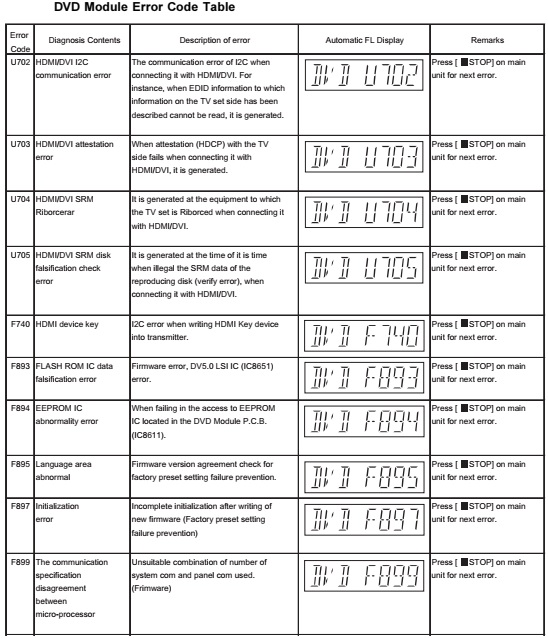
DVD Self Diagnostic Function-Error Code
Sales Demonstration Lock Function
This function prevents discs from being lost when the unit is used for sales demonstrations by disabling the disc eject function.
"LOCKED" is displayed on the unit, and ordinary operation is disabled.
Prohibiting removal of disc
1. Select the DVD/CD function.
2. At POWER ON condition, press and hold down the STOP button and the power button on the main unit for at least three seconds. (The message, “LOCKED” appears when the function is activated.)
[OPEN/CLOSE button is invalid and the main unit displays “LOCKED” while the lock function mode is entered]
Prohibiting operation of selector and disc
1. Select the DVD/CD function.
2. At POWER ON condition, press and hold down the PLAY button and the power button on the main unit for at least three seconds. (The message, “LOCKED” appears when the function is activated.)
The lock can be cancelled by the same procedure as used in setting. ("UNLOCKED" is displayed on cancellation. Disconnecting the power cable from power outlet does not cancel the lock.)
Recovery after the DVD player is repaired
• When the FLASH ROM IC or DVD Module P.C.B. is replaced, carry out the recovery processing to optimize the drive.  Playback the recovery disk to process the recovery automatically.
• Recovery disc (Product number: RFKZD03R005) [SPG]
• Performing recovery process
1. Load the recovery disc RFKZD03R005 on to the player and run it.
2. Recovery is performed automatically. When it is finished, a message appears on the screen.
3. Remove the recovery disc.
4. Turn off the power.
5. Initialize the player.
Firmware version-up of the DVD player
• The firmware of the DVD player may be renewed to improve the quality including operability and playability to the substandard discs. Processing to optimize the drive.
The recovery disc has also firmware version-up.
• After version-up, recovery processing is executed automatically.
• Part number of the recovery disc for version-up will be noticed when it is supplied.
• Updating firmware
1. Load the recovery disc on to the player and run it.
2. Firmware version of the player is automatically checked. Appropriate message appears whenever necessary.
3. Using remote controller´s cursor key, select whether version updating is to be done or not. (Selection of Yes/No)
4. a. If Yes is selected, version updating is performed.
b. If No is selected, only recovery is performed.
5. a. When updating is finished, remove the disc according to the message appearing on the screen.
b. Remove the disc according to the message appearing on the screen.
6. Turn off the power.
 [If the AC power supply is shut out during version-up due to a power failure, the version-up is improperly carried out.  In such a case, replace the FLASH ROM IC and carry out the version-up again.]
DVD Module P.C.B. Reset
• When after replacing FLASH ROM IC or DVD Module P.C.B., FL displays error code “ DVD F897”. This means the unit is not initialized properly and the following process needs to be carry out.
• Procedures:
1. Press _>10 on remote control while pressing “STOP” button on main unit. (To enter into initialization)
2. FL display show “INIT”
3. While still pressing “STOP” button on main unit, press “OK” on remote control. (To reset the unit)
4. FL will display “RESET” before FL display will change to TOC reading again.
5. Power off unit. Unplug the AC cord.
6. Power on the unit. It should be no problem. If problem persist check on the DVD Module P.C.B. or FLASH ROM IC.

Power amplifier and main power schematic


Power clamp circuit
Power Transformer circuit